Operating the Operating Panel
70
6.5.2 Status displays in the section [Blocks]
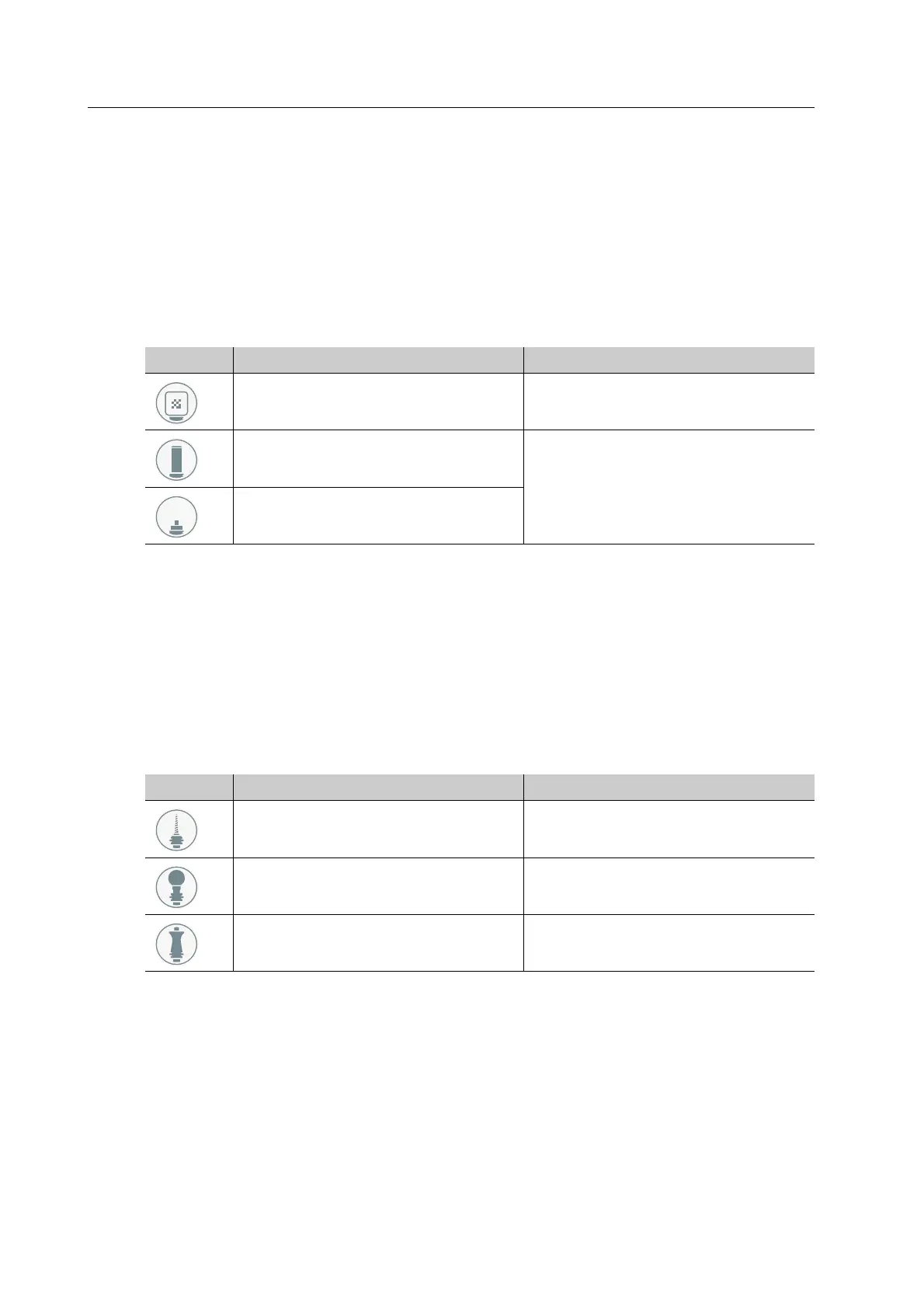
In the [Blocks] section, the symbols provide information on the status of the respective blocks.
The ID shows the user which blocks are actually required for the upcoming milling jobs. By
tapping on the respective entry in the list, you can call up the corresponding Wizard, which
will then guide you through the upcoming task (insert missing block, unload unused block,
etc.).
The following list of features corresponds to the state of knowledge at the time of going to
print. With the introduction of new features, this list will be continuously updated.
6.5.3 Status displays in the section [Tools]
In the [Tools] section, the symbols provide information on the status of the respective tools.
The ID shows the user which tools are actually required for the upcoming milling jobs. By
tapping on the respective entry in the list, you can call up the corresponding Wizard, which
will then guide you through the upcoming task (insert missing tools, unload unused tools,
etc.).
The following list of features corresponds to the state of knowledge at the time of going to
print. With the introduction of new features, this list will be continuously updated.
Element Description Reference
Insert or remove block “Inserting blocks”, page 99
Insert or remove ESD pin B axis for
One
“Inserting tools for calibration”,
page 45
Insert or remove ESD pin tool holder
for One
Element Description Reference
Insert or remove tool “Inserting tools”, page 89
Insert or remove ESD pin spindle for
One
“Inserting tools for calibration”,
page 45
Insert or remove cleaning tool “Inserting the cleaning tool into the
material and tool changer”, page 47


 To Next Page