19
MyJABLOTRON
Depending on your country or region, a web account in MyJABLOTRON can be set
up by an authorized JABLOTRON partner. The login name is the user‘s e-mail address.
The password for the first log in will
be sent to this address. The password can be changed anytime in the user settings.
Once logged into the account, the system will display all active devices which can
be monitored or controlled.
The “Overview“ menu includes “Section”, and “Automation (PG)” tabs.
Depending on the type of detectors used, the menu may also include tabs like
“Thermostats and thermometers”, “Meters” “History” and “Gallery”.
Tabs:
a Sections – enables you to view and operate all sections in the system.
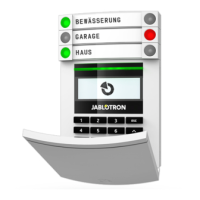
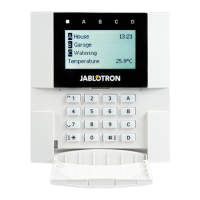
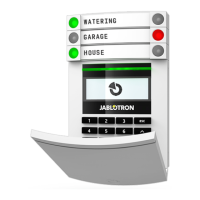
a Keypads – enables you to view all virtual keypads the way they are installed
in the premises. It is possible to control them by clicking on a segment just like pressing a segment button on
the real keypad. You will be asked you to enter
an authorization code upon the first request to control the system. While you are
logged in, subsequent actions will not require repeated authorization.
a Automation (PG) – enables you to view all programmable system outputs.
a Thermostats and thermometers – allows you to view the current temperatures
and history graphs from a list of used thermostats and thermometers. Depending on the configuration,
it is possible to regulate temperature in the building.
a Meters – an overview of all installed meters (electricity, gas and water).
a Gallery – enables you to take snapshots with any installed camera verification devices, or look at past photos
and video sequences taken by these devices.
The bottom of the home page has an overview of the most recent system events.
MyJABLOTRON offers free notifications (via SMS, e-mail, or push notifications) for selected system
section events, programmable outputs, thermometers or meters. These notifications can be set up
in the “Settings“ menu.
Each system can have only one main user with Administrator rights (owner). This user has the right
to share a whole building or its selected parts (single sections, PG outputs, photo verification and
measuring devices) with other users whose MyJABLOTRON accounts will be created automatically after
the system sharing is configured. If a user already has a MyJABLOTRON account, the shared installation will
appear in the user’s dashboard as another active device. Notification of shared access will be sent, along with
the password, to the e-mail address (login name) of the new user.
2.7 OPERATING THE SYSTEM USING
THE MYJABLOTRON SMARTPHONE APP
If the user account is created in the MyJABLOTRON web interface (see previous
chapter), the alarm system can be monitored and controlled remotely using
MyJABLOTRON app for smart phones running either on Android and iPhone.
The application can be downloaded free of charge after logging into MyJABLOTRON,
or from Google Play, AppStore, etc.
Login credentials for MyJABLOTRON smart phone app are identical to those
for the MyJABLOTRON web interface.
2.8 OPERATING THE SYSTEM USING SMS COMMANDS
SMS commands can control Individual sections and programmable outputs just like keypad segment buttons.
The form of text message to operate the system is: CODE_COMMAND. The actual commands are predefined
(SET/UNSET) with an additional numeric parameter which identifies a specific section.
One SMS can control multiple sections at the same time. In this case, added numbers in the command define
sections.
2. OPERATING THE JABLOTRON 100 SYSTEM






 To Next Page