c:
li,'fiJt
;
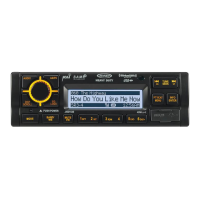
JHD36A
HEAVYDUfY
-----------------------------------------------------------------------------------------------------------
SIRIUSXM™
RADIO
OPERATION
About
SiriusXM
Sirius, XM and all related
marks and
logos are trademarks of Sirius XM Radio
Inc.
and its
subsidiaries. Visit www.siriusxm.com/xmllneup for updates.
All
programming/
channel lineup/
XM service subject to change or preemption.
All
other marks and logos are the property of their
respective owners. All
rights reserved.
NOTE: The
SiriusXM
Satellite
Radio
controls
on
this
unit
are available
only
when an
optional
SiriusXM
Connect
Vehicle Tuner
is
connected.
~
@)
1
''"'
''''"'
'~~
~::
,:;:::o::
:C:C
o:2.
::::~
"""
"'''''"
'':: :·::
:"''"''"'"
"
''':::
:"'
'"'
:.
~;-
..
(
~
!
1
11
0 8
\!;
'
®
7
Accessing
SIRIUSXM
Mode
(Requires
optional
SIRIUSXM
tuner)
Press
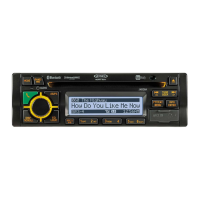
the MODE button (4) to change the mode to SiriusXM mode.
Accessing
your
SiriusXM
Radio
ID
The SiriusXM
ID
is required for activation.
To
display your SiriusXM radio
ID,
use the
TUNE/SEEK
I<< (18) button to tune to channel
"000".
The screen will display "SIRIUSXM ID"
with the
ID
displayed in the
middle
of the LCD screen. The SiriusXM radio
ID
is 8 characters
long
and does not
include
the letters
I,
0,
S,
or
F.
Selecting
a
Band
In
SiriusXM mode, press the BANDJWB button (15) to access the SiriusXM user-preset
channel
groups in the
following
order:
SXM1,
SXM2, SXM3.
Category
Tuning
1.
Press the PTY/CAT/MENU button (2) to access Category mode.
2.
While in category mode, press 5/CAT-
OR
6/CAT+ buttons (9,
10) to choose a category.
3.
Press the
TUNE/SEEKI<< or
>>1
buttons (18, 19) to navigate channels in that category.
(The current
channel
number within the chosen category will
always be the
default
first
channel tuned.)
11
4.
Press
the
INFO/ENTER
button (16) to select the desired channel.
Channel
Up/
Down
Tuning
Press the
TUNE/SEEKI<< or
>>I
buttons to search for a channel.
Press and hold
the
TUNE/SEEKI<<
or
>>1
buttons to fast search.
Direct
Tuning
Mode
1.
Press
and
hold
the
INFO/ENTER
(16) button to enter direct tuning mode.
2. Press
TUNElSEEKI<<
or
>>1
( 18, 19) buttons to change the first of three digits for the
desired channel
in the direct entry screen.
3.
Press the
INFO/ENTER
button to confirm the entered digit and move to the second digit
field.
4.
Press
TUNElSEEKI<<
or
>>1
buttons to select the second digit.
5. Press
the
INFO/ENTER
button to confirm
the entered digit and move to the third digit field.
6.
Press
TUNE/SEEKI<<
or
>>I
buttons to select the third digit.
7. Press the
INFO/ENTER
button to confirm the three digit channel and tune to the selected
channel.
Storing
Preset
Channels
The preset buttons
(5-1
0)
can be used to store 6 channels,
allowing
convenient access to your
favorite channels.
Programming
Channels
1
.
Select
the
channel you want to store in memory.
2.
Press and hold
a preset button
(5-1
0)
until the corresponding preset button number
appears.
3.
Repeat steps
1
and 2 to program additional channels.
Preset
Recall
Press one of the six preset buttons
(5-1
0)
to
directly
select
a preset
channel
stored
in
the current
band. ·
Preset
Scan
Press AS/PS
button (14) to scan stations stored in
all
three user-preset channel groups (SXM1,
SXM2 and SXM3). The unit
will
pause for
10
seconds at each preset station.
Preset
Tuning
In
Preset Tuning Mode, you can use the
TUNE/SEEKI<<
or
>>I
(18, 19) buttons to access
all
18
preset stations in sequential order. Access preset tuning mode through the system menu.
Set Preset-Only Tuning to
"ON."
Alternate
Display
Mode
Press the
DISP/SCROLL
button (12) to change the
display information between single and dual
line
text display.
In dual
line mode, both artist and title are available
for viewing.
Press and hold
the
DISPISCROLL
button to
scroll
the Artist/ Song Title information.
While in category tuning list
mode, press the
DISP/SCROLL
button in sequence to change the
display
information from
Channel Name, Artist, and Song
Title.


 To Next Page