(
lilfiP
>
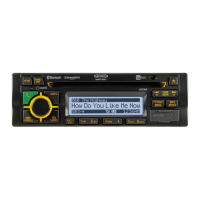
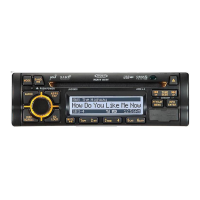
JHD36A
HEAYYDurY
--------------------------------------------------------------------------------------------------------------
BLUETOOTH
OPERATION
The
JHD36A
includes
built-In
Bluetooth technology that
allows
you to wirelessly connect this
head unit to Bluetooth devices for streaming audio playback
About
Bluetooth
Technology
Bluetooth is a short-range wireless radio technology. Operating in
the
2.4
GHz
frequency range,
it transmits voice and data
at
speeds up to
2.1
Mbit/s over a range of
up to
1
0
meters.
Bluetooth
Menu
Options
NOTE:
Please
note
that
some
BT
menu
options
are
only
available
while
the
unit
is
in
Bluetooth
Audio
mode.
Press
and
hold
the
PTY/CAT/MENU button (2) to enter menu adjustment mode. Repeatedly
press
the
TUNE/SEEKI<<
or
>>1
buttons (18, 19) to access the "Biuetooth
On/
Off"
menu
function. Press the
INFO/ENTER
button (16) to turn the Bluetooth function
On
or
Off.
The
following
menu options are available when the unit
Is
in Bluetooth mode.
BT
ON/
OFF:
Press the
INFO/ENTER
button (16) to select
"BT ON"
or
"BT OFF".
When
"On",
the LCD
will
display the Bluetooth icon
@
(default
"BT ON").
BT
HFP
Volume:
Press the
INFO/ENTER
button repeatedly to adjust the ring volume from
0-40
(default 35/prevlous setting).
BT
Device
List:
Press the
INFO/ENTER
button to view a list of previously paired mobile
phone device models. Press the
TUNE/SEEKI<<
or
>>1
buttons (18, 19) to view devices
from the
list.
You cannot delete a device that is actively connected. Press the
INFO/ENTER
button to select the device. Press the
TUNE/SEEKI<<
or
>>I
button to
choose Lock/ Unlock, Disconnect
or
Delete for this device.
LOCK/
UNLOCK:
The
JHD36A
can store
up
to 5 devices for Bluetooth connection.
The
devices are stored in
FIFO (First in First
Out)
order. To prevent a device from
being bumped from the
list
when more than 5 devices are used, you
must
lock the
device. To lock/ unlock a device, press the
INFO/ENTER
button to display/ change
the Locked
or
Unlocked Icon.
DISCONNECT:
To disconnect a paired device, press the
INFO/ENTER
button to
temporarily remove the Bluetooth
link.
The link can be re-established through your
phone menu
by
selecting the
JHD36A
for connection.
DELETE: To delete a device from the list, press the
INFO/ENTER
button.
NOTE:
Device
must be disconnected
to
be deleted.
BT
Pair:
Press
the
INFO/ENTER
button to turn
BT
Pair "On"
to
put the unit pairing mode
to search for and be discovered
by
Bluetooth devices.
BT
Auto
Answer:
Press the
INFO/ENTER
button to turn the Auto
Answer
function
"On"
or
"Off".
16
Press
BT
Device
INFO/ENTER
L
Device
1 _
Device
5-
Use
TUNE/SEEKI<<
or
>>I
to Navigate the List
Device 1
Device 2
Device 3
Device 4
Device 5
Lock/ Unlock
Connect/ Disconnect
Delete
Lock/ Unlock
Connect/ Disconnect
Delete
Pairing
a
Bluetooth
Device
Press
INFO/ENTER
Before
you begin, consult the owner's manual
for
the Bluetooth device you want to pair with the
JHD36A.
1.
Make sure the device is on and ready to receive a signal from theJHD36A. With the
JHD36A
in Bluetooth Audio mode, choose
"BT Pair"
from the
JHD36A
menu and press the
INFO/ENTER
button (16) to begin pairing.
The
unit is
now
waiting to connect to a
mobile
phone device. With the Bluetooth function of the
mobile
phone device turned on, search
for a Bluetooth device.
2. When the Bluetooth device has completed its search, the mobile phone
will
display the
Bluetooth device name (JHD36A).
3.
Select
JHD36A.
The
BT
AUDIO
icon (
JJ
)
will
appear on the radio LCD.
4. Enter the pairing password
(0000),
if requested.
After
connecting successfully,
you
will
be able
to
listen to music stored on your Bluetooth
enabled device through the radio.


 To Next Page