DP321 User's Manual
- 18 -
Chapter 3 How to Use the Printer
Here are the steps of using printer:
1. Assemble the printer as the chapter 1, connect the printer to your computer and install the driver
correctly.
2. Load the correct type of paper.
3. Set the printer if necessary.
4. Send the print command to the printer to print.
3.1 Installing Print Paper
In addition to printing on cut-sheets and tractor papers, your printer can also print on a wide variety of
paper types, including multi-part forms, labels, and envelopes.
Caution: When printing on multi-part forms, thicker-than-normal paper, labels, or envelopes,
make sure your software program settings keep the printing entirely within the
printable area. Printing past the edge of these papers can damage the print head.
Please print within the printable area while printing. For information on the printable area, see the
Appendix A for instructions.
3.1.1 Printing on Cut-Sheets
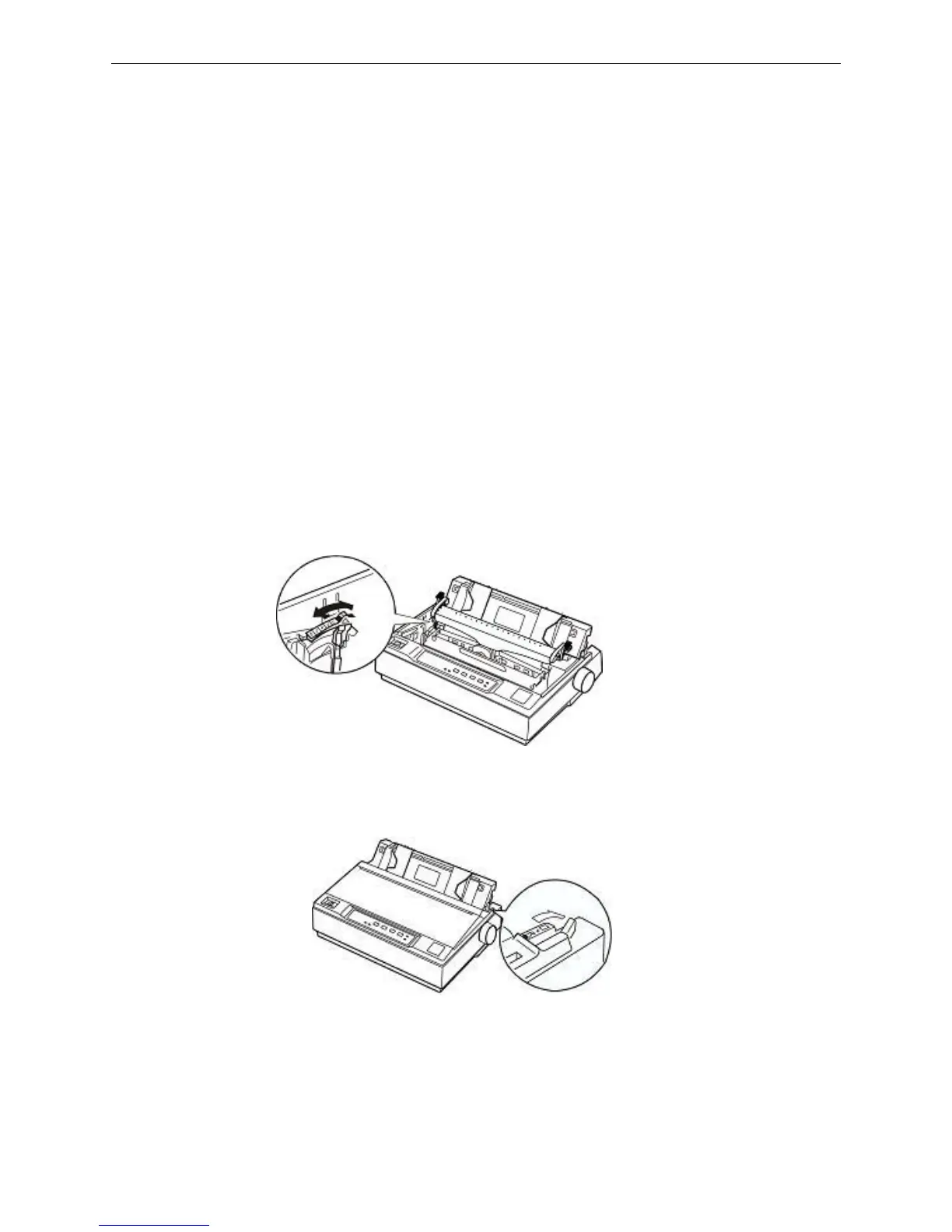
1. Make sure the printer is powered off, and open the cover of the printer, select the correct GAP of the
printer thought the gap adjust lever refer to the Gap Adjust Lever.
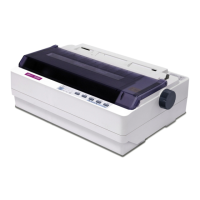
2. Close the cover, and set paper select lever toward the cut-sheet position.
3. Raise the paper guide upright, and turn on the printer.
Figure 3-1 Adjust gap adjust lever
Figure 3-2 Adjust paper-select lever


 To Next Page