DP321 User's Manual
- 27 -
Input the setup menu system
1. The printer is in online mode (ONLINE light is on). Holding the LOAD/EJECT key for 3 seconds.
z The power light and online light blink twice at the same time to indicate enter into the setup menu
mode.
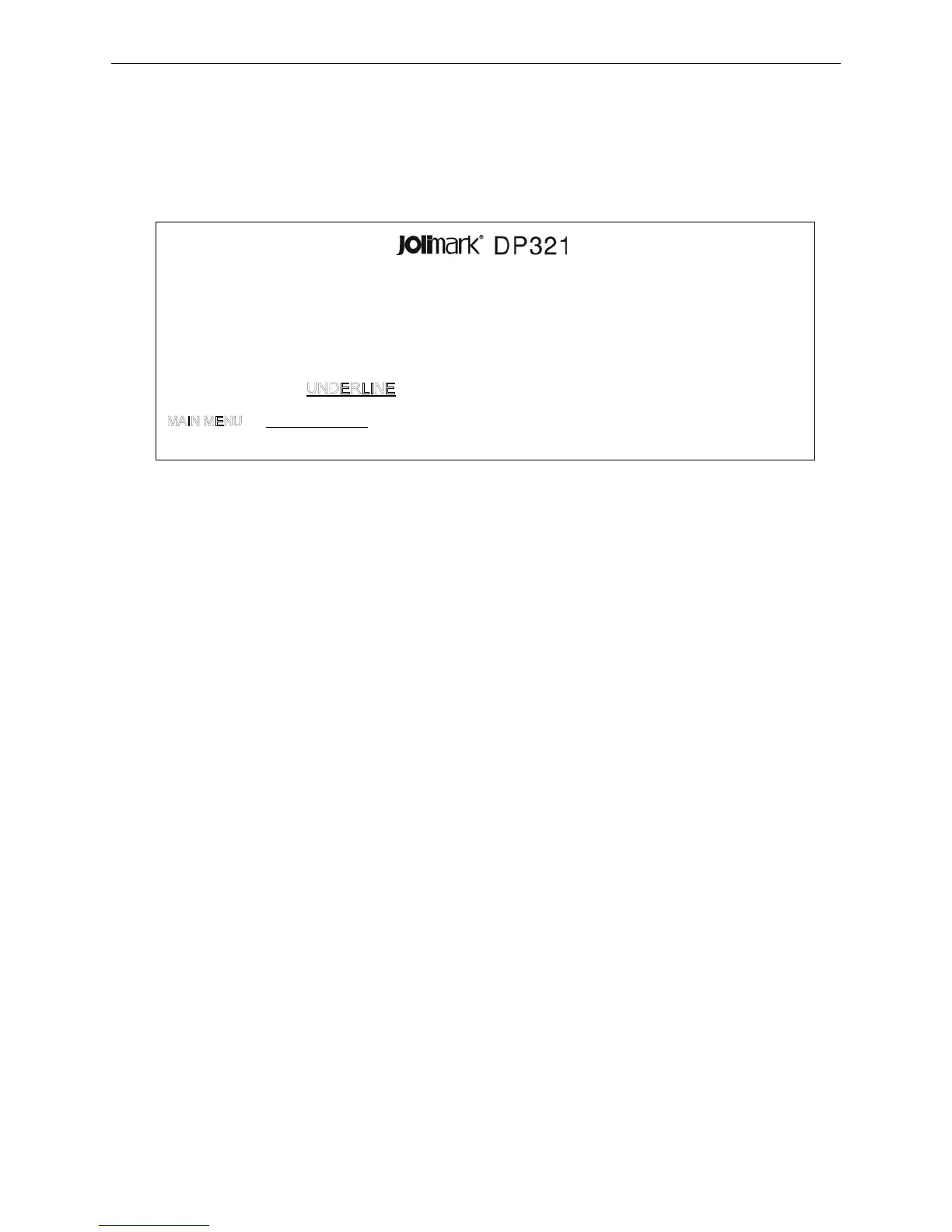
z Firstly, the printer prints out the title and main menu, as shown below. The underlined items are the
default settings. The print head stays under the default settings.
2. Use the LOAD/EJECT key to point the print head to the desired setting.
Use the LF/FF key to enter submenu or confirm the current setting
Note: The newly settings are shown in boldfaced.
Use the ONLINE key to go back the previous menu (Press and hold the ONLINE key to go back the
main menu).
Press and hold the TEAR key to save settings and exit.
3. After finish setting, turn off the printer directly to give up the modified setting; or press the TEAR
down to save the setting and exit the setup menu setting.
4. Turn off the printer, and turn on again.
3.2.2 Online-aptitude Parameter Settings
DP321 supports the function of online-aptitude parameter settings, which can be set in the PC with the
driver installed in.
The concrete setting steps are shown as follows:
1. Make sure that the host and the printer are connected with a cable and both the host and the printer
is turned on, the printer should be online as well.
2. Click “Start” → “Settings” → “Printers”.
3. Right click “Jolimark DP321” in the “Printers”, select “Properties”.
4. Click “Device Property” in the property page.
Figure 3-20 Setup menu system
SETUP MENU SYSTEM
Use the LOAD/EJECT key to point the print head to the desired setting.
Use the LF/FF key to confirm the current setting
Use the ONLINE key to go back the previous menu (Press and hold the ONLINE key to go
back the main menu).
Press and hold the TEAR key to save settings and exit.
Current settings are
New settings will be boldfaced.
SYSTEM SETUP CHARACTER PAGE LAYOUT PRINT SETUP SERIAL I/F
HEAD PIN


 To Next Page