DP321 User's Manual
- 24 -
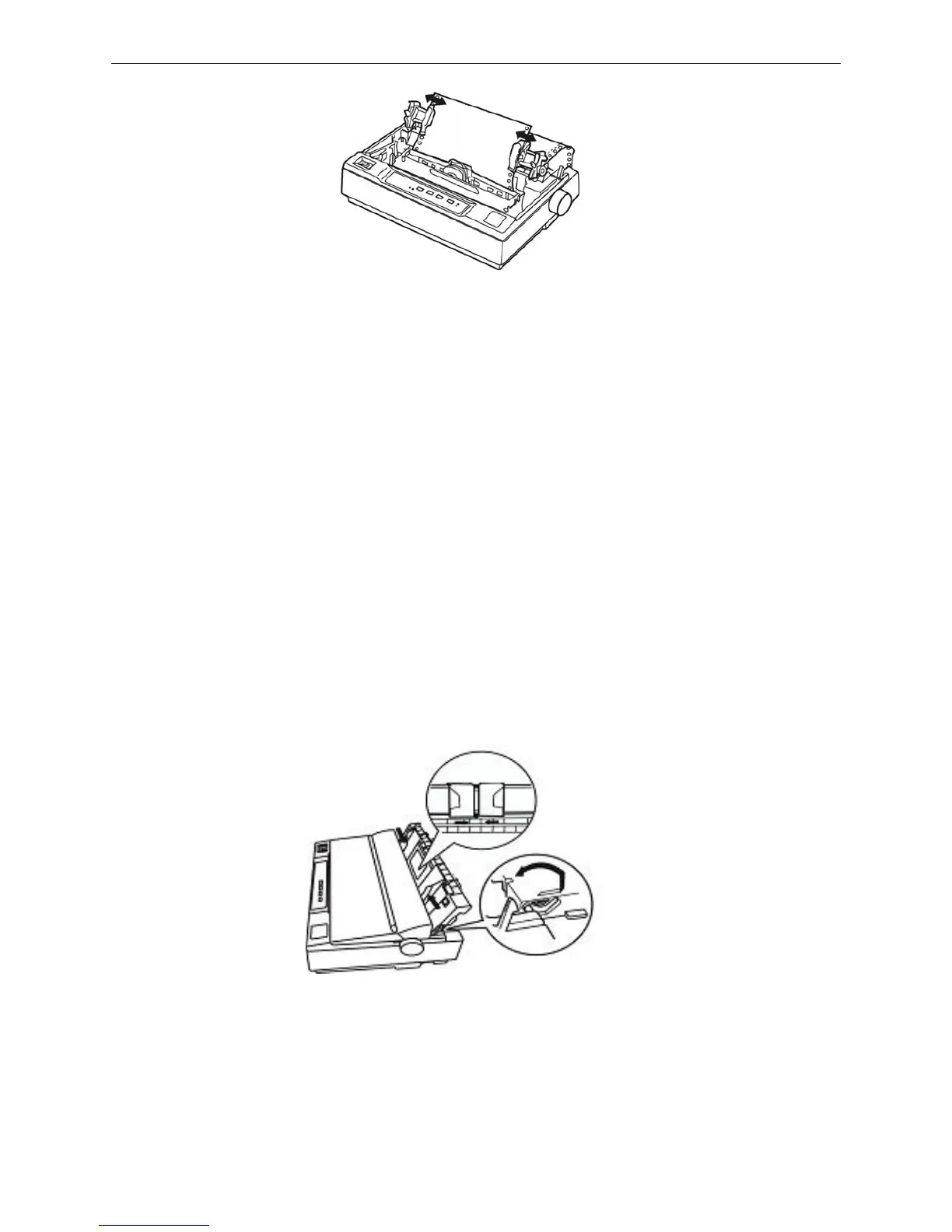
6. If the perforation of the paper is not match with the sprocket of the pull tractor when tightening the
paper lengthways, then you can do as follows:
1) Pull the paper select lever backward to the cut-sheet position.
2) Turn the paper feed knob until the paper is tightened lengthways.
3) Pull the paper select lever forward to the tractor paper position.
7. Reinstall the paper guide and printer cover again.
8. The printer begins printing automatically when receiving print commands.
3.1.3 Multi-part Forms
You can use the built-in tractor to print on carbonless multi-part forms of up to four parts (one original
plus three copies). Before you print on the forms, set the gap adjust lever as described in the previous
section. These tips will help you get good results:
1. Lift up the paper guide as figure 3-17 shown, or it may lead to paper jam when printing.
2. Never load multi-part forms joined by metal staples, tape, or continuous gluing.
3. Make sure the print contents are all within the printable area when printing multi-part forms, or it
may damage the print head. (See the printable area in Appendix)
3.1.4 Labels
You must use the tractor as a pull tractor to print on labels. Keep these tips in mind:
1. You load labels the same way you load tractor paper, except that thegap adjust lever should be set to
1.
2. Because labels are especially sensitive to temperature and humidity, use them only under normal
Figure 3-16 Adjust the position of the pull tractor
Figure 3-17 Raise paper guide


 To Next Page