How to Connect to the MLWG3
MobileLite Wireless is its own independent wireless network. When browsing for Wi-Fi networks from
your mobile device, you will see ‘MLWG3-xxxx’ and ‘MLWG3-5G-xxxx’ in the list of available networks to
join. (xxxx indicates the last four characters of your MLWG3’s unique MAC address. The MAC address
is located on a label underneath your MLWG3 device).
Steps to connect:
1. Open the ‘Settings’ app on your mobile device.
2. Click on Wi-Fi.
3. Select ‘MLWG3-xxxx’ or ‘MLWG3-5G-xxxx’
By default, there is no password and when you connect to the MLWG3 from your mobile device, you are
establishing a dedicated link to the MLWG3 over that wireless signal. Once you connect to the MLWG3,
you will substitute your mobile device’s internet connection with MLWG3’s wireless connection. This
means you will no longer have access to the Internet. However, the MLWG3 does provide a bridge
function that allows you to maintain access to MobileLite Wireless’ content while connecting to a Wi-Fi
Internet connection. See ‘How to Access Internet’ on page 24.
4. When connected, a check mark will appear next to the MLWG3 network name.
5. Launch the ‘MobileLite Wireless’ app.
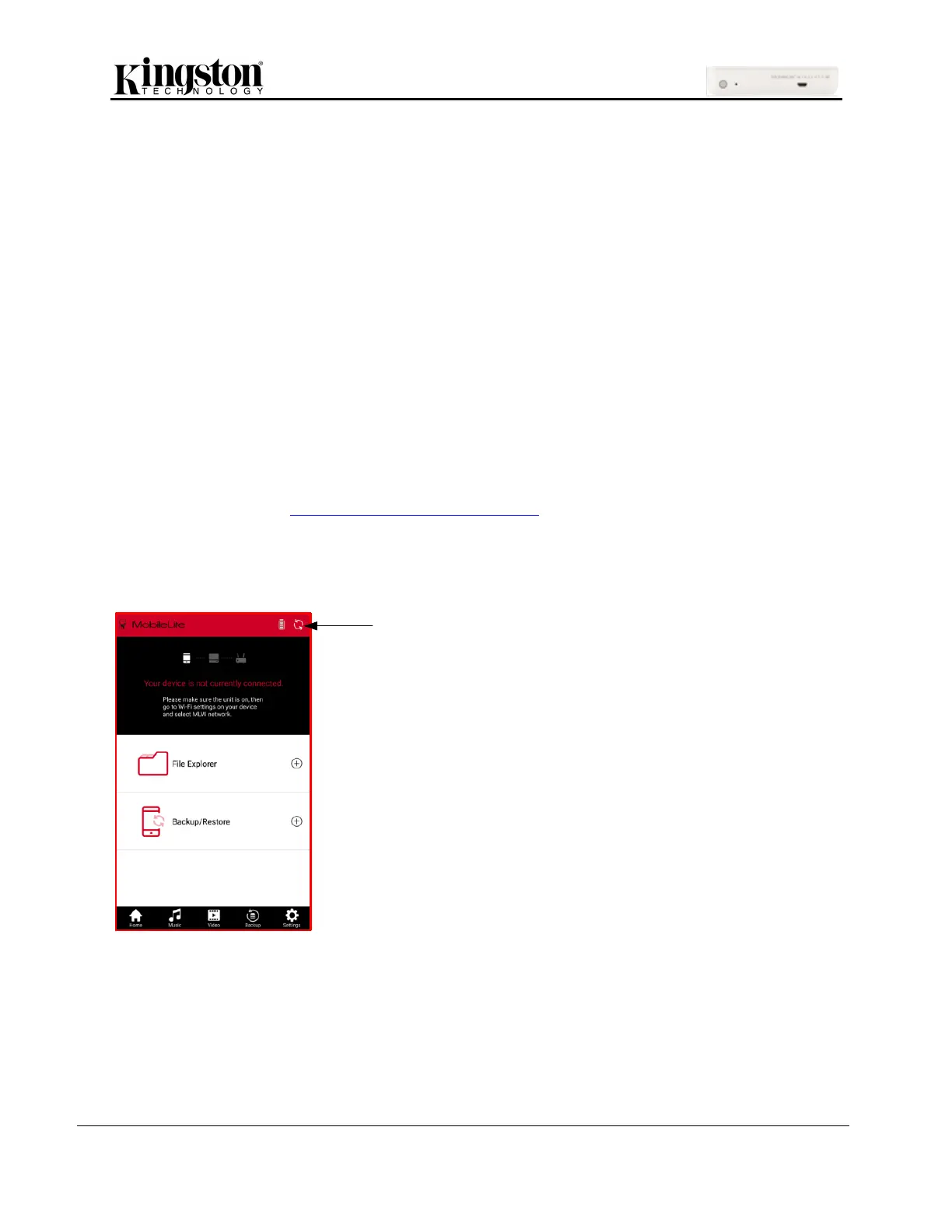
If the screen to the left appears when the app is
launched, then click the refresh icon.
If it fails to connect after the refresh, then repeat
the ‘steps to connect’ on this page and try again.


 To Next Page
 Loading...