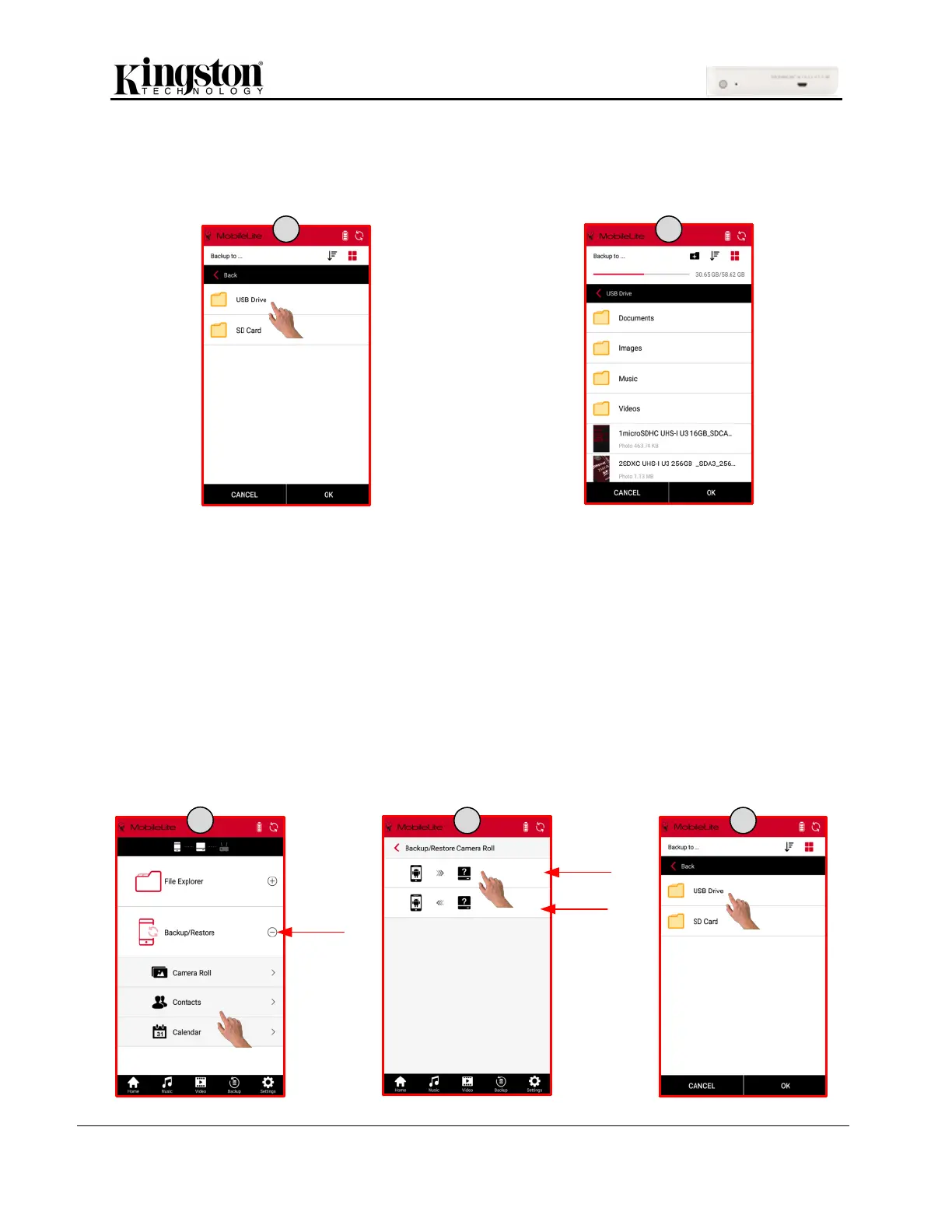
3. Select the storage destination (USB Drive or SD Card).
4. Last, create a new folder or select an existing folder and click OK.
How to Backup/Restore Contacts and Calendar
The MLW app allows you to back up your contact and calendar entries saved on the mobile device to the
USB or SD Card storage options. The contacts and calendar entries can be restored if accidently deleted
or damaged.
Backup Contacts and Calendar
1. On the home page, expand ‘Backup/Restore’ and click ‘Contacts’ or ‘Calendar’.
2. Click the backup icon.
3. Select the storage destination (USB Drive or SD Card) and create a new folder or select an
existing folder and click ‘OK’.


 To Next Page
 Loading...