How to Access the Internet (Bridge Mode)
Traditionally, the Wi-Fi antenna on your mobile device is used to access the Internet. The MobileLite
Wireless, however, uses the Wi-Fi antenna on your Apple device to stream content, which effectively
disconnects your mobile device from the Internet. Fortunately, MobileLite Wireless’s Wi-Fi antenna
supports bi-directional traffic and can be used for implementing a feature called Bridge Mode. This mode
allows you to be connected to the MLWG3 while it is connected to a Wi-Fi network (as a host client) that
has access to the Internet.
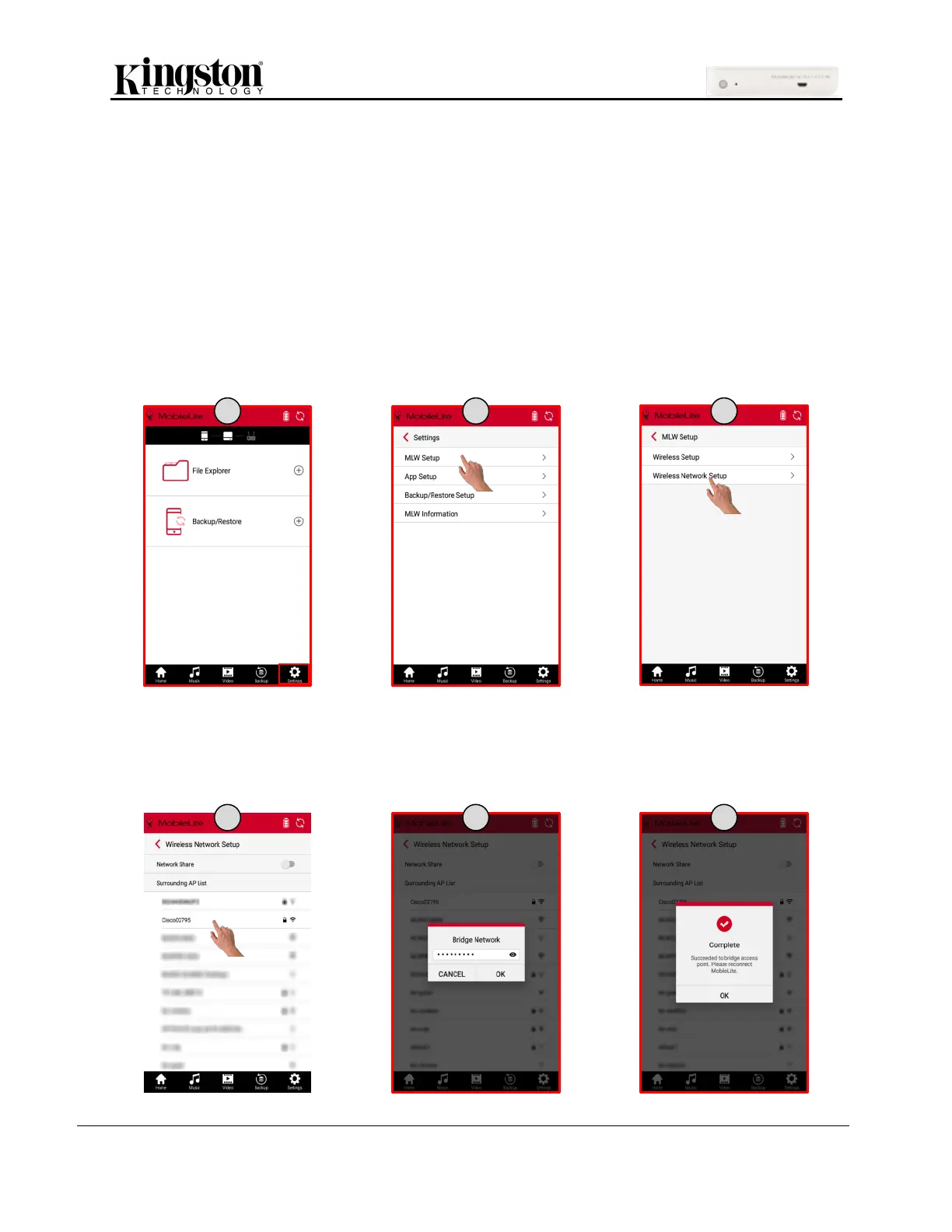
To set up this feature and see a list of available wireless networks in your range, follow the steps below:
1. Using the MLW app, click ‘Settings’ at the bottom of the screen.
2. Click ‘MLW Setup’ and on the next screen click ‘Wireless Network Setup’.
3. Select a trusted Wi-Fi network.
4. Enter the password of the Wi-Fi network selected (if security is enabled) and click ‘OK’.
5. Bridge mode now is enabled. You will have to reconnect to the MLWG3 Wi-Fi network.


 To Next Page
 Loading...