Document No. Android-MLWG3-011816.A00
How to Confirm Bridge is Enabled
Once the MLWG3 has restarted, you’ll have to reconnect to the MLWG3 Wi-Fi network.
To verify that you have successfully enabled bridge mode:
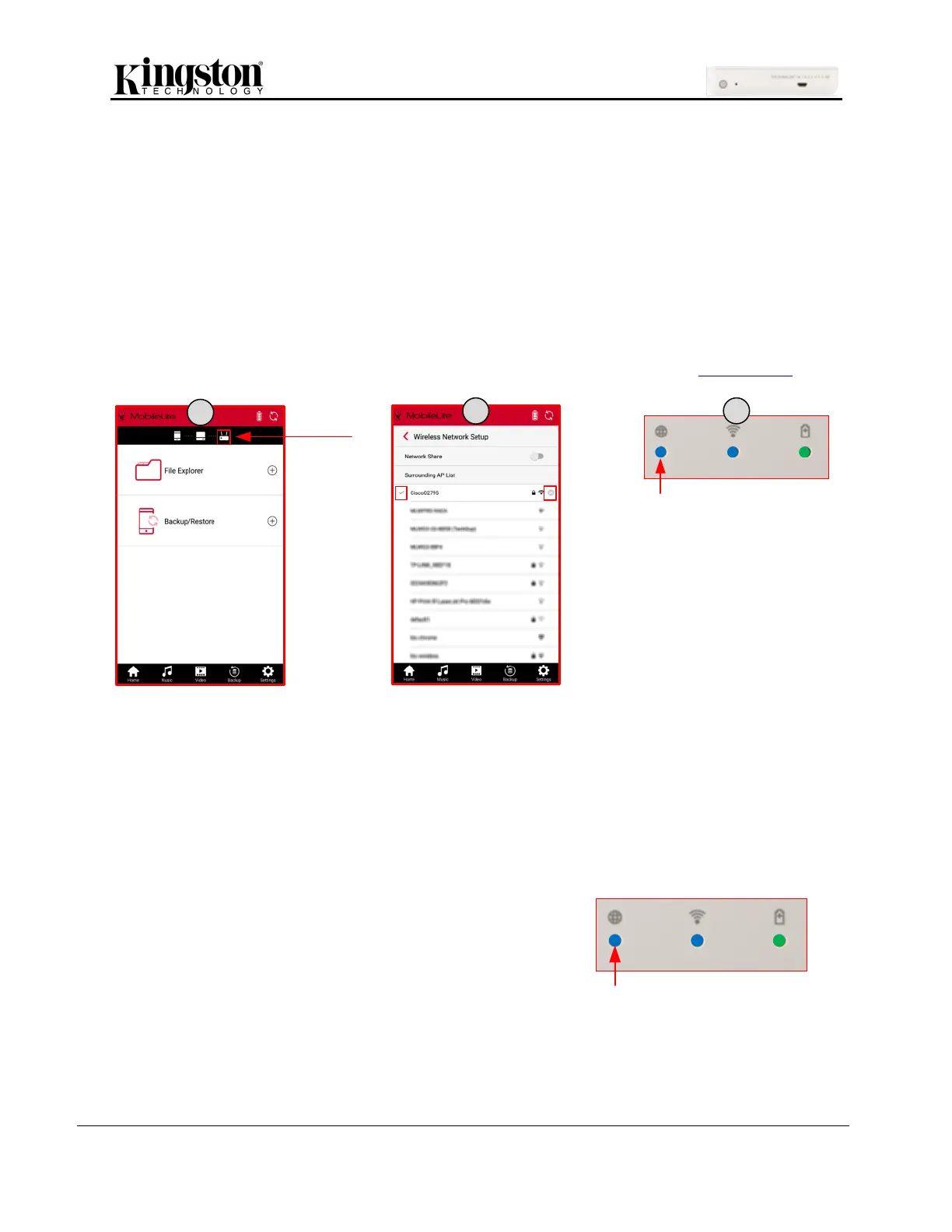
1. Check the bridge status icon at the top of the screen is no longer grayed out.
2. If you return to the ‘Wireless Network Setup’ in ‘Settings’, you will see a red check mark next to
the connected network. Here you can click the ‘x’ to forget network if desired.
3. The bridged LED will light up on the MLWG3 device indicating the device has internet access.
4. While connected to MLWG3, open an Internet browser and enter a URL, like Kingston.com.
Access the Internet Using the Ethernet Port (Access Point)
If you have a wired internet connection, you can plug an Ethernet networked cable to the Ethernet port on
the MLWG3. This would allow you to create an access point for wireless internet access. While
connected to the Ethernet bridge mode, the Wi-Fi bridge mode will be disabled until the Ethernet cable is
removed.
NOTE: Only compatible with DHCP.
Simply connect an Ethernet networked cable to the
Ethernet port on the MLWG3 device. Check that
bridged LED is ON to verify that you have a
successful connection to the router.
If you haven’t already, make sure to connect to the
MLWG3 network.


 To Next Page
 Loading...