MobileLite Wireless Application Overview
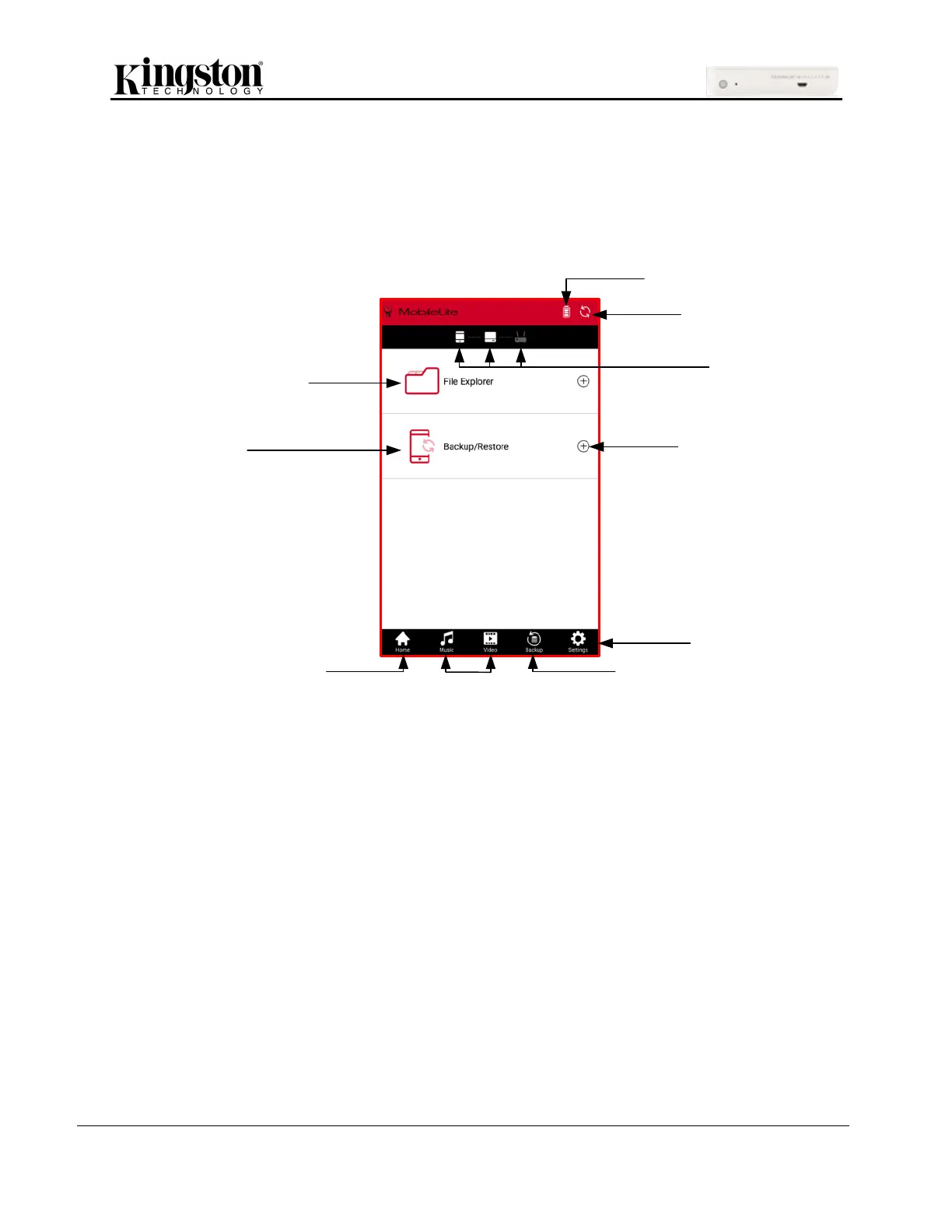
When the MobileLite Wireless app is launched, the Home page is the first screen you see and where
most features can be easily accessed.
Available Battery: Shows the MLWG3’s remaining battery charge.
Refresh: Refreshes the current screen.
Status Icons: Shows whether or not your mobile device is connected to the MLW device and if internet
access is enabled (bridge mode).
File Explorer: Expand this option by clicking the plus sign. It gives you access to the USB and SD
Card storage options, along with access to the Offline files, and Camera Roll.
Backup/Restore: Expand by clicking the plus sign and find backup/restore options for pictures, along
with contact and calendar entries.
Home: Return to the app’s home page.
Content Filters: Filters Music or Video files stored on the USB and SD Card storage options.
One Key Backup: Will back up the Camera Roll based on the previous successful location.
Settings: Allows you to configure and manage the MLWG3 hardware and application options.


 To Next Page
 Loading...