A75UM2E2 (Ver. E.2)
2-10
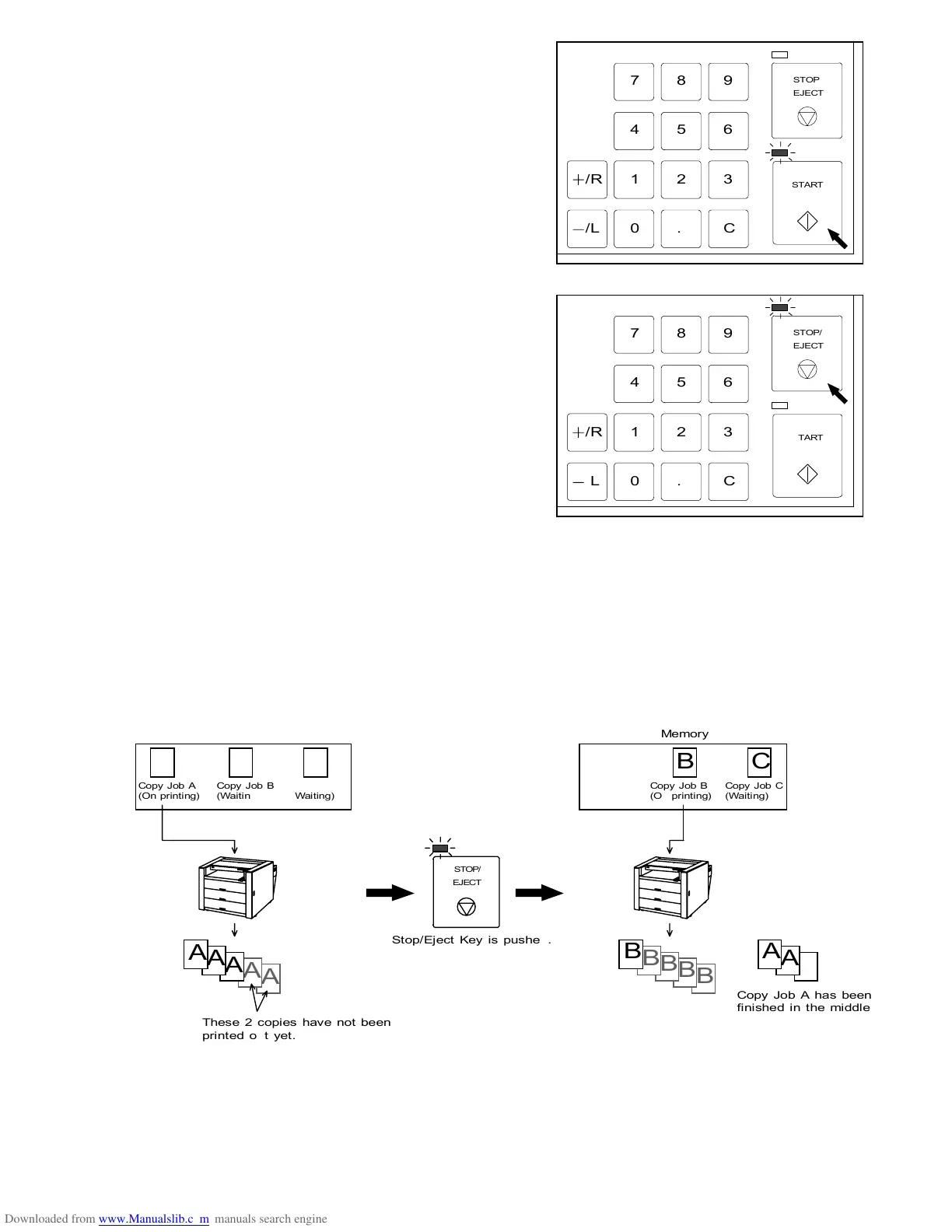
7) Push the Start Key.
The scanner starts carrying the original to scan it.
LED lamp of the Start Key lights up with yellow
during scanning, and it is put out after scanning.
Note : Right after starting to copy pushing the
Start Key, sometimes the original is carried
back to the trailing edge side, and then
carried to the leading edge side again.
This action is not error.
(Reference)
It is possible to quit scanning or multiple sheets of
printing pushing the Stop/Eject Key.
If you push it, its LED lamp lights up with yellow.
There are 3 cases mainly to push it.
(a) If you push the Stop/Eject Key during scanning,
the scanner stops scanning in the middle and
the original is stayed.
(b) If you push the Stop/Eject Key when the
original is stayed in the scanner (including the
setting position), the scanner ejects the original.
(c) If you push the Stop/Eject Key during multiple sheets of printing (Scanner has finished
scanning.), the printer stops printing although required copies have not been printed out yet.
Note : If you push the Stop/Eject Key to stop printing when some Copy Jobs are stored in
the memory, the printer stops printing out the Copy Job now on printing and starts
printing out the next Copy Job.
If you press and hold the Stop/Eject Key for 5 seconds, however, all Copy Jobs
are deleted from the memory and no more copy is printed out.
Memory
A B C


 To Next Page