82
AUTOMATION AND CONTROLLER FOR UNITS EVO-T; EVO-T COMPACT
OPERATION AND MAINTENANCE MANUAL
6.1.5 Operation
Table no. 20 Keys description
Select
- key highlighting
- enter menu
- enter the text menu (hold down for 3 seconds on the main
screen)
Next Prev - navigation through the main screen
- go to the item above in the menu
+
- increase the value of the parameter in edit mode
- go to the item below in the menu
- - decrease the value of the parameter in edit mode
Edit - start editing the parameter
Back
- exit menu
- (hold down for 3 seconds) move to the alarm list
Conrm - parameter value conrmation
Cancel - cancel editing the parameter
Conf.3s - conrm the alarm (hold down for 3 seconds on the alarm list)
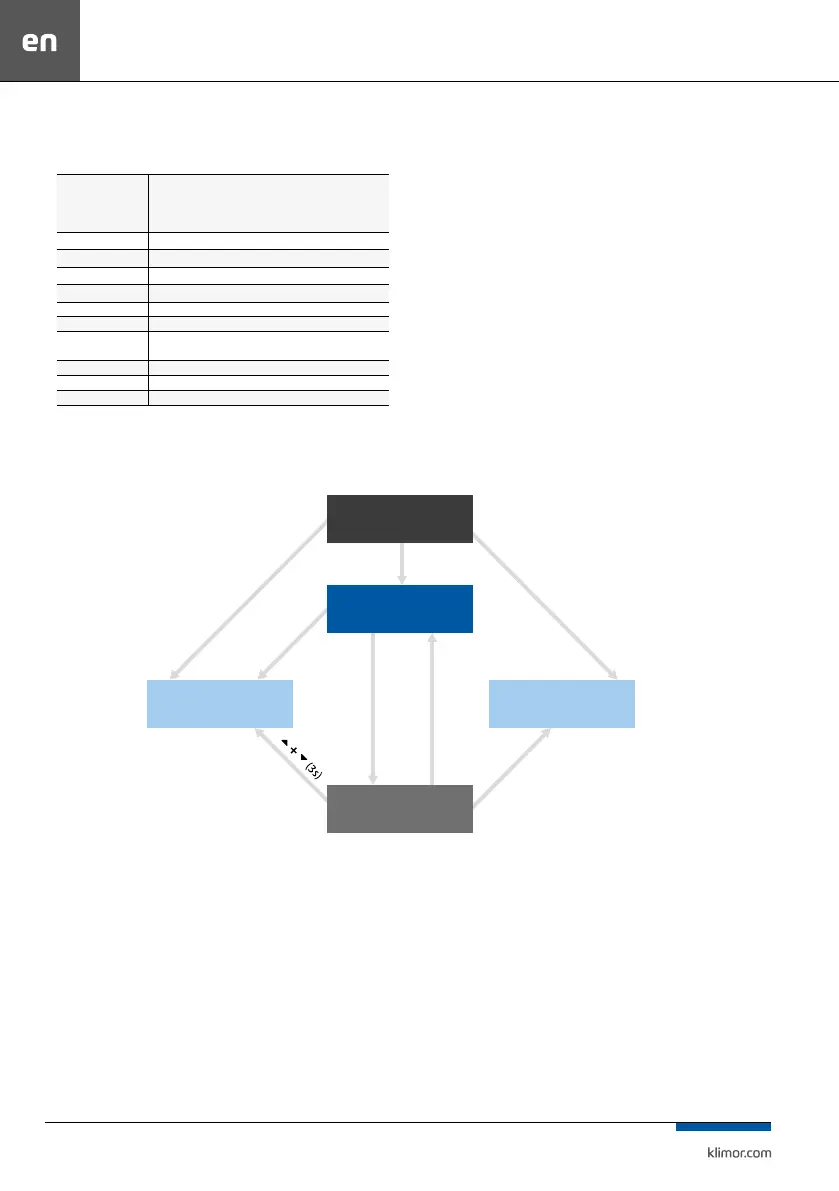
6.1.6 HMI screens
Fig. 22
TITLE
SCREEM
Main HMI
pages
HMI
menu
Settings
menu
Alarms
menu
two left keys (3s)
prev + next (3s)
right key (3s)
select
select
black
back (3s)
6.1.7 HMI Menu
Main HMI pages appear depending on a controller type and
its application. These are default screens appearing as rst
ones once the HMI is turned on. At any time after pressing
or key the system enters automatically the editing mode of
a default page parameter (e.g. requested temperature). The
changed parameter value will be conrmed after 3 seconds or
after pressing OK key. Then the system moves to the next pos
-
sible editable parameter. In order to cancel a parameter value
change, press C key within 3 seconds, before the parameter is
automatically conrmed.



 To Next Page