86
AUTOMATION AND CONTROLLER FOR UNITS EVO-T; EVO-T COMPACT
OPERATION AND MAINTENANCE MANUAL
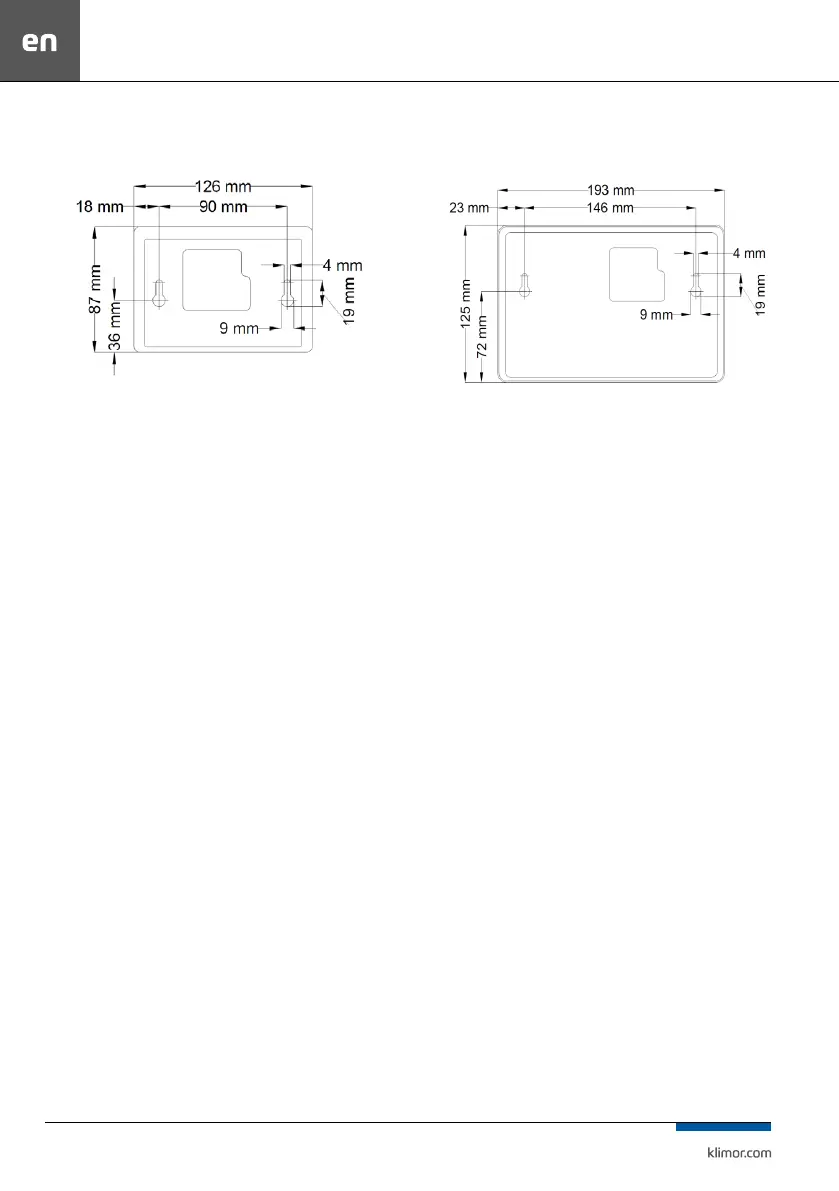
6.2.3 Wall-mounting
HMI TP4,3”
Fig. 29 Panel HMI TP 4,3”
HMI TP7”
Fig. 30 Panel HMI TP 7”
6.2.4 TP HMI graphics screen control
HMI TOUCH PANEL (TP) has the ability to operate graphic
screens (created from JPG, PNG les), SLIDEBAR menu and
TEXT menu.
On the rst screen you can see the main HMI pages.
It is a graphic menu, navigating between screens takes pla
-
ce after moving the screen left or right.
The SLIDEBAR sub-menu selection menu is available when
you scroll from top to bottom (being in the graphic menu).
In the SLIDEBAR menu, following submenus are available:
MAIN MENU, CALENDAR, ALARMS, GRAPH.
To enter the submenu, press the icon with the appropriate
submenu description.
Exiting the submenu is possible after moving the screen
from left to right.
TP HMI panel has its internal settings.
To enter it, press any 3 points on the screen at the same time
and hold them for about 3s.
6.2.5 HMI Menu
Switching from the main page screen to the HMI menu is
done by scrolling the main screen from top to bottom. If the
controller to which the HMI is connected does not contain
the main pages, the HMI menu is displayed by default after
switching on the device.
The HMI menu contains all parameters made available
by the controller for viewing and editing by the user. The
menu contains two types of elements: node and parameter.
Nodes are entry points into the menu. Parameters conta
-
in values that can be read and some of them can also be
modied. To enter the menu or to edit a parameter, press
on the selected HMI item. Alarm status is indicated by red
background colour of HMI menu. To check the alarm status,
go to the Alarm menu.



 To Next Page