EasyManua.ls Logo

Kodak EasyShare DX4530 - User Manual

Kodak EasyShare DX4530
117 pages
Print Icon
To Next Page IconTo Next Page
Loading...
Kodak EasyShare
DX4530 zoom digital camera
User’s Guide
www.kodak.com
For interactive tutorials, www.kodak.com/go/howto

Table of Contents

Questions and Answers

  • B
    Brandon RaymondSep 1, 2025
    Why stored pictures are damaged on Kodak EasyShare DX4530 Digital Camera?
    • J
      Joel JacksonSep 1, 2025
      If stored pictures on your Kodak Digital Camera are damaged, it could be because the card was removed when the ready light was blinking. Ensure the ready light is not blinking before removing the card.
  • D
    Donna MatthewsSep 2, 2025
    Why part of the picture is missing on Kodak EasyShare DX4530?
    • B
      brian13Sep 2, 2025
      If part of the picture is missing when using your Kodak Digital Camera, it could be due to something blocking the lens when the picture was taken. Keep hands, fingers, or other objects away from the lens when taking pictures. It could also be because your eye or the picture was not centered correctly in the viewfinder or camera screen, so leave space around the subject when centering the picture.
  • K
    Kenneth KennedySep 3, 2025
    Why in Review mode, I do not see a picture on Kodak EasyShare DX4530?
    • B
      Brittany CarpenterSep 3, 2025
      If, in Review mode, you do not see a picture (or the expected picture) on the Kodak Digital Camera screen, the camera may not be accessing the correct storage location. Check the picture storage location setting.
  • R
    rhonda69Sep 3, 2025
    Why pictures are displayed as black screens in Review mode on Kodak Digital Camera?
    • J
      John McbrideSep 3, 2025
      If pictures are displayed as black screens in Review mode on your Kodak Digital Camera, it's likely that the lens cap is on. Remove the lens cap.
  • S
    Steven DavidsonSep 4, 2025
    Why picture orientation is not accurate on Kodak EasyShare DX4530 Digital Camera?
    • D
      dianejohnsonSep 4, 2025
      If the picture orientation is not accurate on your Kodak Digital Camera, it means that the camera sensed that it was rotated or tilted while the picture was taken. Set the Orientation Sensor. Turn off the Orientation Sensor when your subject is above or below you.
  • M
    Matthew WilliamsSep 5, 2025
    Why Kodak EasyShare DX4530 freezes up when a card is inserted or removed?
    • B
      Brian TaylorSep 5, 2025
      If the Kodak Digital Camera freezes up when a card is inserted or removed, it means that the camera detects an error. Turn the Mode dial off, then back on. Make sure the camera is turned off before inserting or removing a card.
  • J
    Joshua CrosbySep 6, 2025
    Why slide show does not run on external video device with Kodak EasyShare DX4530 Digital Camera?
    • B
      beth37Sep 6, 2025
      If the slide show does not run on an external video device with your Kodak Digital Camera, the Video Out setting is incorrect. Adjust the camera Video Out setting (NTSC or PAL).
  • A
    asalasSep 6, 2025
    Why cannot transfer pictures to computer and Add New Hardware Wizard cannot locate drivers for Kodak Digital Camera?
    • J
      Jessica OlsenSep 7, 2025
      If you cannot transfer pictures to your computer and the Add New Hardware Wizard cannot locate drivers for your Kodak Digital Camera, it means that the software is not installed on the computer. Disconnect the USB cable (if using camera dock, disconnect the cable and remove the camera from the dock), then install the Kodak EasyShare software.

Summary

Product Overview

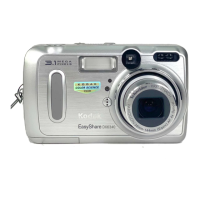
Front View

Detailed view of the camera's front panel components and their labels.

Back View

Detailed view of the camera's back panel components and their labels.

Side View

Detailed view of the camera's side panel ports and features.

Top, Bottom View

Detailed view of the camera's top and bottom panels, including buttons and sockets.

Getting Started

Install Software First

Instructions for installing the Kodak EasyShare software before connecting the camera.

Loading the Battery

Step-by-step guide on how to properly insert batteries into the camera.

Mode Dial Settings

Explanation of the functions of each mode on the camera's mode dial.

Setting the Date and Time

Procedures for setting the camera's date and time for accurate photo metadata.

Important Battery Information

Crucial details on battery types, life, safety, and handling for optimal camera performance.

Taking Pictures

Taking Pictures in Auto Mode

Guide for using the camera's automatic mode for simple, point-and-shoot photography.

Using the Optical Zoom

Instructions on how to use the camera's optical zoom feature to get closer to subjects.

Using the Flash

Explains how to use the camera's flash settings for different lighting conditions.

Setting Picture Quality

How to select the desired resolution and quality for captured images.

Taking Videos

Taking a Video

Step-by-step instructions for recording video clips with the camera.

Reviewing Pictures and Videos

Viewing Pictures and Videos

How to navigate and view captured photos and videos on the camera's screen.

Deleting Pictures and Videos

Instructions for removing unwanted photos and video clips from the camera.

Protecting Pictures and Videos From Deletion

Method to safeguard specific photos and videos from accidental deletion.

Tagging Pictures and Videos

Tagging Pictures for Printing

Steps to tag photos for printing, including setting the number of copies.

Tagging Pictures and Videos for Emailing

How to tag photos and videos for easy sharing via email.

Customizing Your Camera Settings

Accessing Setup Mode;Menus

Guide to entering the camera's setup menu for customization options.

Formatting Internal Memory or SD;MMC Card

Process for erasing and preparing storage media for camera use.

Installing the Software

Windows System Requirements

Specifies the necessary hardware and software for installing the camera software on Windows.

Install the Software

Detailed instructions for installing the Kodak EasyShare software on a computer.

Connecting to the Computer

Transferring Pictures With the USB Cable

Steps to connect the camera via USB and transfer photos and videos.

Using the Optional Camera Dock II

Camera Dock Package Contents

Lists all items included in the Kodak EasyShare camera dock II package.

Charging the Battery

Instructions on how to charge the camera's rechargeable battery using the dock.

Troubleshooting

Troubleshooting-Camera

Common problems encountered with the camera and their solutions.

Camera Screen Messages

Explains various messages displayed on the camera screen and how to resolve them.

Troubleshooting-Camera Dock II

Solutions for issues related to the camera dock II and its connectivity.

Getting Help

Telephone Customer Support

Information and steps for contacting Kodak customer support for assistance.

Appendix

Camera Specifications

Technical details and specifications of the Kodak EasyShare DX4530 digital camera.

Tips, Safety, Maintenance

Important advice on camera care, safety precautions, and general maintenance.

Storage Capacities

Information on how many pictures and videos can be stored on different memory card sizes.

Kodak EasyShare DX4530 Specifications

General IconGeneral
Megapixel5 MP
Sensor typeCCD
Digital zoom3.3 x
Optical zoom3 x
Combined zoom10 x
Focal length range8 - 24 mm
Meteringautomatic: multi-pattern TTL-AE
InterfaceDock Compatibility - KODAK EASYSHARE Camera Dock I, II and KODAK EASYSHARE Printer Dock 4000
Cable type1 x A/V cable, 1 x USB cable
Minimum RAM64 MB
Minimum processor233 MHz
Dimensions (WxDxH)111 x 66 x 39 mm
Camera shutter speed1/2-1/1700 s
Minimum storage drive space200 MB
Minimum system requirementsCD-ROM USB
Focal length (35mm film equivalent)38 - 114 mm
Viewfinder typeOptical
Internal memory32 MB
Compatible memory cardsmmc, sd
Display diagonal1.8 \
I/O ports1 x USB 1 x composite video/audio output 1 x docking station 1 x DC power input
Bundled softwareKODAK EASYSHARE Software
Self-timer delay10 s
Tripod mounting supportedYes
Product colorSilver
Flash modesRed-eye reduction
Weight and Dimensions IconWeight and Dimensions
Weight210 g

Related product manuals