EasyManua.ls Logo

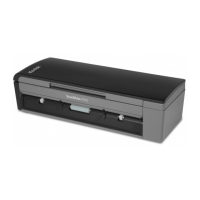
Kodak ScanMate i1150WN - User Manual

Kodak ScanMate i1150WN
77 pages
Print Icon
To Next Page IconTo Next Page
Loading...

Table of Contents

Questions and Answers

  • A
    amandahamptonAug 14, 2025
    What to do if my Kodak ScanMate i1150WN Scanner will not scan or feed documents?
    • F
      felicia39Aug 15, 2025
      If your Kodak scanner isn't scanning or feeding documents, ensure the power adapter is securely plugged into the scanner and the wall outlet, and that the outlet is working correctly. Restart your PC after installing the software. Also, check that the document(s) are making contact with the feed rollers and the paper present sensor.
  • L
    Leslie BenderAug 17, 2025
    What to do if my Kodak Scanner images are not being cropped correctly?
    • A
      Angela SloanAug 17, 2025
      If the cropping options are enabled, Automatically Detect and Straighten or Automatically Detect and your images from your Kodak scanner are not being cropped correctly, clean the imaging guides.
  • R
    Rhonda HaynesAug 21, 2025
    How to fix roller marks on Kodak ScanMate i1150WN Scanner documents?
    • O
      ortegaanthonyAug 21, 2025
      If roller marks appear on the document after scanning with your Kodak scanner, clean the rollers.
  • G
    greentylerAug 25, 2025
    What to do if my Kodak Scanner's Wireless Signal Strength is Low?
    • S
      Sarah LeeAug 25, 2025
      If your Kodak scanner's wireless signal strength is low, try these steps: Physically move the scanner closer to the host computer, network router, or access point until the signal improves. Verify that the host computer, router, or access point's wireless is active and antennas are connected. Ensure the scanner's Wireless switch is ON. Remove any obstacles between the scanner and the host computer, router, or access point, especially if they are metallic or dense. Power cycle the scanner and check if the signal improves. Look for other RF sources that may be interfering with the signal, such as microwaves. Ensure wireless devices are 2 to 3 feet apart.
  • K
    Keith McleanAug 28, 2025
    Why does my Kodak Scanner have black background bleed-through?
    • B
      Benjamin RamirezAug 28, 2025
      When scanning translucent documents with your Kodak scanner, black bleed-through may appear on the image. To minimize this, adjust the Contrast value or select Draft (Fixed) in TWAIN or Fixed Processing in ISIS to improve the image.
  • J
    John BishopAug 31, 2025
    Why do red, green, or blue streaks appear on Kodak ScanMate i1150WN Scanner color photos?
    • L
      Lisa WashingtonAug 31, 2025
      If red, green, or blue streaks are running through a color photo scanned with your Kodak scanner, the scanner is dirty and needs to be cleaned.
  • R
    richard19Sep 3, 2025
    What to do if my Kodak ScanMate i1150WN is not in the list of Available Networks?
    • A
      anielsenSep 4, 2025
      If the Kodak scanner is not in the list of available networks, first, ensure the scanner is in Wireless Directly (ad hoc) mode. If it’s not, reset the scanner by turning it off, pressing and holding the Reset button while powering it back on until the message 'Scanner has been reset' appears on the Operator Control Panel. Also, verify the scanner’s Wireless switch on the back is ON. Low signal strength could also be the issue.
  • N
    nataliecarrollSep 6, 2025
    When trying to connect my computer and Kodak ScanMate i1150WN Scanner, the screen always says “Searching...”, what to do?
    • T
      Troy MillerSep 7, 2025
      If the screen says “Searching…” when connecting your computer to the Kodak scanner, ensure your computer supports wireless and the wireless network card/adaptor is turned on (and not in Airplane Mode). Check that any antennas are installed and extended/positioned correctly. Verify the scanner is on and showing the Wireless Directly icon, checking the Wireless switch on the back if needed. Make sure the scanner is within 6 feet of your computer.
  • S
    Sarah SaundersSep 10, 2025
    When trying to connect my computer and Kodak scanner, I do not see my scanner’s “SSID” in the selection list, what to do?
    • B
      Brittany LeeSep 10, 2025
      If you don't see your Kodak scanner’s “SSID” in the selection list, ensure the scanner is turned on and displaying the Wireless Directly icon, checking the Wireless switch on the back if needed. Make sure the scanner is within 6 feet of your computer. Press the “i” button on your scanner to verify the displayed “SSID” matches what you expect. Allow your computer time to discover the scanner, as it may take a couple of minutes in noisy environments.

Summary

Scanner Safety and Precautions

User Precautions

Guidelines for safe operation and placement of the scanner, including electrical safety and handling.

Scanner Overview and Documentation

Scanner Components Overview

Identification and description of the scanner's physical parts and features.

Operator Control Panel and Buttons

Scanner Setup and Network Connection

Installing the Scanner Software

Step-by-step guide for installing the scanner drivers and software on your computer.

Scanner Connection Options

Details on available methods for connecting the scanner to a computer or network.

Accessing the Scanner Setup Website

Instructions on how to access the scanner's embedded web interface for configuration.

Network Configuration Options

Configuring wired, wireless, and ad hoc network settings for scanner connectivity.

Scanning Operations and Setup

Preparing Documents for Scanning

Guidelines for organizing and loading documents into the input tray for optimal scanning.

Scanner Maintenance and Part Replacement

General Cleaning Procedures

Instructions for cleaning the scanner's rollers, imaging guides, and transport path.

Troubleshooting Scanner Issues

Problem Solving Guide

Common issues and their solutions, including document feeding problems and image quality.

Scanner Specifications

Kodak ScanMate i1150WN Specifications

General IconGeneral
BrandKodak
ModelScanMate i1150WN
CategoryScanner
LanguageEnglish

Related product manuals