English
66
Status messages LCD messages LED behaviors Unit status or possible causes Refer to
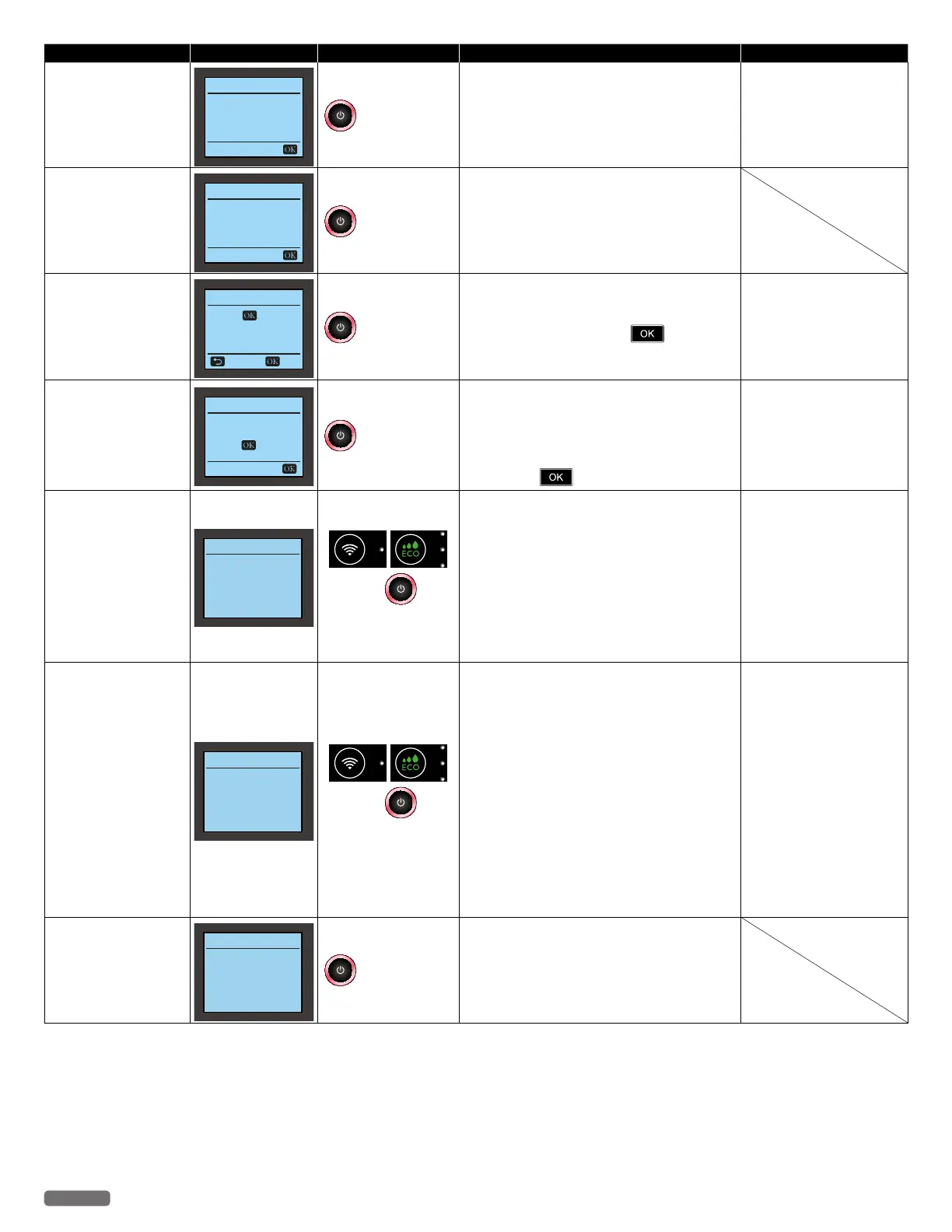
Paper Size Error
Paper Size Error
Print job has been
canceled.
Paper size mismatch.
blinks as pattern 1
An unsupported size of paper for two-sided
printing is inserted.
– Insert supported size of paper (Letter or A4).
“Specifications for print
media” on page 26 .
Paper Size is short.
Short paper
Print job has been
canceled.
Paper size mismatch.
blinks as pattern 1
Attempted to print on paper which is shorter in
length than set in the Paper Settings.
Paper Setting Mismatch
Paper Setting Mismatch
Press to print
with print setting.
Paper Size 4x6 in.
Paper Type Glossy
Cancel Print
blinks as pattern 1
The Paper Size/Paper Type setting for this print
job does not match that of the Print Settings.
– Check the Print Settings.
•To continue printing, press
.
•It is configurable whether or not to display
this message.
“Paper Setup” on page
44 .
“Paper Setting Mismatch”
on page 49 .
Check cartridge lock
Cartridge Error
Please check
ink cartridge lock.
Press
to retry.
blinks as pattern 1
An ink cartridge is not installed correctly.
– If the packaging paper is stuck in the Ink door,
remove it.
– Reinstall the cartridge, then close the lid completely.
•Confirm the ink cartridge is correctly installed,
then press .
“Unpack” on page 11.
“Install ink cartridges” on
page 12.
“Changing the ink cartridge”
on page 57.
Paper Jam:
Unplug and replug the
power cable.
Paper Jam
Paper Jam or
feed Roller Stall.
Clear Jam
and Unplug and replug
the power cable.
and
blink as pattern 1
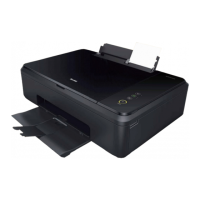
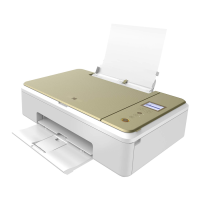
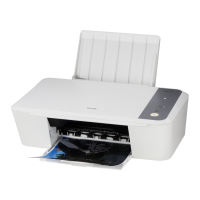
A paper jam has occurred inside of the unit.
– Firmly grasp both sides of the paper, and then
gently pull it out. Pull out the AC plug. Wait
at least 30 seconds, then connect the AC plug
back into the AC socket.
•If this error occurs occasionally, visit our
website at www.kodakverite.com/support for
the latest troubleshooting.
•If you cannot solve the problem, disconnect
the AC plug and contact an Authorized
Service Center.
“Clearing paper jam in
the unit”
on page 59.
“Power cycling”
on page 59.
Cartridge/Paper Jam:
Unplug and replug the
power cable.
Cartridge/Paper Jam
Please clear
the paper jam.
Unplug and replug
the power cable.
and
blink as pattern 1
An ink cartridge is not installed correctly.
– Pull out the AC plug.
Check that the Ink Cartridges have no obstacles
and clear pathways.
Connect the AC plug to the AC outlet.
A paper jam has occurred inside of the unit.
– Firmly grasp both sides of the paper, and then
gently pull it out. Pull out the AC plug. Wait
at least 30 seconds, then connect the AC plug
back into the AC socket.
•If this error occurs occasionally, visit our
website at www.kodakverite.com/support for
the latest troubleshooting.
•If you cannot solve the problem, disconnect
the AC plug and contact an Authorized
Service Center.
“Clearing paper jam in
the unit”
on page 59.
“Power cycling”
on page 59.
Printer's ink door is
open.
Ink Door Open
Please close
ink door.
blinks as pattern 1
Ink Door Open
– Close Ink Door.
Continued on next page.


 To Next Page