4. Click the relevant button (in this example, Volume UP appears in the Object List).
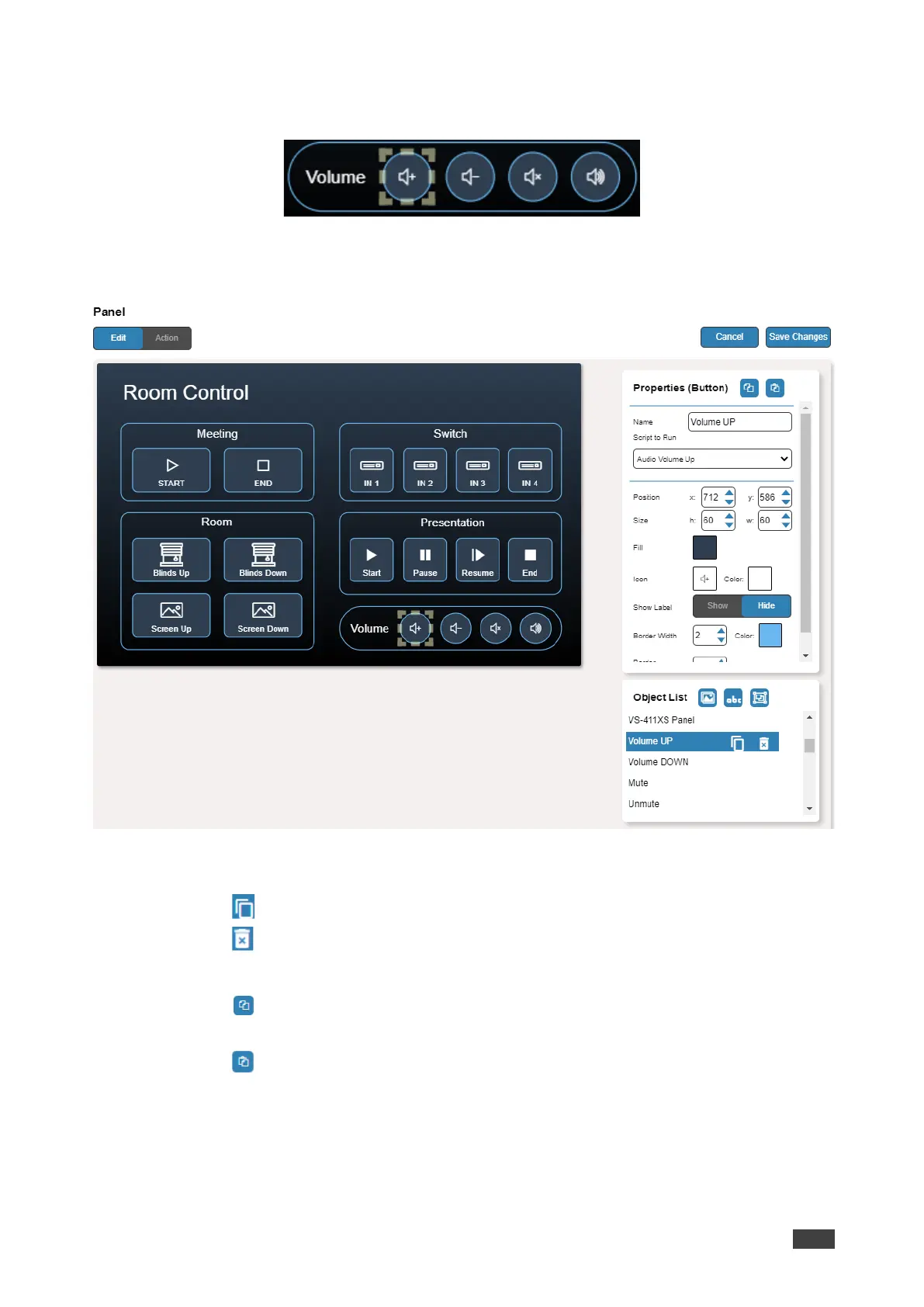
Volume UP button is selected in the device control panel.
Figure 45: Edit Panel – Volume Up button Selected
The Properties (Button) and Volume UP Object list appear:
Figure 46: Edit Panel – Properties (Button) Area
5. Next to Volume UP, do any of the following:
▪ Click to duplicate the button.
▪ Click to remove the button.
6. In the Properties (Button) area, perform any of the following actions:
▪ Click to copy the selected button properties (Fill, Icon Color, Label Size and Color
Border Color, Border Width and Color, and Border Radius).
▪ Click to paste button properties to a selected frame.
▪ Change the button name.
▪ Select the script to run when this button is pressed.
▪ Set the position of the button by moving the button (or by entering the x, y position).
▪ Enter button Size to change h and w button size (or use up/down arrows).



 To Next Page