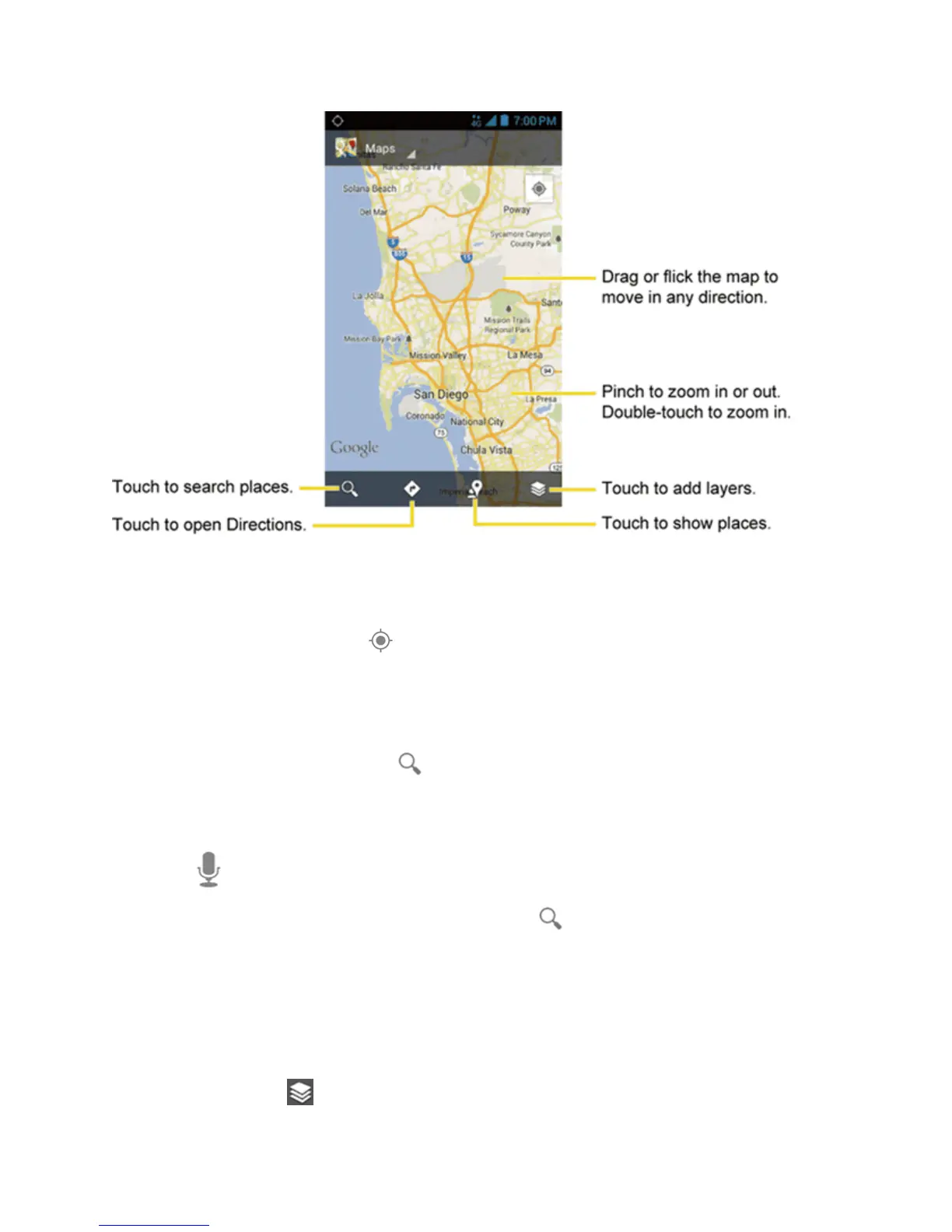
Apps and Entertainment 101
Find Your Current Location
Note:Don’tforgettosetyourlocationsources.
OntheGoogleMapsscreen,touch .Ablinkingbluearrowindicatesyourcurrentlocationonthe
map.Thisfeatureisavailablewhenlocationsettingsareenabled.SeeEnableLocationServiceson
YourPhone.
Search Maps
1.
OntheGoogleMapsscreen,touch .
2. Typetheplacethatyouwanttosearch.Youcanenteranaddress,acity,ortypeof
establishment.
Tip:Touch tosearchbyspeakingthelocationyouaresearching.
3.
Touchamatchingresultonthedrop-downlistortouch onthekeyboard.Acalloutlabel
appearsonthemaptoindicatethelocation.
4. Touchthecalloutlabeltoopenthemenuforthelocation.
Add Map Layers
Layersallowyoutoviewlocationsandadditionalinfooverlaidonthemap.
Toaccesslayers,touch whileintheMapsscreen.











 To Next Page