Camera and Video 133
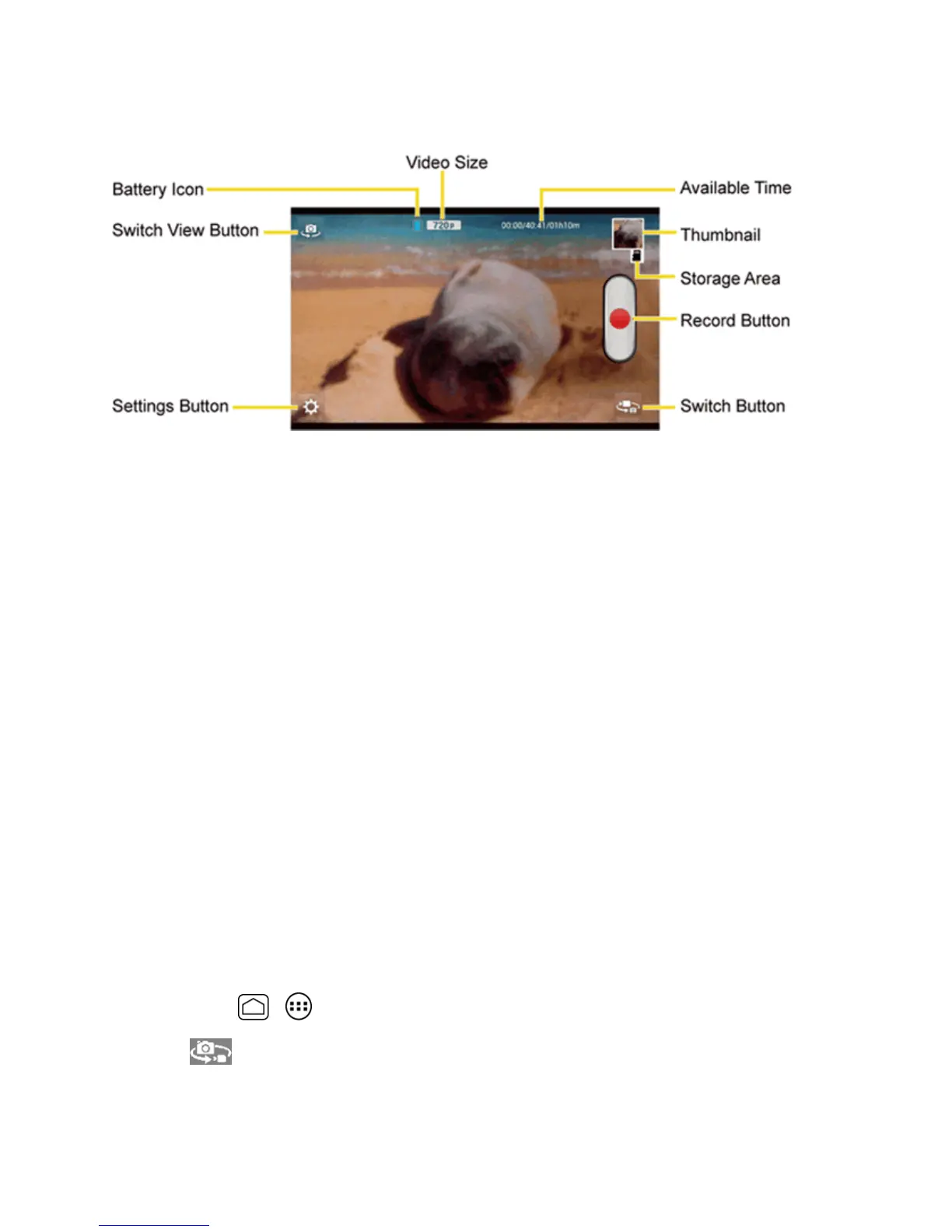
You’llfindthefollowingcontrolsonthevideoviewfinderscreen:
n Switch View Button:Switchesbetweenthebackcameralensandthefront-facingcamera
lens(forself-portraits,forexample).
n Settings Button:Displaysthevideosettingsmenu.Formoreinformation,seeVideoCamera
Settings.
n Battery Icon:Displayshowfullthebatteryis.
n VideoSize:Displaysthecurrentvideosize.
n Available Time:Fromtheleft,displaysthecurrentrecordingtime,theremainingrecordingtime
withthecurrentsettings,andthetotalrecordingtime.
n Thumbnail:Displaysthethumbnailofthelatestimage.Touchtoviewandmanage.
n Storage Area:Displayswherethevideosyoutakewillbesaved.
n Record Button:Recordsavideo.Touchagaintostop.
n Switch Button:Switchesbetweenthecameramodeandthevideocameramode.
Record Videos
Recordhigh-qualityvideosusingyourphone’svideocamera.
1. Pressandholdthecamerabuttonatthelowerrightsideofthephone.
–or–
PressHome > >Camera.
2.
Touch toactivatevideocameramode.











 To Next Page