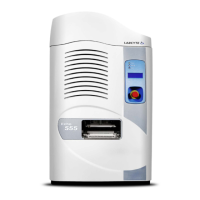
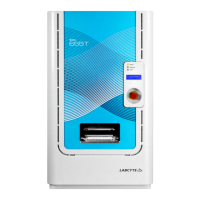
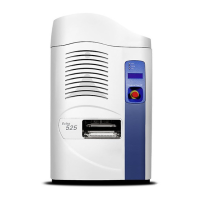
Echo Liquid Handler Software Installation
Labcyte installs the Echo Liquid Handler software onto the client PC that is connected to the Echo Liquid Handler. If you need to
install the software onto additional computers, such as network PCs, use the instructions provided in this section. See Multi-Client
Considerations for advantages and disadvantages of connecting more than one workstation.
Note: If you are connecting the Echo Liquid Handler to a LAN via a hub, switch, or router, use a standard ethernet cable. If
you are connecting the Echo Liquid Handler directly to a workstation, use the included “cross-over” Ethernet cable.
During installation the Echo Liquid Handler software will provide the following installation types:
l Client (Only): Installs the Echo Liquid Handler software onto the client PC that is connected to the Echo Liquid Handler
(normal mode). The software allows the operator to communicate with, control, and monitor an Echo Liquid Handler
through easy-to-use software screens (Graphical User Interface). This option requires a host name or IP address of the Echo
server.
l Client and Server:
l Normal Mode installs the Echo client software onto the client PC and the Echo server software onto the Echo
controller. This software is installed by Labcyte field engineers.
l Stub Mode creates a virtual Echo instrument onto the client PC that developers can use to develop and test custom
software.
Note: Use this installation type only if you are writing your own programs that will call the Echo ActiveX
programming interface. Call Labcyte Service and Support if you have any questions regarding this
installation type.
Install the Echo Liquid Handler Software
The following procedure describes installation of Client (Only) software. For information on installing Client + Server software, refer
to the Labcyte Echo Integration Guide.
Note: To run Microsoft® Windows 10 on the Client PC, see the Echo Liquid Handler Software Installation Procedure for
Microsoft® Windows 10 64-bit OS topic. The Microsoft® Windows 10 option is ONLYavailable on standalone Echo Liquid
Handlers and not on the Access Laboratory Workstation.
To install Echo Liquid Handler software:
1. Insert the Echo Liquid Handler software installation CD into the CD drive. The installation should automatically start.
If the installation does not start:
1. Go to My Computer and double-click the drive icon for the CD drive.
2. Look for setup.exe in the directory on the CD and double-click the icon.
3. Select Install Client (Only)
2. Enter the Host Name or IP address that will be used by the Echo server. The Echo Liquid Handler comes pre-configured
with IP address 192.168.0.25 and a subnet mask of 255.255.0.0. If you cannot use this IP address, run the Echo Admin
Client on the Echo Server 2.6.x disk to enter a different IP address.
Echo Liquid Handler Software Installation CHAPTER 4 | Installation and Relocation
66


 To Next Page