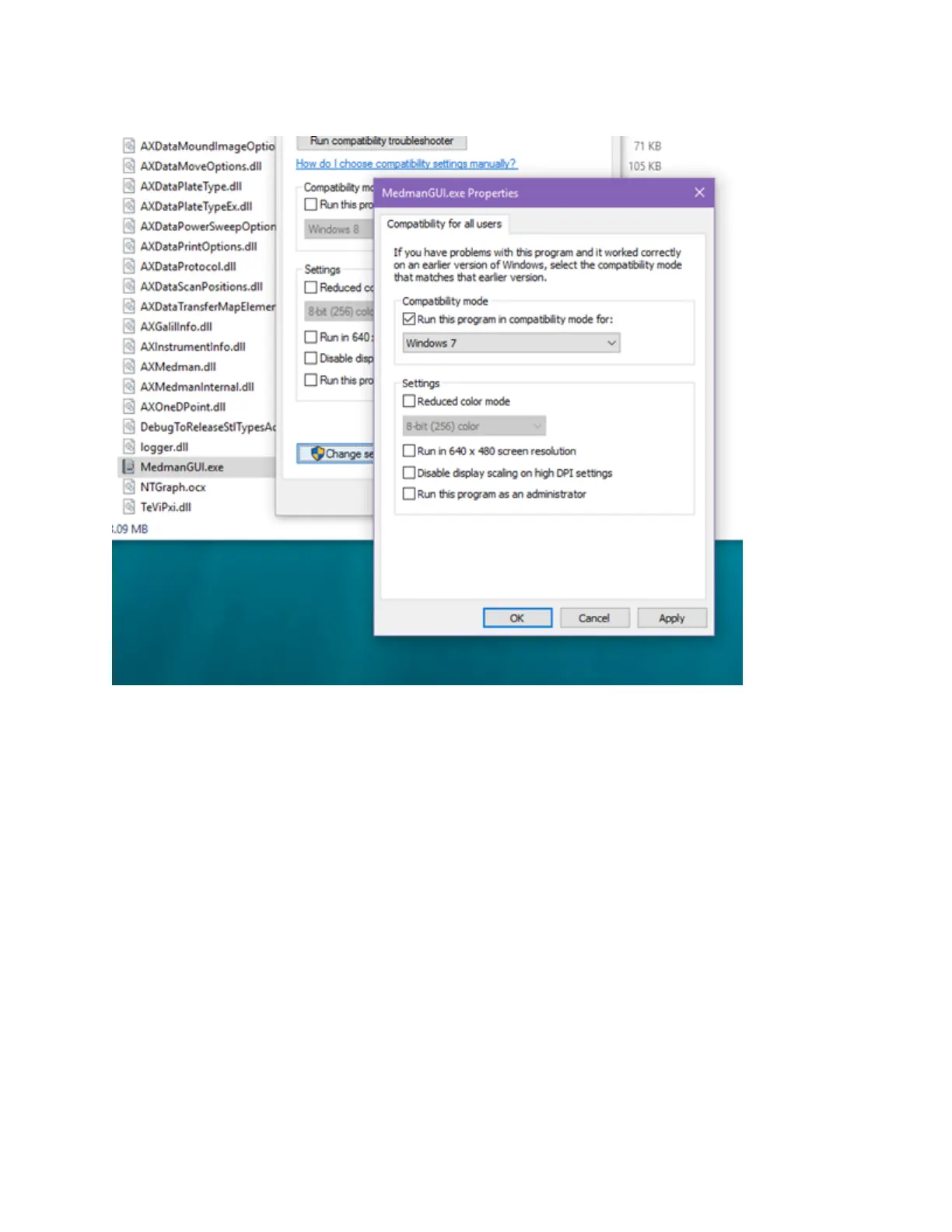
5. Select the Run this program in compatibility mode for: checkbox and select Windows 7 from the drop-down listbox.
6. Click Apply and OK to apply the changes.
7. Click OK to close the Properties dialog box.
To install the Echo Software Applications for Windows 10 64-bit OS:
l Echo Software Application Installation
1. For each Echo Software Application (Echo Plate Reformat, Echo Plate Audit, Echo Dose-Response, Echo Cherry Pick,
Echo Array Maker, Echo Combination Screen), navigate to the installation folder and locate setup.exe.
2. Right-click setup.exe and select Properties.
3. Navigate to the Compatibility tab.
4. Click Change settings for all users.
5. Select the Run this program in compatibility mode for: checkbox and select Windows 7 from the drop-down listbox.
6. Click Apply and OK to apply the changes.
7. Click OK to close the Properties dialog box.
8. Execute setup.exe to complete the installation of the Echo Software Application in Windows 7 Compatibility mode.
l Echo Software Application Compatibility Preparation
1. For each Echo Software Application, navigate to C:\Program Files (x86)\Labcyte\ApplicationName folder.
2. Right-click on ApplicationName.exe and select Properties.
3. Navigate to the Compatibility tab.
4. Click Change settings for all users.
5. Select the Run this program in compatibility mode for: checkbox and select Windows 7 from the drop-down listbox.
73 PN | 001-11665
USER GUIDE | Echo® 525 Liquid Handler User Guide Echo Liquid Handler Software Installation


 To Next Page