HVM200 Reference Manual Setting/Syncing Meter Time and Date 4-2
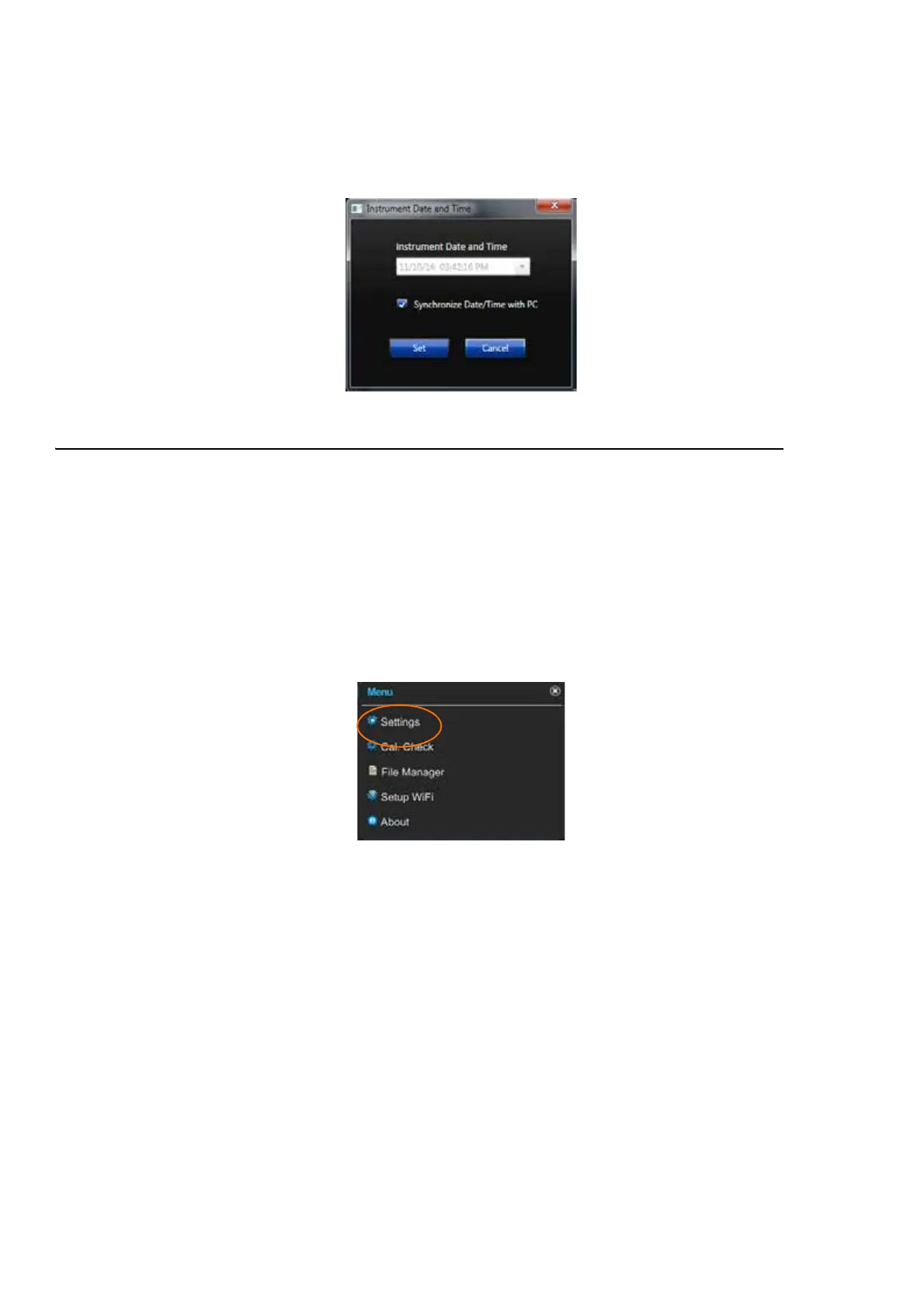
Step 4 Select Set to use the PC clock as the new time for the meter.
If you uncheck this option, you can set the date and time
manually.
FIGURE 4-2 Date and Time
4.2.2 Setting/Syncing Time via HVM200 Control app
Step 1 Make sure the meter is powered on.
LEARN MORE For more informa-
tion on connecting the HVM200 to
mobile app, see “Connecting the
HVM200 to a Mobile Device” on
page 2-4
Step 2 Launch app and connect the HVM200 meter to your device
using an Access Point or WiFi network.
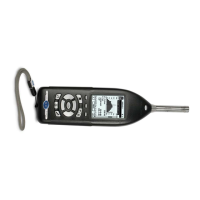
Step 3 Navigate MenuSettings.
FIGURE 4-3 HVM200 Menu
TAKE NOTE If you don’t see the
Time tab, you may be in a different
setting than Active. Only in the
Active setting can you set or sync the
time.
Step 4 In the new HVM screen, select the upper left Menu icon,
then choose Time.



 To Next Page