HVM200 Reference Manual Connecting the HVM200 to a Mobile Device 2-5
TAKE NOTE Depending on your
mobile device, you may need to per-
form this step each time you want to
connect to the HVM200.
Step 2 Connect to the HVM200 WiFi network displaying the serial
number of your meter.
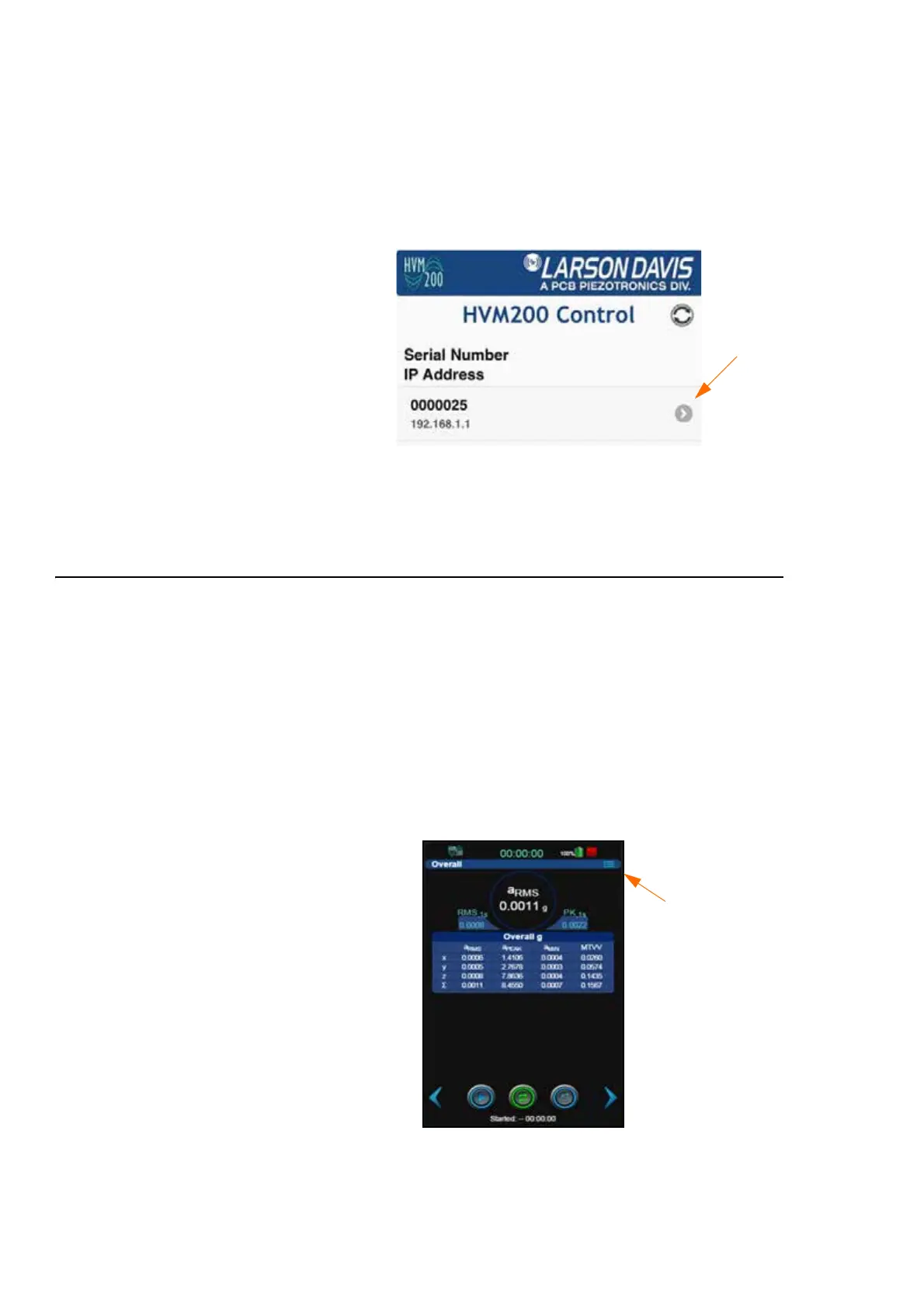
Step 3 Launch the HVM200 Control app to begin controlling the
meter on your mobile device.
FIGURE 2-7 HVM200 Access Point
Step 4 Connect the HVM200 by selecting the meter with the serial
number displayed for your meter.
2.5.3 Connecting HVM200 to WiFi Network
The HVM Control App will be able to connect to the HVM200 as long as
the mobile device is connected to the same wireless local network as the
HVM200.
To establish a WiFi connection over a network with the HVM200 meter,
follow these steps:
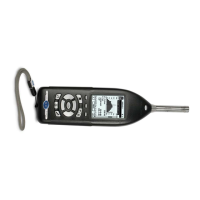
Step 1 Launch the HVM200 Control app or the G4 Live Stream
view. Select your meter. Click the menu icon.
TAKE NOTE It is best to make the
initial connection to a WiFi network
while also connected to a PC via
USB, if possible.
FIGURE 2-8 HVM200 App
Step 2 On the HVM200 Menu, select Setup WiFi.



 To Next Page