HVM200 Reference Manual Setting Up the Measurement 3-3
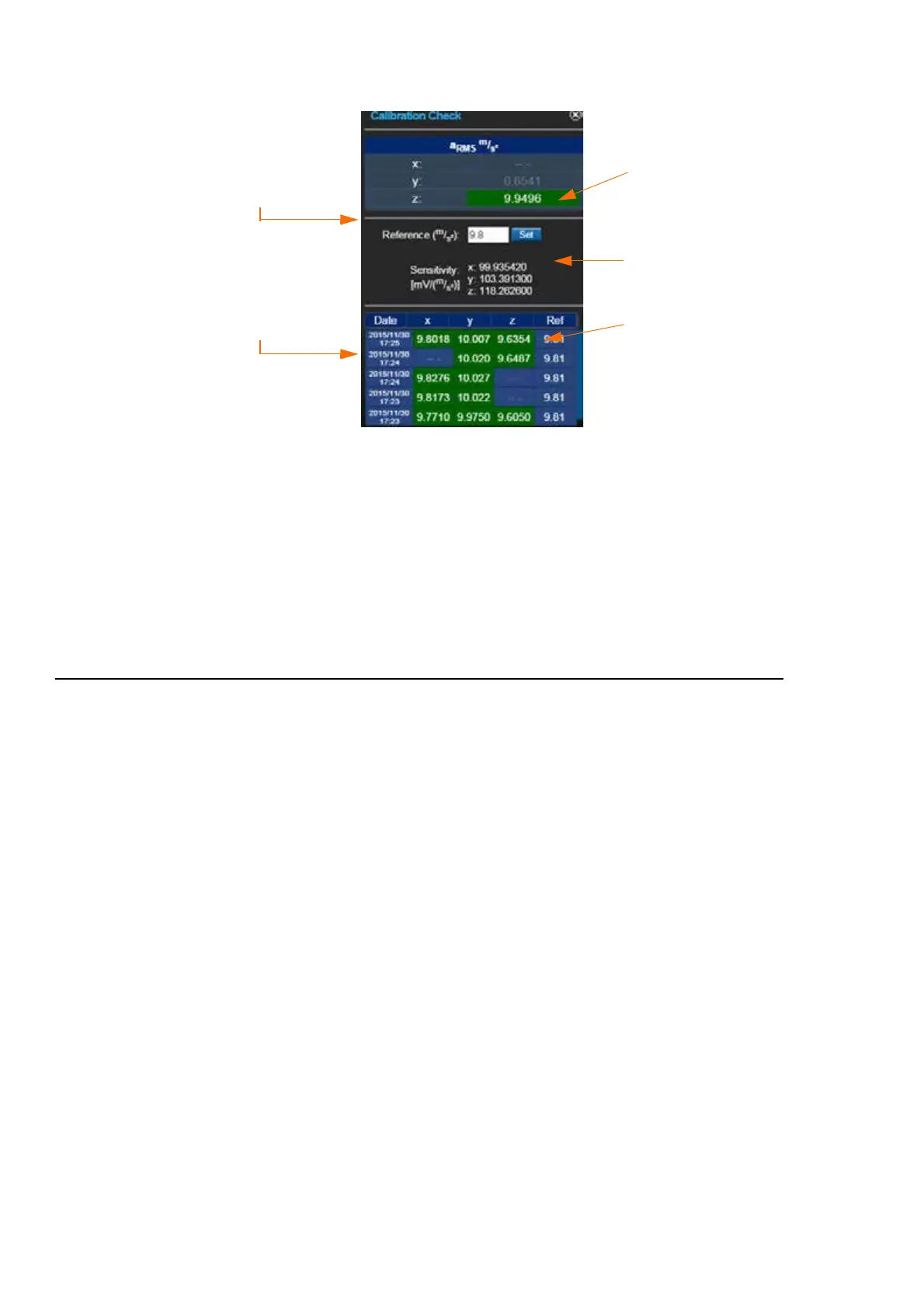
FIGURE 3-3 Calibration Check
LEARN MORE If you are using G4
LD Utility software (optional license
required), the last two saved calibra-
tion checks are displayed in measure-
ment spreadsheets. See the G4 LD
Utility Software Manual for more
information.
Step 9 To save the calibration check, close the Calibration Check
dialog box. Saved calibration check information is displayed
at the bottom of the dialog box when it is re-opened.
3.2.2 Selecting a Setup File Using Your Mobile Device
The HVM200 includes nine default setups in its Settings list. These
default setups correspond to settings typically used for different methods
of measurement.
You can also create new setup files on the Settings list. To create a new
setup file, follow these steps:
Name the Setup File
TRY THIS The easiest way to create
a new setup file is to modify an exist-
ing default setup and save it with a
different name.
Step 1 Tap the menu icon on the HVM200 app and then tap Set-
tings.
Step 2 Press and hold your finger on a default Setup File in the Set-
tings list. Select Save As and specify the setup name.
Z axis has been
checked and is
within range.
Reference value
from shaker
Shows saved cali-
bration checks
Sensitivity settings
specified in setup
Green indicates val-
ues are within range.



 To Next Page