HVM200 Reference Manual Upgrade Firmware and Options 4-5
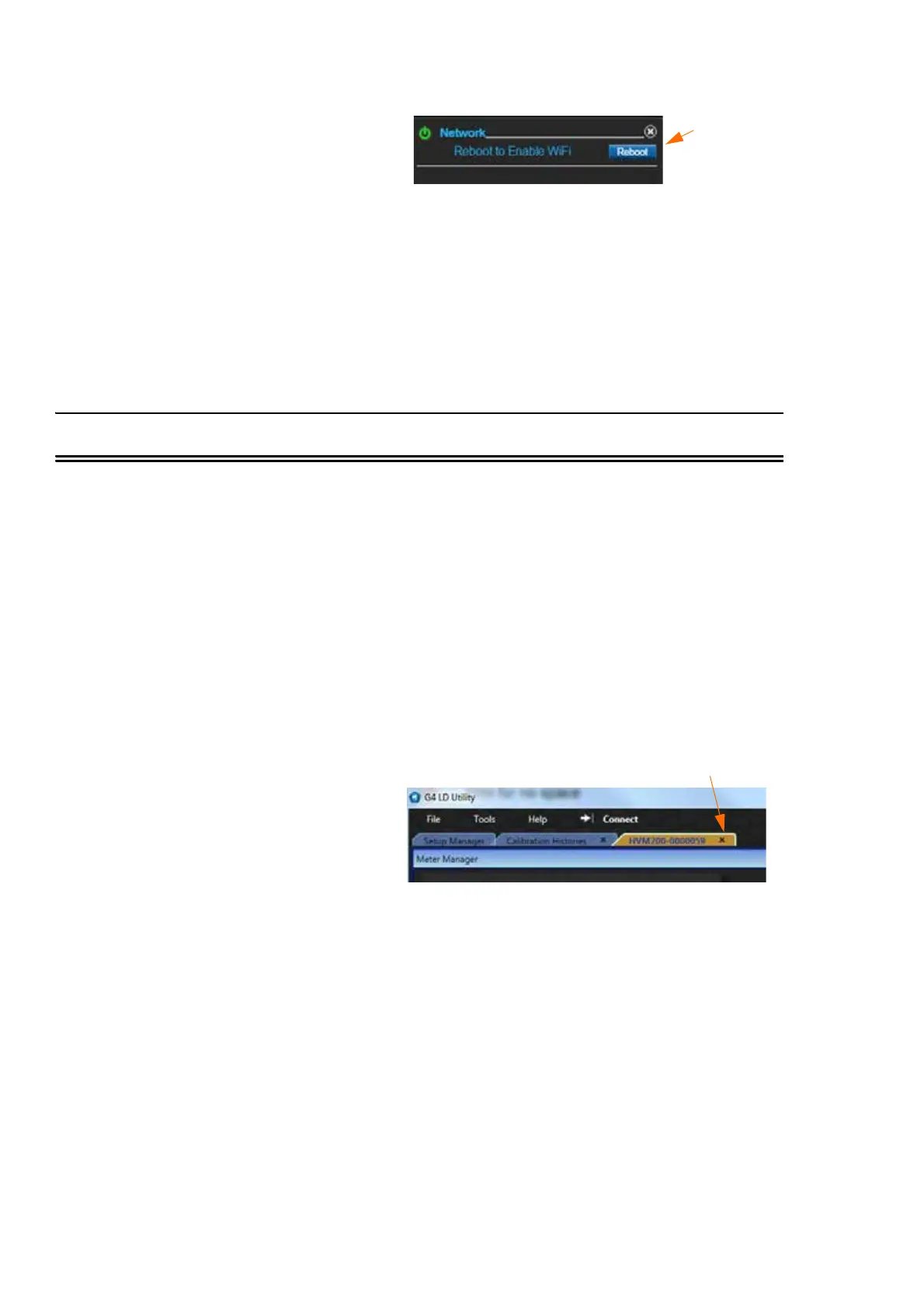
FIGURE 4-9 Reboot Button
Step 5 A dialogue box will appear. Select Confirm.
Step 6 A second alert will appear. Wait 30 seconds.
Step 7 The meter will lose connection to G4 LD Utility.
Step 8 Reestablish connection.
4.4 Upgrade Firmware and Options
To upgrade firmware and install optional firmware, follow these steps:
Step 1 Make sure the meter is powered on.
Step 2 Launch G4 LD Utility and connect the HVM200 meter to
your PC. see “Connecting HVM200 to G4 LD Utility” on
page 2-7
Step 3 If you meter is connected to G4 LD Utility, disconnect by
clicking on the × on the tab of your meter.
FIGURE 4-10 Disconnect Meter
Step 4 From G4, navigate FileUpgrade Firmware or
Options.
Step 5 Choose meter, then select Connect.
Step 6 In this dialogue box you can check Firmware or Options,
then press button for Choose Firmware File (or Choose
Options File if you checked “Options”.
To disconnect meter, click this ×



 To Next Page