EasyManua.ls Logo

Lenovo ThinkServer RD240 - User Manual

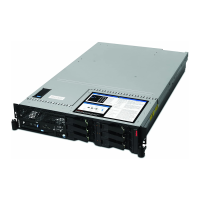
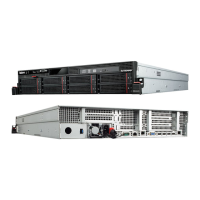
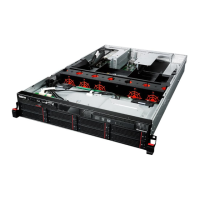
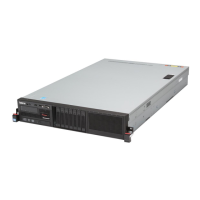
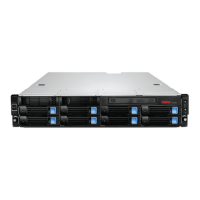
Lenovo ThinkServer RD240
140 pages
Print Icon
To Next Page IconTo Next Page
Loading...
Machine Types: 1045, 1046, 1047, and 1048
ThinkServer RD240
Installation and User Guide

Table of Contents

Other manuals for Lenovo ThinkServer RD240

Questions and Answers

  • H
    housenathanSep 13, 2025
    Why are not all serial ports identified on my Lenovo ThinkServer RD240?
    • E
      Elizabeth BatesSep 13, 2025
      If not all serial ports are identified by the operating system on your Lenovo Server: 1. Ensure each port is assigned a unique address in the Setup Utility program and that none of the serial ports are disabled. Also, make sure the serial port adapter (if present) is seated correctly. 2. Reseat the serial port adapter. 3. Replace the serial port adapter.
  • D
    Daniel CollinsSep 12, 2025
    What to do if hard drive not detected on Lenovo ThinkServer RD240 Server during OS startup?
    • R
      rollinsjeffreySep 12, 2025
      If a hard disk drive was not detected while the operating system was being started on your Lenovo Server, reseat all hard disk drives and cables, then run the hard disk drive diagnostic tests again.
  • D
    Daniel GonzalesSep 12, 2025
    What to do if multiple rows of DIMMs are failing on Lenovo ThinkServer RD240 Server?
    • E
      Ethan MckenzieSep 12, 2025
      If multiple rows of DIMMs in a branch are identified as failing on your Lenovo Server: 1. Reseat the DIMMs, then restart the server. 2. Replace the lowest-numbered DIMMs with identical, known good DIMMs, then restart the server. Repeat as necessary.
  • K
    kgibsonSep 12, 2025
    What to do if Lenovo ThinkServer RD240 Server stops responding during hard drive diagnostic test?
    • C
      cordovatimothySep 12, 2025
      If the Lenovo Server stops responding during the hard disk drive diagnostic test, remove the hard disk drive that was being tested when the server stopped responding, and run the diagnostic test again. If the test runs successfully, replace the removed drive with a new one.
  • D
    david69Sep 9, 2025
    How to test the monitor on a Lenovo ThinkServer RD240 Server?
    • M
      melanie80Sep 10, 2025
      If you're testing the monitor on a Lenovo Server: 1. Make sure the monitor cables are firmly connected. 2. Try a different monitor on the server, or test the monitor on a different server. 3. Run the diagnostic programs. If the monitor passes, the problem might be a video device driver. 4. If you are a trained service technician, replace the system board.
  • A
    Ashley WilliamsAug 23, 2025
    How to fix if all or some keys on the Lenovo ThinkServer RD240 keyboard do not work?
    • M
      Megan HarrisAug 23, 2025
      If some keys on your Lenovo Server keyboard aren't working, first ensure the keyboard cable is securely connected and that both the server and monitor are turned on. Verify that the keyboard is compatible with the server by checking the Lenovo website. If you're using a USB keyboard connected to a USB hub, try connecting it directly to the server. If the problem persists, replace the keyboard.
  • K
    karen67Sep 6, 2025
    What to do if a DVD is not working correctly on Lenovo ThinkServer RD240?
    • M
      Michael MccarthySep 6, 2025
      If a DVD is not working correctly in your Lenovo Server, try cleaning the DVD. If that doesn't work, try reseating the DVD drive.
  • J
    josephdavidsonSep 5, 2025
    What to do if wrong characters appear on the Lenovo Server screen?
    • G
      Gregg CraigSep 5, 2025
      If you encounter wrong characters on the Lenovo Server screen: 1. If the wrong language is displayed, update the server firmware with the correct language. 2. Reseat the monitor. 3. Replace the monitor, and then (if you are a trained service technician) the system board, one at a time, restarting the server each time.
  • L
    Larry AllenSep 4, 2025
    How to resolve screen jitter or distortion on a Lenovo Server monitor?
    • R
      ricky52Sep 4, 2025
      If the Lenovo Server monitor has screen jitter, or the image is wavy, unreadable, rolling, or distorted: 1. If the monitor self-tests show that the monitor is working correctly, consider the location of the monitor. 2. Reseat the monitor. 3. Replace the monitor, and then (if you are a trained service technician) the system board, one at a time, restarting the server each time.
  • E
    Emily DeckerSep 3, 2025
    Why is the Lenovo ThinkServer RD240 optional device that was just installed not working?
    • E
      Eric MartinezSep 3, 2025
      If a Lenovo optional device that was just installed isn't working, ensure that the device is designed for the server and that you followed the installation instructions correctly, without loosening any other devices or cables. Also, update the configuration information in the Setup Utility program. Reseat the newly installed device, and if the issue continues, replace it.

Summary

Chapter 2. Server Setup Roadmap

Server Setup Tasks and Information

A roadmap outlining tasks for server setup and their corresponding locations in the manual.

Chapter 4. Locating Parts, Controls, LEDs, and Connectors

Chapter 5. Installing, Removing, or Replacing Hardware

Hardware Installation Guidelines

Provides essential guidelines for safe and proper server installation and component handling.

Optional Hardware Procedures

General section for installing or removing optional hardware devices.

Memory Module Procedures

Instructions for installing or removing memory modules.

Completing Hardware Replacement

Final steps to complete parts replacement and prepare the server.

Chapter 6. Configuring the Server

Setup Utility Program

Using the server's firmware utility to view and change system configuration settings.

LSI SAS Controller Configuration

Configuring the onboard LSI SAS RAID controller.

8708 ELP SAS RAID Controller Configuration

Configuring the ThinkServer 8708ELP SAS RAID controller.

ThinkServer EasyStartup Program

Using the EasyStartup DVD to simplify RAID and OS installation.

RAID Configuration

Viewing and changing RAID settings for supported controllers.

Operating System Installation

Guidance on installing the operating system, including typical Windows setup.

Chapter 7. Troubleshooting

Troubleshooting Tables

Tables providing solutions for identifiable server symptoms.

DVD Drive Issues

Troubleshooting steps for DVD drive recognition and functionality problems.

Hard Disk Drive Issues

Troubleshooting steps for hard disk drive recognition and operational problems.

Memory Issues

Resolving problems related to system memory display and configuration.

Microprocessor Issues

Addressing issues indicated by server beeps during POST.

Power Issues

Troubleshooting steps for power-related problems, including server start-up failures.

Ethernet Controller Issues

Resolving problems with Ethernet controller connectivity.

Undetermined Problems

Steps to diagnose and resolve problems not covered by other sections.

Appendix B. Getting Help and Technical Assistance

Calling for Service

Procedures and information required when calling the Lenovo support center.

Lenovo ThinkServer RD240 Specifications

General IconGeneral
Form Factor2U Rack
Processor Sockets2
ChipsetIntel 5520
ProcessorIntel Xeon 5600 series
StorageUp to 8 hot-swap 2.5" or 3.5" drives
RAID SupportRAID 0, 1, 10, 5
Networking2 x 1Gb Ethernet ports
Operating System SupportWindows Server, Red Hat Enterprise Linux, SUSE Linux Enterprise Server, VMware ESXi
Memory Slots12 DIMM slots

Related product manuals