Operation
Data input
6
60
EDBPM−H310 DE/EN/FR 7.1
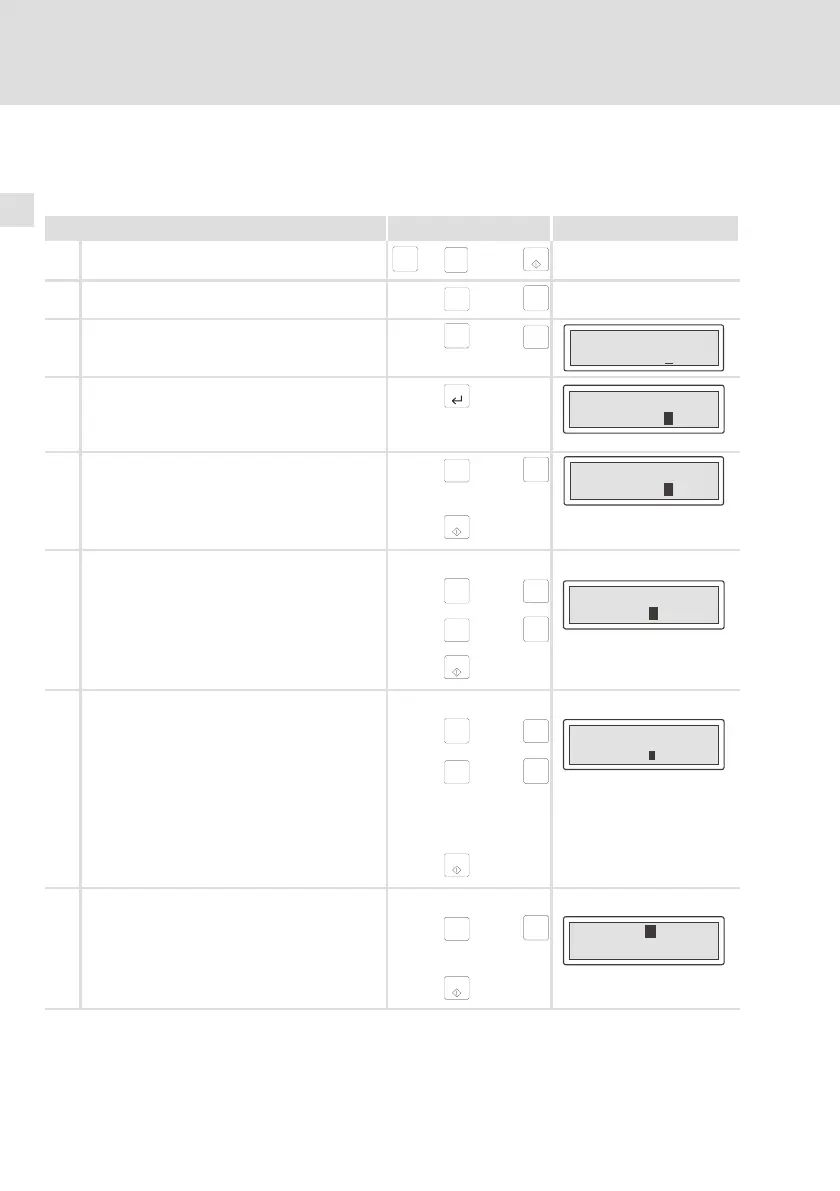
6.2 Data input
Data input and data modification are described step−by−step using examples.
If you want to ... Press keys ... Example
A select a menu.
shift
+
F1
Esc
...
F5
B select a page.
Help
á
or
Info
â
C place the cursor on the previous or next field.
F2
ß
or
F3
à
Field 1 ON
Field 2 -9876
D activate the parameter level.
l The cursor is placed on the right digit.
l In dynamic text fields, the cursor is placed on
the left digit (see H).
F4
Field 1 ON
Field 2 -9876
E
count down or up.
1. Leave the cursor on the right digit.
Help
á
or
Info
â
Field 1 ON
Field 2 -9869
2. Confirm the input.
– The cursor changes to the menu level.
F5
F
change a digit of a number.
1. Select the desired digit.
F2
ß
or
F3
à
Field 1 ON
Field 2 -9 763
2. Change the digit.
Help
á
or
Info
â
3. Confirm the input.
– The cursor changes to the menu level.
F5
G
set a point.
1. Select the position where the point is to be
inserted.
F2
ß
or
F3
à
Field 1 ON
Field 2 -9 76.
2. Change the digit until a point occurs.
Help
á
or
Info
â
TIP! Points can only be inserted if the field is
defined as Floating Point" (see
«HMI Designer» planning tool).
3. Confirm the input.
– The cursor changes to the menu level.
F5
H
change a dynamic text field.
1. Select the text.
Help
á
or
Info
â
Field 1 FFO
Field 2 -9876
2. Confirm the input.
– The cursor changes to the menu level.
F5


 To Next Page