EasyManua.ls Logo

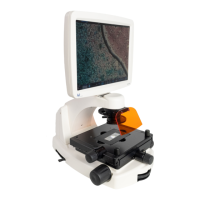
Life technologies EVOS FL - User Manual

Life technologies EVOS FL
55 pages
Print Icon
To Next Page IconTo Next Page
Loading...
USER GUIDE
EVOS
®
FL
EVOS
®
FL Color
Imaging Systems for Fluorescence
and TransmittedLight Applications
Catalog Numbers AMF4300, AMEFC4300
Publication Number MAN0007988
Revision 1.0
For Research Use Only. Not for use in diagnostic procedures.

Other manuals for Life technologies EVOS FL

Questions and Answers

  • M
    Melvin SmithSep 8, 2025
    Why mechanical stage drifts during time lapse sessions on Life technologies All in One Printer?
    • S
      swilliamsSep 8, 2025
      If the mechanical stage of your Life technologies All in One Printer drifts during time lapse sessions, tighten the stage brakes (on the stage knobs) securely before starting the session.
  • K
    Kaitlyn MoonSep 9, 2025
    Why mechanical stage tension is loose on Life technologies All in One Printer?
    • C
      Crystal WyattSep 10, 2025
      If the mechanical stage tension feels loose on your Life technologies All in One Printer, tighten the stage brakes (on the stage knobs) as desired to increase the tension.
  • J
    Julia JonesSep 12, 2025
    Why scalebar does not appear when clicked on Life technologies EVOS FL?
    • M
      Maria CopelandSep 12, 2025
      If the scalebar does not appear when clicked on your Life technologies All in One Printer, first capture an image. The scalebar is only available after an image has been captured.
  • B
    brendatuckerSep 13, 2025
    What to do if unable to connect to network on Life technologies EVOS FL All in One Printer?
    • M
      Mrs. Angela Nguyen DDSSep 14, 2025
      If you are unable to connect your Life technologies All in One Printer to the network, verify the physical cable connections and confirm that the Ethernet jack is active. Ensure you are using a compatible network adapter. If the physical connections are correct and the problem persists, contact your network administrator to resolve any network issues. Note that a Linux network must use Samba for the printer to be able to find it.
  • D
    Donna DavidsonSep 15, 2025
    How to fix misaligned overlay image on Life technologies EVOS FL?
    • M
      michaelbestSep 16, 2025
      To correct a misaligned overlay image on your Life technologies All in One Printer, re-capture images in each channel.
  • D
    Dylan StevensSep 18, 2025
    Why vessel does not sit securely on moving stage of Life technologies EVOS FL?
    • V
      vincentwilliamsSep 18, 2025
      To ensure the vessel sits securely on the moving stage of your Life technologies All in One Printer, use the correct vessel holder for your specific application. Refer to the EVOS® Vessel Holders spec sheet, which is included on the USB flash drive, for guidance.

Summary

Quick Reference Diagrams

Hardware Controls

Diagrams and identification of physical controls on the EVOS® FL microscope.

Hardware Glossary

Definitions for key hardware components and their functions.

User Interface (UI) Controls

Explains the software-driven controls and interface elements of the EVOS® FL system.

Software Glossary

Definitions for software terms and features used in the EVOS® FL system.

Specifications

Installing the EVOS FL Imaging System

Standard Items Included

Lists all accessories and components provided with the EVOS® FL Imaging System package.

Unpacking

Step-by-step instructions for safely removing the EVOS® FL Imaging System from its packaging.

Operating Environment

Specifies the recommended temperature, humidity, and space requirements for system setup.

Pins;Locks and Power Supply

Details on removing stage lock pins, handling light cubes, and connecting the power supply.

Ports and Shields

Information on connecting USB/DVI ports and installing protective shields for the instrument.

Basic Operations

Brightfield;Phase Operations

Guide to performing imaging using brightfield and phase contrast illumination methods.

Fluorescence Operations

Procedures for acquiring images using fluorescence channels and light cubes.

Advanced Operations

Transfection

Specific workflow for performing transfection experiments using the EVOS® FL system.

Time Lapse

Instructions for setting up and running time-lapse imaging experiments.

Working with Images

Live;Captured Zoom and Scalebar Option

How to use zoom features and add scalebars to live and captured images.

Cell Counting

Detailed steps for using the cell counting tool to quantify cells in images.

Saving

Instructions for saving captured images, including file formats and destinations.

Image Review

How to review, rename, or delete previously captured images and video files.

Optional Settings

Date;Time Settings

How to configure the system's date, time, and time zone for accurate data logging.

Network Settings

Steps to connect the EVOS® FL Imaging System to a network for image saving.

Login Settings

Managing user profiles and login preferences for the EVOS® FL system.

Maintaining the EVOS FL Imaging System

General Care

Guidelines for routine cleaning and upkeep of the EVOS® FL Imaging System.

Sterilization

Procedures for cleaning and sterilizing the instrument components.

Updating Software

Instructions for downloading and installing software updates for the EVOS® FL system.

Changing LED Light Cubes

Step-by-step guide on how to replace or install LED light cubes.

Assign Custom Channel Display Colors

How to customize the display colors for different fluorescence channels.

Appendix A: Troubleshooting

Image Quality Issues

Common problems related to image quality and their potential solutions.

Software Interface Issues

Solutions for problems encountered with the EVOS® FL software interface.

Mechanical Issues

Troubleshooting steps for mechanical problems with the EVOS® FL instrument.

Appendix B: Safety

Safety Conventions Used in this Document

Explanation of safety alert words and symbols used throughout the manual.

Symbols on Instruments

Descriptions of electrical and environmental symbols found on Life Technologies instruments.

Safety Labels on Instruments

Details on hazard symbols and associated safety warnings in English and French.

General Instrument Safety

General safety precautions for operating, moving, and cleaning the instrument.

Chemical Safety

Guidelines and warnings for handling chemicals and minimizing exposure risks.

Chemical Waste Safety

Procedures for safely handling and disposing of chemical waste generated by the instrument.

Electrical Safety

Warnings and precautions related to electrical hazards and proper power connection.

Physical Hazard Safety

Safety information regarding moving parts and potential crushing or cutting hazards.

Biological Hazard Safety

Precautions and guidelines for handling biological samples and biohazards.

Safety and Electromagnetic Compatibility (EMC) Standards

Information on compliance with safety and EMC standards for various regions.

Documentation and Support

Information on obtaining technical support, safety data sheets, and product warranty.

Life technologies EVOS FL Specifications

General IconGeneral
BrandLife technologies
ModelEVOS FL
CategoryAll in One Printer
LanguageEnglish