52 - Instrument Operation
13. Review Result
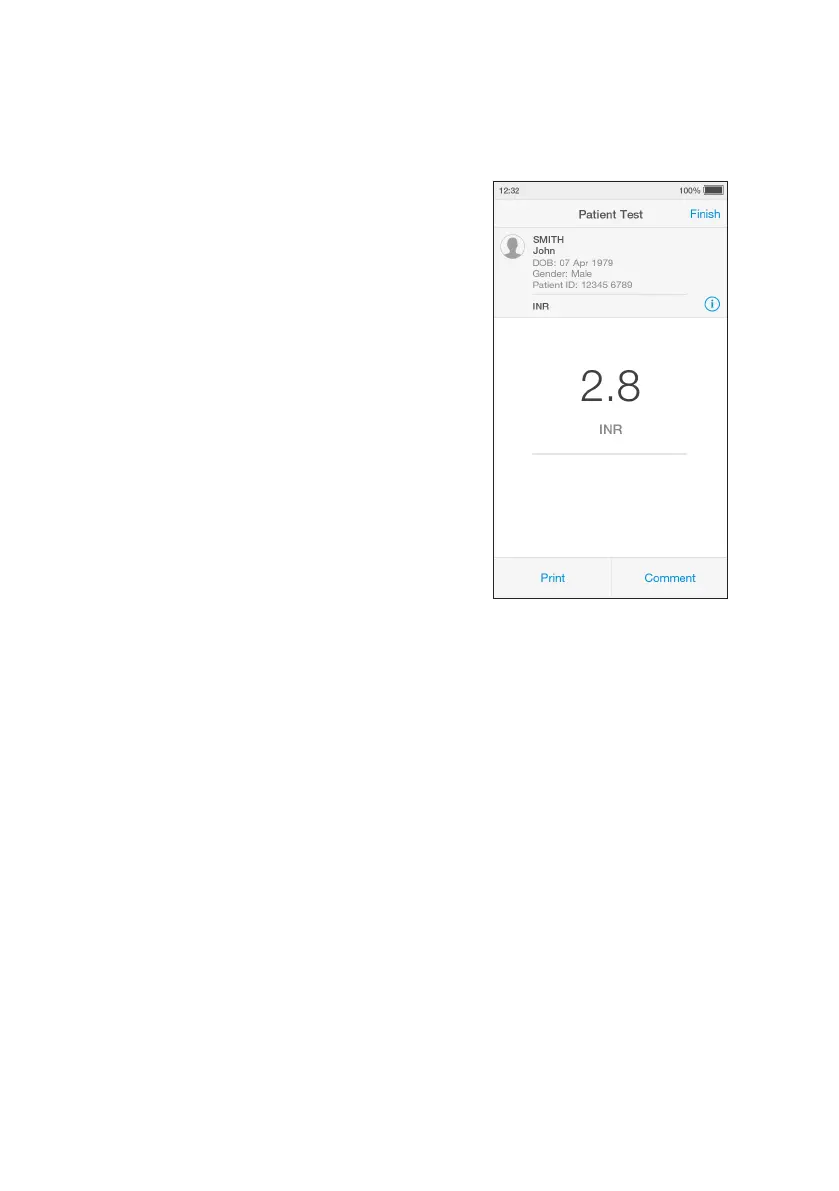
When the test is complete the result will be
displayed on the screen (an example of a
quantitative result is shown here).
Results that are above or below the analytic
range are displayed in red and indicated by
the symbols > (above) or < (below).
If a LumiraDx Printer is connected to the
Instrument, a ‘Print’ option will be available.
Tap ‘Print’ to print the test result.
Review the result then tap ‘Finish’ or tap
‘Comment’ to add a comment, if required.
A comment may be up to 50 characters in
length.
To reject a test result, go to ‘Comment’ and
tap ‘Reject result’. A comment must be
added if a test result is rejected.
Once the desired comment(s) are entered
tap ‘Done’ to return the result screen.
Tap ‘Finish’ to save the test result to Result
History and complete the test.
Note: If operating the Instrument in a
connected mode, you must tap ‘Finish’ for
the result and any comments to be sent to
the EHR.


 To Next Page