74 - Software Updates
LumiraDx will contact administrators when software updates are available. Software
updates will be provided on USB memory sticks and should be installed on each
Instrument by the administrator. Installing the latest updates will help ensure that the
LumiraDx Instrument operates with optimum performance and that the latest features
are available. This section describes the steps required to complete the software update.
Note: Ensure that the Instrument is connected to a power supply before performing
asoftware update.
IMPORTANT: Please save the latest USB Memory Stick in the event a re-installment of
software update is required.
The USB Memory Stick is part of servicing activities related to the Instrument firmware
and software. If the USB Memory Stick is lost or discarded, please contact Customer
Services to receive a replacement.
6 Software Updates
6.1 Check Soware Version
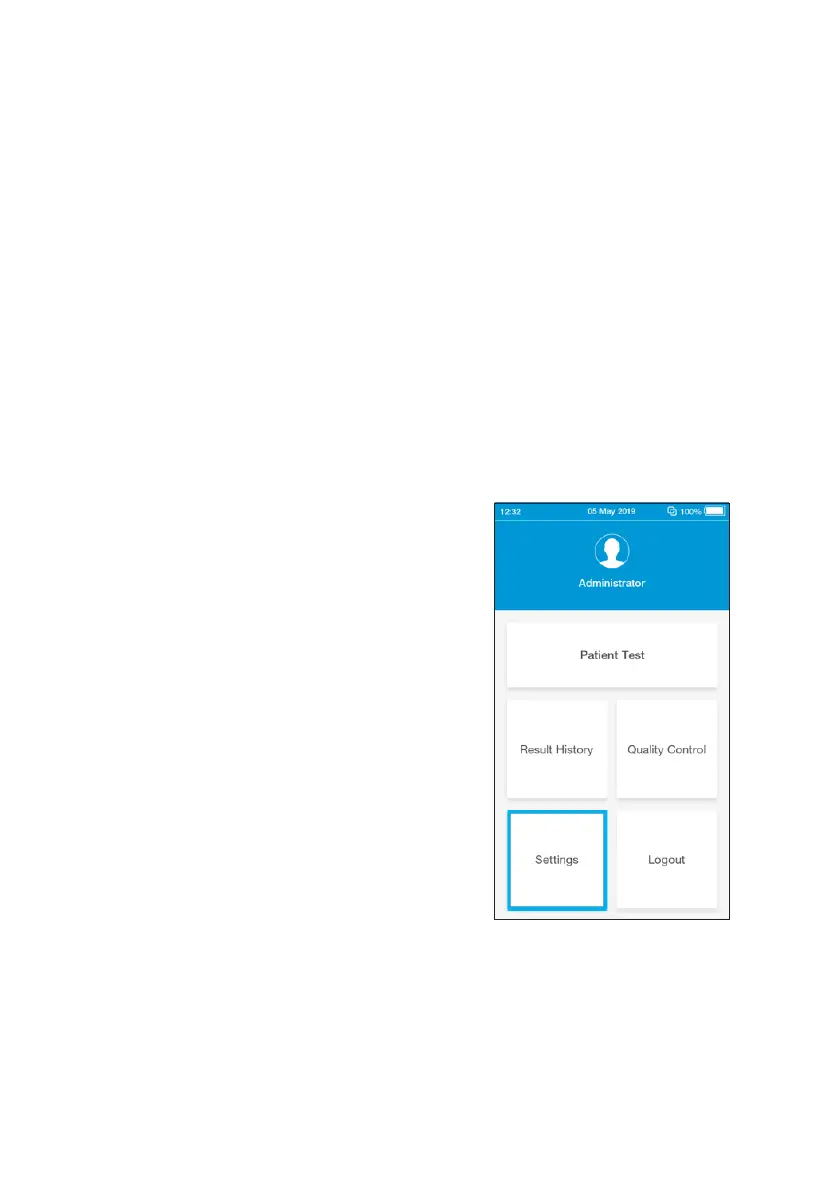
1. Check the software version currently
installed on the Instrument
Login to the Instrument from the
home-screen tap the settings button


 To Next Page