76 - Software Updates
1. Power OFF the Instrument
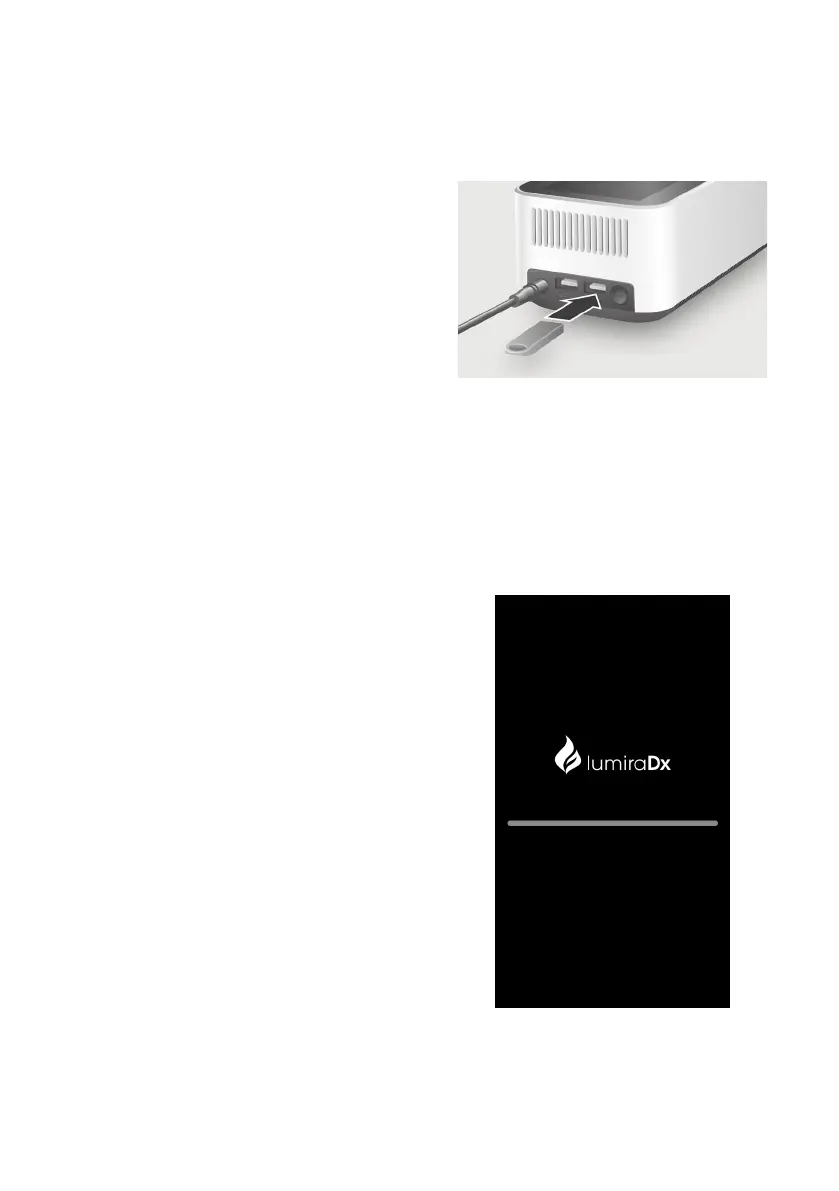
2. While the Instrument is powered OFF,
Remove the USB Memory Stick from its
packaging and insert it into the USB port
nearest to the power button as shown in
the image below.
3. Leave the USB Memory Stick inserted
until after step 6.
4. Power ON the Instrument
Power on the Instrument by pressing
the power button at the rear of the
Instrument.
A progress bar on the Instrument display
will indicate installation.
Once installation is completed the
Instrument will power on as usual.
6.2 Performing a Soware Update
5. Allow the Instrument to start up and
complete the self-test.


 To Next Page