Instrument Operation - 65
4.10 Result History
The LumiraDx Instrument can save 1000
patient or QC test results, together with
respective time, date and comments. If the
Instrument memory is full, the oldest result is
automatically deleted.
1. Power On and Login
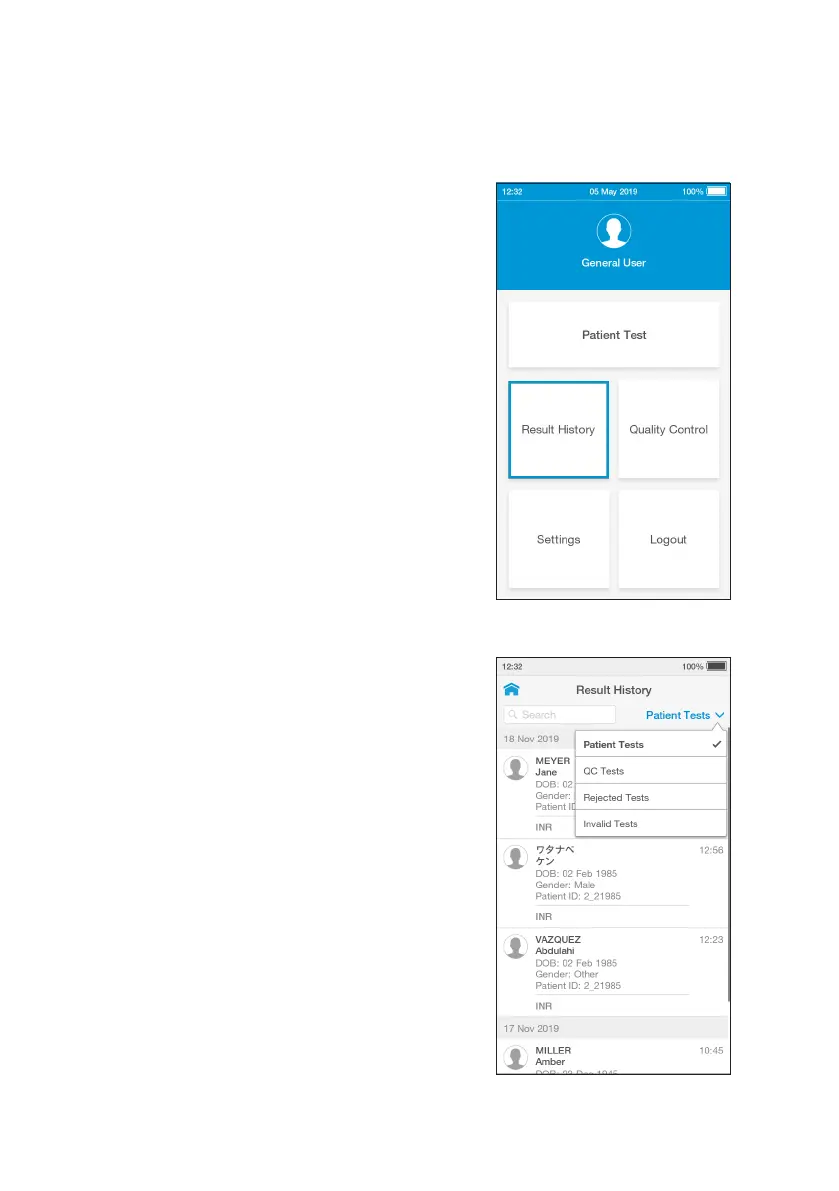
2. Tap Result History
To view Patient or QC test results, tap ‘Result
History’.
3. Review Test Results
All entries are shown in date order, with the
newest at the top. Test results can be filtered
by selecting Patient Tests, QC Tests, Rejected
Tests or Invalid Tests.
Test results are marked as Invalid if a system
error occurs during test processing. Refer
to the “Troubleshooting” chapter of this
Platform User Manual for information on
errors.
Scroll through the list and tap any entry to
view the test result in full.
Search for a patient test result by entering
the Patient ID, First Name or Last Name in
the search bar from either the Patient Tests,
Rejected Tests or Invalid Tests screen.
Note: A search for a partial Patient ID, First
Name or Last Name will only work for the
start of the search term.


 To Next Page