Reshaping lines and shape outlines 147
Flash adjusts the curve of the line segment to accommodate the new position of the moved
point. If the repositioned point is an end point, you can lengthen or shorten the line. If the
repositioned point is a corner, the line segments forming the corner remain straight as they
become longer or shorter.
When a corner appears next to the pointer, you can change an end point. When a curve appears
next to the pointer, you can adjust a curve.
Some brush stroke areas are easier to reshape if you view them as outlines.
If you are having trouble reshaping a complex line, you can smooth it to remove some of its
details, making reshaping easier. Increasing the magnification can also make reshaping easier
and more accurate; see “Optimizing curves” on page 149 or “Using the Stage” in Getting
Started with Flash.
To reshape a line or shape outline using the Selection tool:
1. Select the Selection tool.
2. Do one of the following:
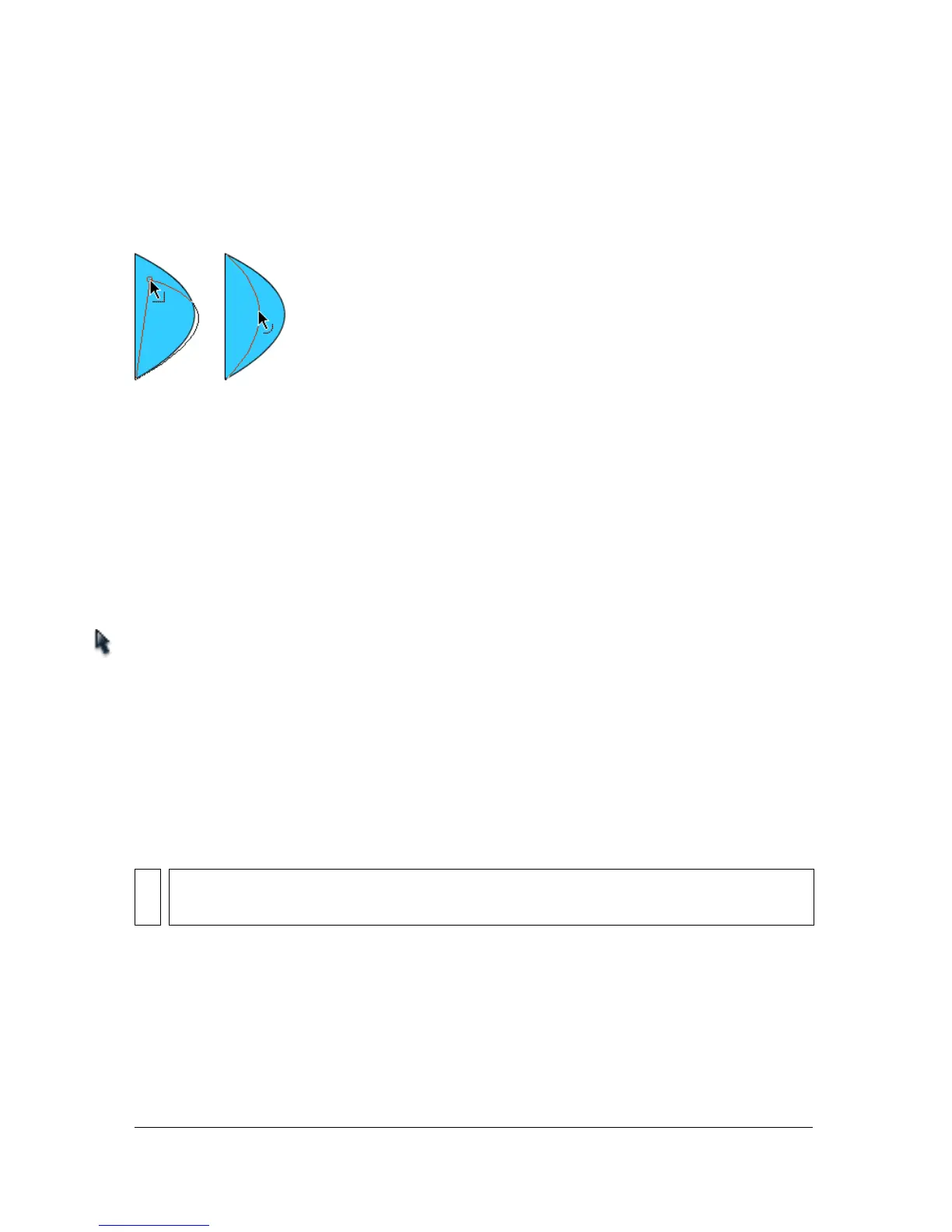
■ Drag from any point on the segment to reshape it.
■ Control-click to drag (Windows) or Option-click to drag (Macintosh) a line to create
a new corner point.
Straightening and smoothing lines
You can reshape lines and shape outlines by straightening or smoothing them.
Straightening makes small straightening adjustments to lines and curves you have already
drawn. It has no effect on already straight segments.
NOTE
You can adjust the degree of automatic smoothing and straightening by specifying
preferences for drawing settings. See “Specifying drawing settings” on page 154.



 To Next Page