560 Creating E-learning Content
8. At the bottom of the Component inspector, click Options and enter feedback and
Knowledge Track parameters for the learning interaction. See “Adding, naming, and
registering assets” on page 576, “Setting Knowledge Track options for a learning
interaction” on page 583, and “Setting navigation options for a learning interaction”
on page 584.
9. (Optional) Click the Assets button, and change the assets for the learning interaction. See
“Adding, naming, and registering assets” on page 576.
Adding learning interactions to a quiz template
When you use a quiz template, you add learning interactions to the Interactions layer.
To add an interaction to the Timeline when using a quiz template:
1. In the first layer of the Timeline, select the frame that precedes the frame number in which
you want to add the interaction.
For example, if you want to add an interaction to Frame 8, select Frame 7.
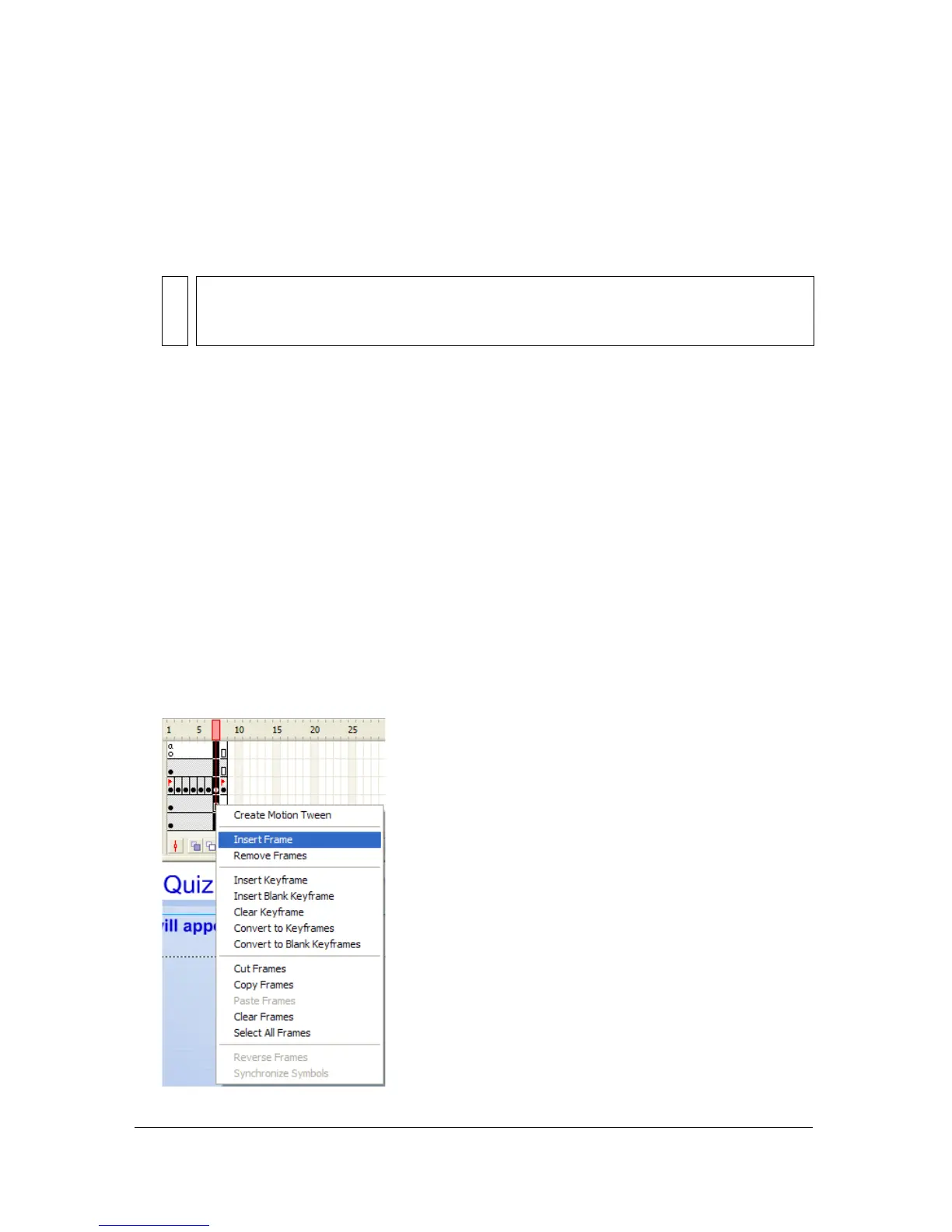
2. Shift-click the same frame number on the other layers to also select those frames.
3. Right-click (Windows) or Control-click (Macintosh) a selected frame and select Insert
Frames to extend the Timeline evenly across all layers.
NOTE
Documents created using a quiz template have the Knowledge Track option turned
on and the Navigation option turned off (the default settings) for each learning
interaction, because the quiz template has its own navigation controls.



 To Next Page