562 Creating E-learning Content
To add a stand-alone learning interaction to the Timeline when not using a quiz
template:
1. If you are adding interactions to a document that does not use the quiz template, select the
appropriate layer, and then select Insert > Timeline > Blank Keyframe.
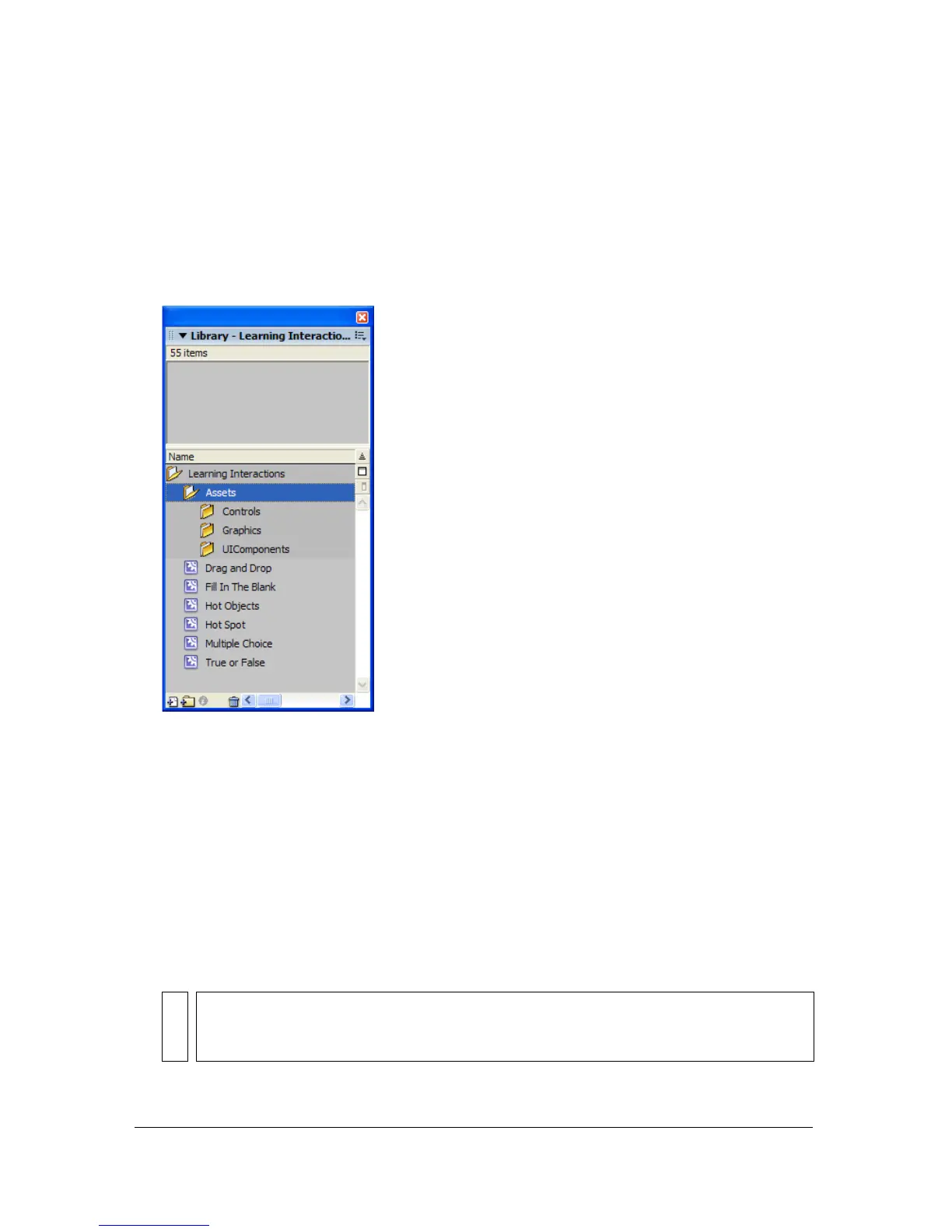
2. Select Window > Common Libraries > Learning Interactions.
The Learning Interactions library appears.
The library includes six types of learning interaction movie clips: Drag and Drop, Fill in
the Blank, Hot Object, Hot Spot, Multiple Choice, and True or False. In addition, there
are folders called Assets, Graphics, and UIComponents. These are used for customizing
learning interactions. See “Changing buttons, check boxes, and radio buttons”
on page 565.
3. Select the new keyframe you created, and then drag one of the Learning Interaction movie
clips from the Library panel to the Stage.
4. Reposition the interaction by dragging it to where you want it to appear on the Stage.
5. Configure the learning interaction. See “Configuring a Learning Interaction component”
on page 558.
NOTE
Watch the frame count across layers as you add and remove keyframes. Make sure
that all layers end at the same frame number along the Timeline so that the frame
count is the same in all layers.



 To Next Page