634 XML to UI
Second, create a file named skewlist.xml and place it in your Commands folder. Place the
following code into the file and save the file:
<dialog id="skewlist-dialog" title="Skew Selection" buttons="accept,
cancel">
<grid>
<columns>
<column/>
<column/>
</columns>
<rows>
<row align="left">
<label value="Skew x: " control="xSkew" align="left"/>
<popupslider id="xSkew" minvalue="-180" maxvalue="180"/>
</row>
<row align="left">
<label value="Skew y:" control="ySkew" align="left"/>
<popupslider id="ySkew" minvalue="-180" maxvalue="180"/>
</row>
<row align="left">
<label value="Edge:" control="edge" align="left"/>
<listbox id="edge" rows="5">
<listitem label="top center"/>
<listitem label="right center"/>
<listitem label="bottom center"/>
<listitem label="left center"/>
</listbox>
</row>
</rows>
</grid>
</dialog>
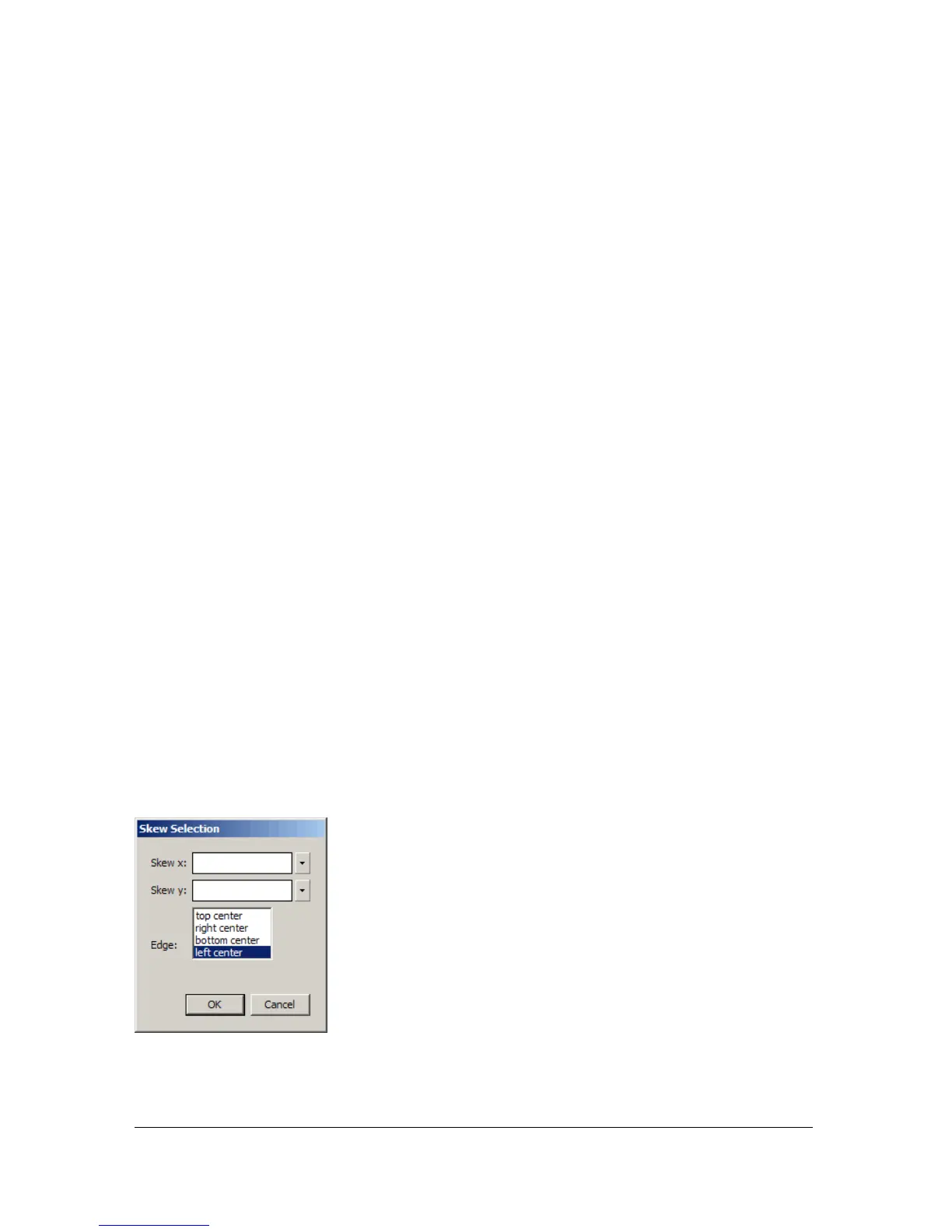
The skewlist command now appears on the Commands menu. Draw a shape on the Stage,
and select it with the pointer tool. If you select the
skewlist command from the Commands
menu, the dialog box defined by skewlist.xml appears, as shown in the following figure:



 To Next Page