71
2. How to update by DPMS
YoucanupdatethermwarebydownloadingthelatestversionfromtheInternet.
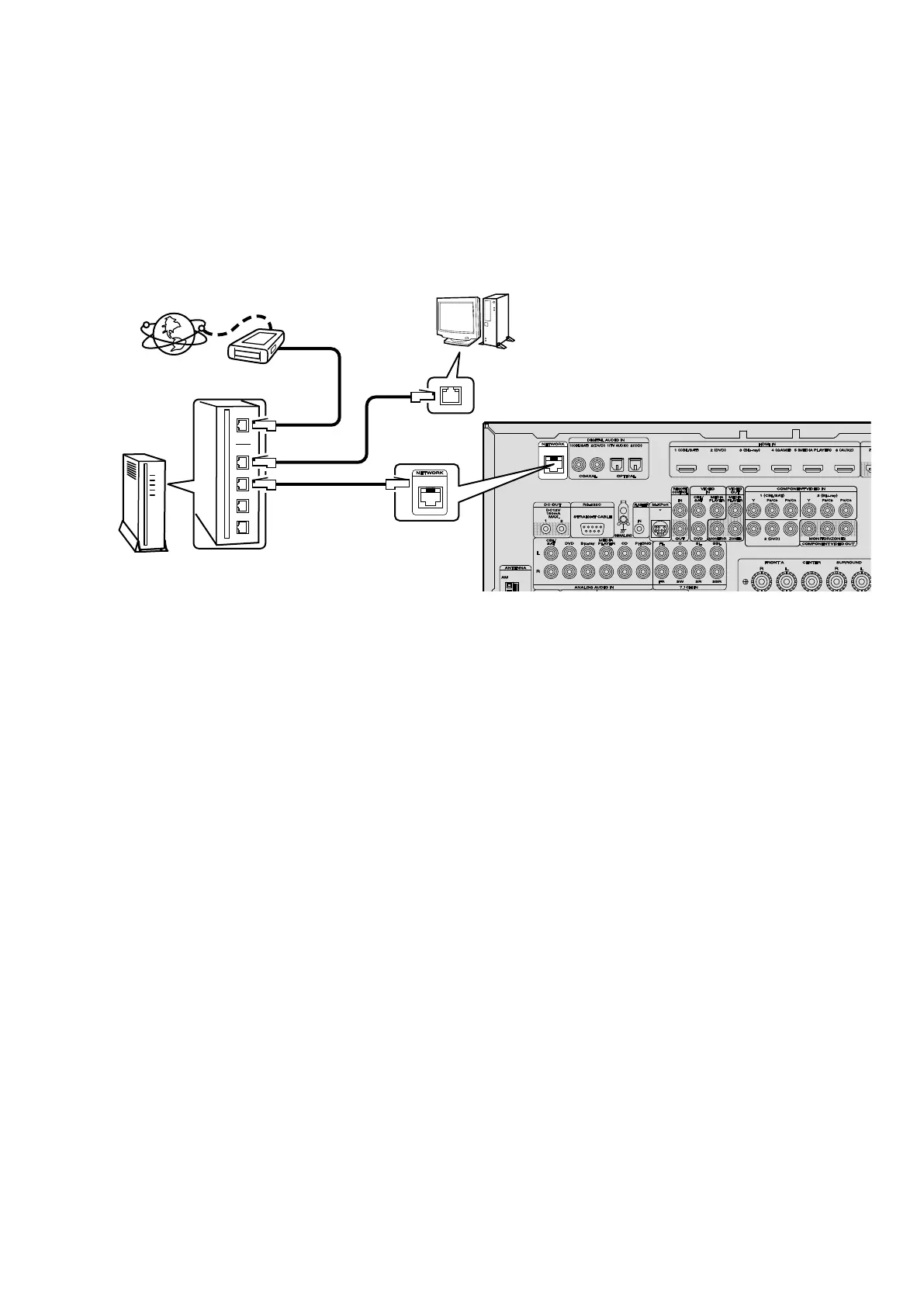
2.1. Connecting to the Network
(1) System requirements
• Internet Connection by Broadband Circuit
• Modem
• Router
• Ethernet cable (CAT-5 or greater recommended)
(2) Setting
2.2. Checking and updating the rmware
Checkifthelatestrmwareexists.Youcanalsocheckapproximatelytimerequiredtocompleteanupdate.
(1) Press the "SETUP" button on the remote control to display the GUI menu.
(2) Usethecursorbuttonstoselect"GENERAL"→"FIRMWARE"→"Update"→"CheckForUpdate".
(3) Press the "ENTER" button.
•Thelatestversionofthermwareonthewebsiteisdisplayed.
•Ifthermwareonthewebsiteislatest,proceedto(4).
•Ifthelatestrmwarehasbeenalreadyinstalled,pressthe"SETUP"buttontoclosethemenu.
(4) Use the cursor buttons to select "START", then press the "ENTER" button.
• During update, the power indicator lights in red and the GUI screen disappears. And an approximately remaining
time is indicated on the display.
• When updating is complete the power indicator lights in green and normal status is resumed.
(5) Press the "SETUP" button to close the menu.
--- Cautions on Firmware Update ---
•Inordertoupdatethermware,youmusthavethecorrectsystemrequirementsandsettingsforabroadbandInternet
connection.
• Do not turn off the power until updating is completed.
Even with a broadband connection to the Internet, approximately 1 hour is required for the updating procedure to be
completed.
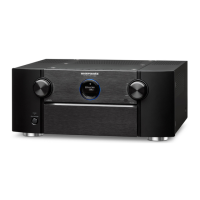
Once updating starts, normal operations on the AV7701 cannot be performed until updating is completed. Also, setting
items of the GUI menu of AV7701 or setting items of the image adjustment may be initialized.
Note down the settings before updating, and set them again after updating.
Modem
Internet
Computer
LAN port/
Ethernet
connector
NETWORK
connector
Router
To WAN port
To LAN port
To LAN port


 To Next Page