Installation & Operation Manual | MI-WAVE3D
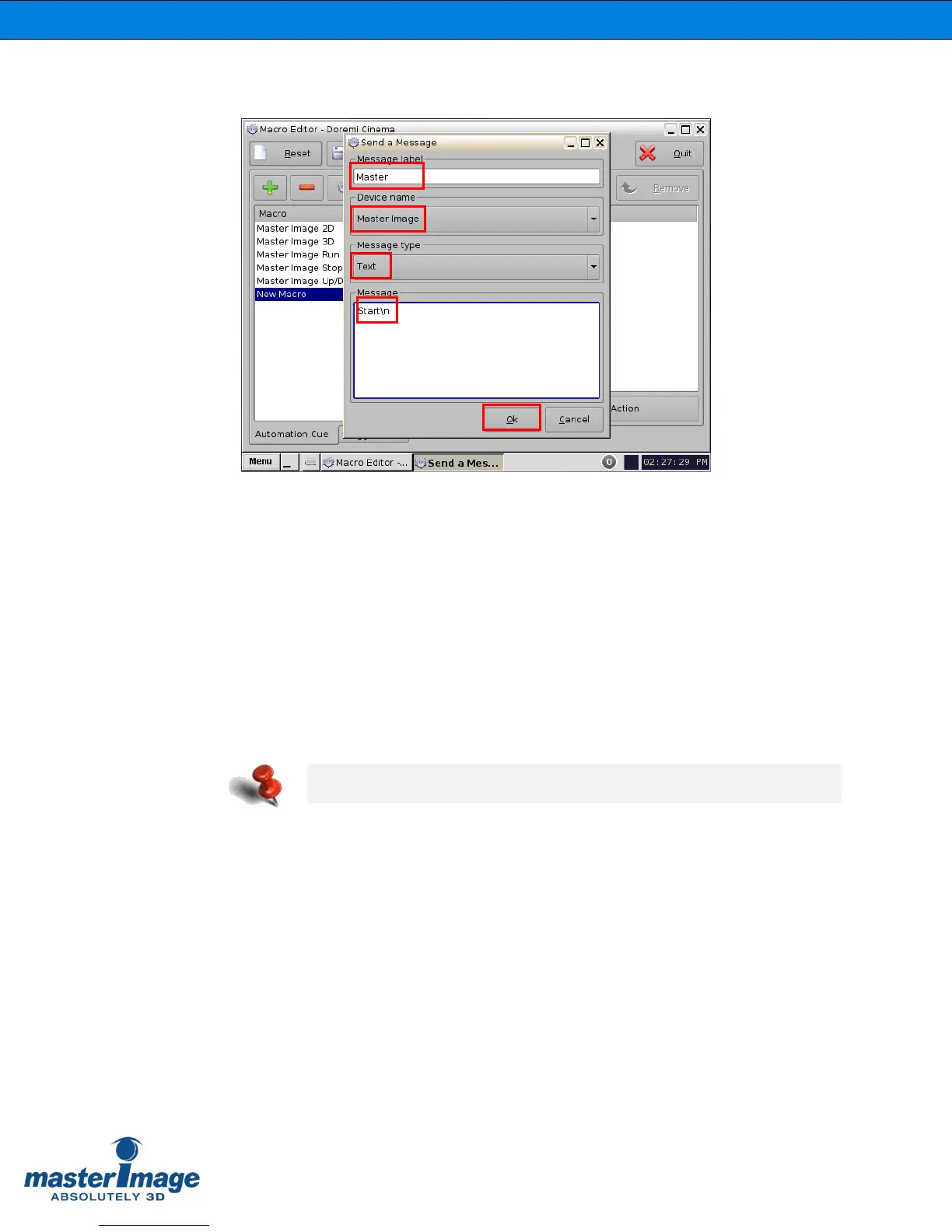
4. Highlight the Input/Output option and Send Message, and then click the Add
button. The following configuration window will appear:
5. In this window, choose the device MasterImage from the Device name
dropdown list and type in the Message label of MasterImage Start. Ensure the
Message type is Text and type Start\n in the Message box. After all fields have
been completed click the OK button.
6. Repeat this step for the remaining four macros entering the corresponding
message text:
MasterImage Stop Stop\n
MasterImage 2D PFD DOWN\n (or 2D\n)
MasterImage 3D PFD UP\n (or 3D\n)
MasterImage Up/Down Stop PFD Stop\n (or LCM Stop\n)
7. Once all message text has been added, click the Save button from the main
Macro Editor screen.
8. Now when you return to the CineLister screen and click the Refresh button, the
macros will all display in the Automation Cues section (shown below) and can
be added to future playlists as required.
At the end of each command, add the text “\n” to complete the command


 To Next Page