Installation & Operation Manual | MI-WAVE3D
12.1. Ethernet Automation
This section covers the requirements for Ethernet automation in detail and explains
the process for the writing of macros for commonly found digital cinema servers in
the market.
If you require detailed information on other forms of automation control please
contact MasterImage at support@masterimage3d.com for details.
12.1.1. Doremi Server
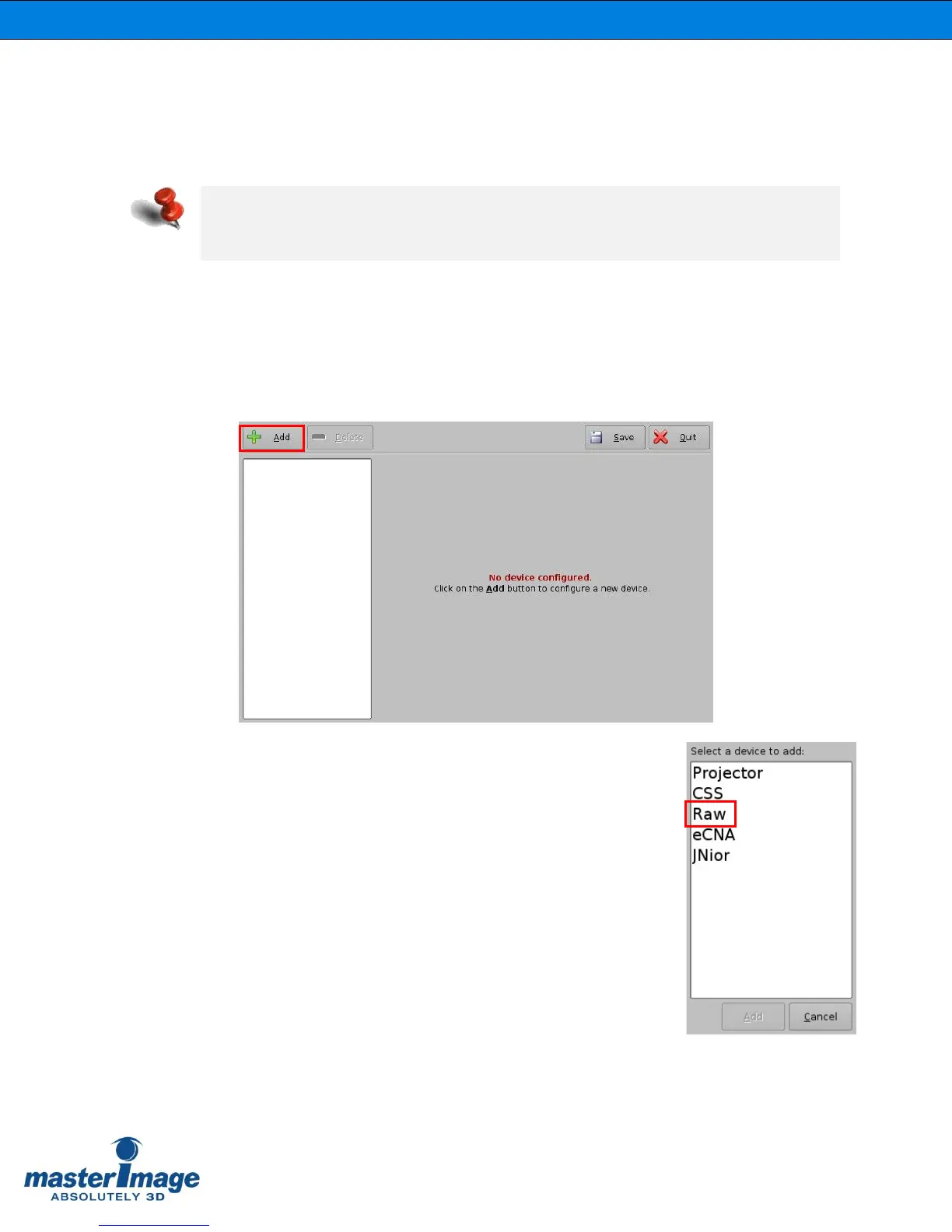
1. Within the server menu, open Device Manager (Menu > DTS Digital Cinema >
Device Manager)
2. Click the Add button and the list of devices will display
(shown right).
3. Select the Raw option to create MasterImage as a known
device in the server’s listing.
4. Complete the fields as shown below. Ensure the settings
entered match those of the MI-WAVE3D for IP Address
and Port Number. Check the Enabled box and save the
entry.
Attempt these steps only if you are familiar with server configuration settings. If you are
unsure of the processes involved, please contact the respective manufacturer of your
equipment for further information.


 To Next Page