3.2.2 Operator panel
,
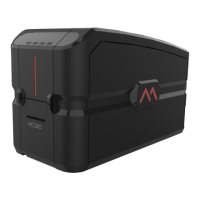
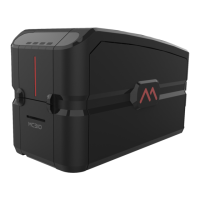
The front operator panel consists of 4 soft touch buttons and 4 status LEDs along with an informative display.
• Button operation
o Power button (Shown as 1)
▪ Short press to turn the printer on
▪ Long press to turn off the printer when it is ON
o Selection button (Shown as 2)
▪ To select the menu option and transit to respective sub-menu
▪ Selecting option in sub-menu. Ex. Standard Cleaning, chip encoder setting.
o Menu/Scroll button (Shown as 3)
▪ Button will be used to enter in Menu.
▪ Same button will be used to scroll to next menu item.
▪ Same button will be used for incrementing the value while setting Sleep time.
• Status LED
o Power LED (Shown as 5)
▪ White - indicates printer is ON
o Status LED – Ready (Shown as 6)
▪ Amber – indicates ribbon is nearing end.
▪ Amber blinking – indicates there is no card OR no ribbon.
o Status LED – Error (Shown as 7)
▪ Red – indicates there is an error, card jam, cover open etc.
▪ Red blinking – indicates printer requires servicing OR firmware upgrade.
▪ Green – indicates printer is ready for printing.
▪ Green blinking – indicates printer is receiving data or printing.
o Wi-Fi LED – (Shown as 8)
▪ Off – indicates Wi-Fi is not available.
▪ Blue blinking – indicates Wi-Fi is available but not connected.
▪ Blue – indicates printer is connected.
o Input hopper LED – (Shown as 9)
▪ Off – indicates there is no card available.
▪ Red blinking – indicates number of cards in the hopper are running low.
▪ Red – indicates there are cards available in input hopper.


 To Next Page