5.2 Uninstall program tabs
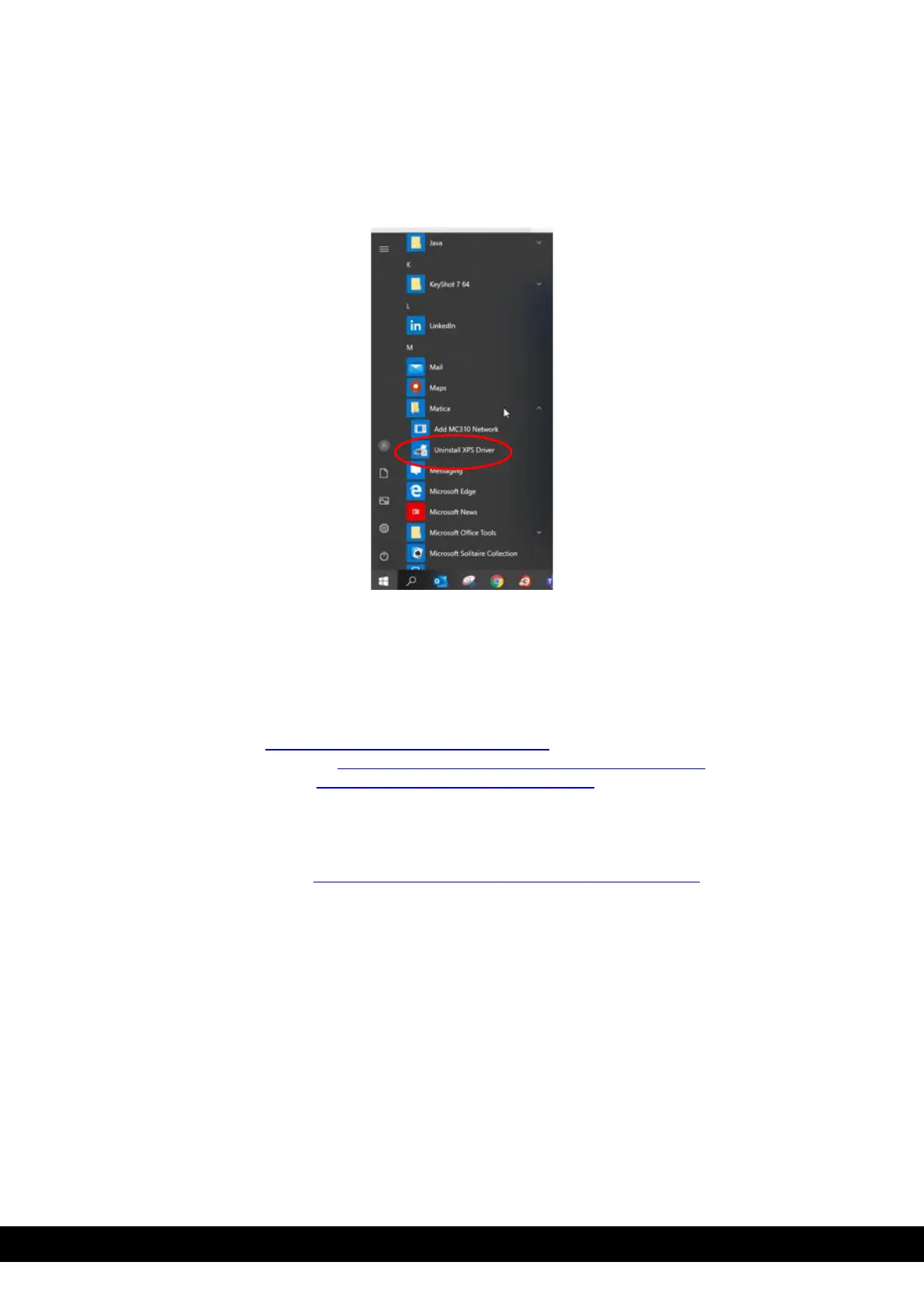
To uninstall the software:
Ensure the printer is disconnected from the PC/Laptop. Click the start button, select Matica and click ‘Uninstall XPS
driver’ and follow the remaining steps
1)
Once the XPS driver has been uninstalled, re-start the PC/Laptop.
5.2.1 Tools
In the tools menu, the user can manage different operations in the printer like the following:
• Printer cleaning, Refer to Chapter 6.2 (Standard Cleaning)
• Advanced printer cleaning, Refer to Chapter 6.3 (Card patch advanced Cleaning)
• Activate Duplex printing, Refer to Chapter 7.3 (Duplex activation)
• Update printer firmware
• Update Printer LCD firmware
• Perform PC/SC encoder check
• Update Printer FONT firmware
• Printhead replacement, Refer to Chapter 6.7 (Printhead replacement procedure)
The user can access the tool menu in the MC320x printer properties.
1)
Ensure that printer is connected to PC/Laptop through USB.
2)
Go to devices & printers and right click on the MC320x printer icon. Select printer properties from
drop down menu.


 To Next Page