Black plate (383,1)
IMPORTANT note abou t pairing and
automatic reconnection:
l
If pairing is redone on the same
mobile phone device, first clear
“Mazda” displayed on the
Bluetooth
®
setting screen of the
mobile device.
l
When the OS of the device is updated,
the pairing information may be deleted.
If this happens, reprogram the pairing
information to the Bluetooth
®
unit.
l
Before you pair your device, make sure
that Blueto oth
®
is “ON”, both on your
phone and on the vehicle.
Device selection
If several devices have been paired, the
Bluetooth
®
unit links the device last
paired. If you would like to link a
different paired device, it is necessary to
change the link. The order of device
priority after the link has been changed is
maintained even when the ignition is
switched off.
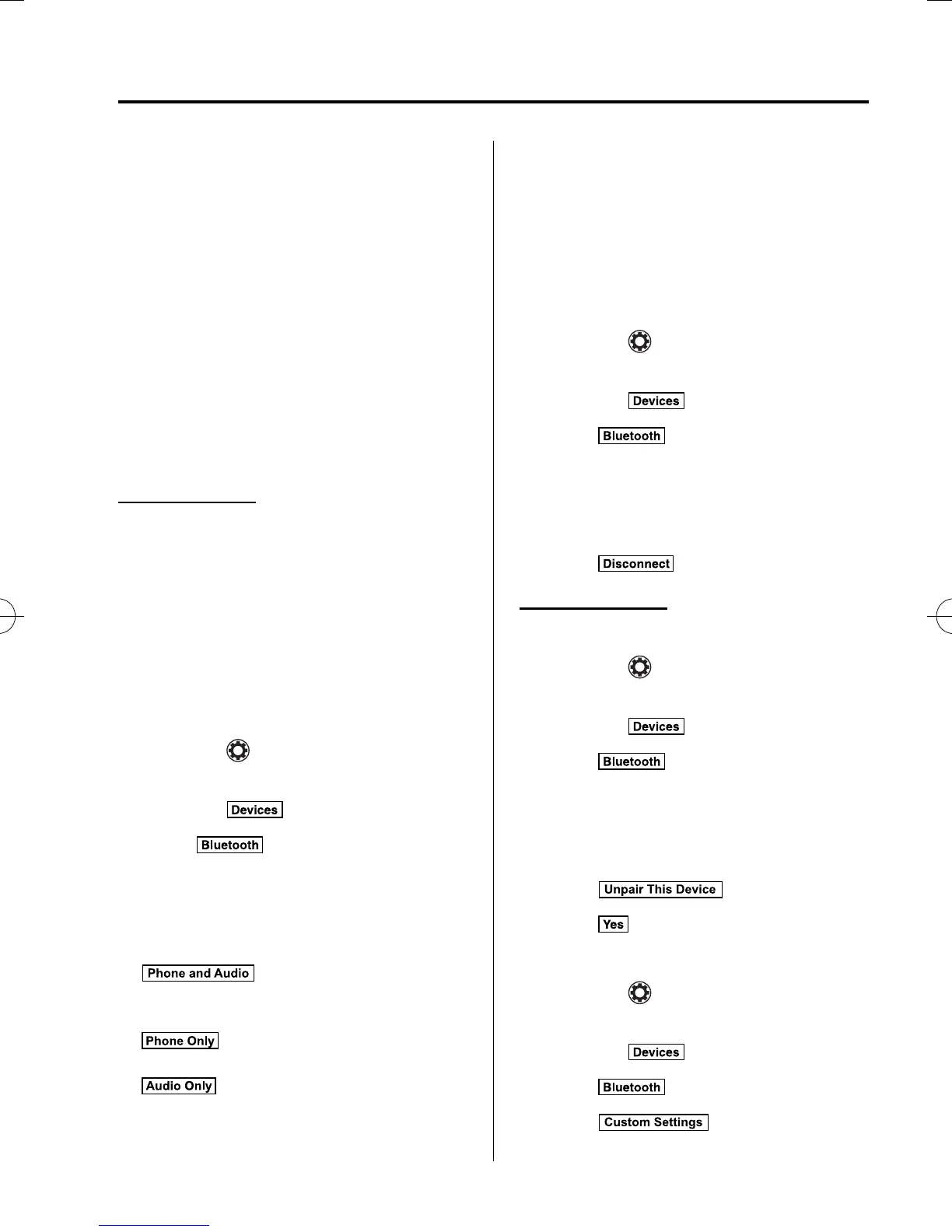
Connecting other devices
1. Select the
icon on the home screen
and display the Settings screen.
2. Select the
tab.
3. Select
.
4. Turn the Bluetooth
®
setting on.
5. Select the name of the device you
would like to connect.
6.
selection
Connects both devices as Hands-Free
and Blueto oth
®
audio.
selection
Connects as a Hands-Free device.
selection
Connects as Bluetooth
®
audio.
NOTE
The following functions can be used for the
Hands-Free or audio.
l
Hands-Free: Phone calls and E-mail/SMS
l
Audio: Bluetooth
®
audio, Pandora
®
, Aha
™
,
Stitcher
™
radio
Disconnecting a device
1. Select the
icon on the home screen
and display the Settings screen.
2. Select the
tab.
3. Select
.
4. Turn the Bluetooth
®
setting on.
5. Select the device name which is
currently connected.
6. Select
.
Deleting a device
Selecting and deleti ng devices
1. Select the
icon on the home screen
and display the Settings screen.
2. Select the
tab.
3. Select
.
4. Turn the Bluetooth
®
setting on.
5. Select the device name which you
would like to delete.
6. Select
.
7. Select
.
Deleting all devices
1. Select the
icon on the home screen
and display the Settings screen.
2. Select the
tab.
3. Select
.
4. Select
.
Interior Features
Bluetooth®
5-87
CX-5_8DV2-EA-14K_Edition5 Page383
Tuesday, November 24 2015 8:49 AM
Form No.8DV2-EA-14K



 To Next Page