8 Installation
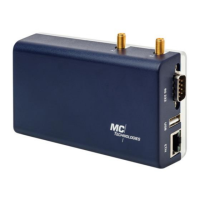
The MC100 Terminal/Gateway provides easy access to the Internet via the cellular network.
For its installation, a SIM card from your mobile network operator that has been activated
for data services (GPRS, UMTS, HSPA or LTE) is required.
Please follow the instructions step by step and configure the settings for the SIM card. An
incorrect PIN can lead to the SIM card being blocked.
Antenna
Mount the supplied antenna on connector "LTE" of the MC100. Check whether there is
sufficient local network coverage from your mobile phone provider.
A2 is for MIMO usage.
Inserting the SIM card
Insert your SIM card as shown in the figure below until it locks into place. Place your finger
on the SIM card latch (on the left of the SIM card) and gently slide the latch (Check from the
device) to the right until it clicks into place.
Power supply
The MC100 is operated with a supply voltage of 10 - 30V DC. Please connect an external DC
power supply with an output voltage of 10 - 30V DC to the power supply socket "POW" (e.g.
12V → 1.2A or 24V → 600mA).
Please connect the power supply unit to the power supply or switch on the power supply. A
green "Power" LED will light up (see transparent bottom shell on the side of the antenna
connectors).
During the boot sequence LED 5 flashes in heart beating pattern, after a short initialization
phase (approx. 40 seconds) the device is ready for operation and LED 5 is always ON.
Configuration via web interface
The MC100 can be configured to set mobile phone parameters (SIM pin, APN, etc.) via an
integrated web interface. To do this, connect the Ethernet interface of your PC and the
Ethernet interfaces of the MC100 (ETH) with a network cable.
• The PC must obtain its IP address automatically.
• Open a browser on the PC. Firefox browser is preferred. Using Chrome browser Luci
interface load slowly and often react only after repeated "refresh".
• The MC100 can be reached via web interface using the IP address 192.168.2.1.
For authentication, a user name and password must be entered. The default user name is
"root". Please check the product label on the device or the box for a default password. If
there is none specified, no default password is set, and it can be left empty. For security
reasons, click on "Go to Password Configuration" in the yellow window and change/set the
"Password" here.


 To Next Page