P3V Veterinary Digital Ultrasonic Diagnostic Imaging System User Manual
- 79 -
The default setting is to load images by serial numbers forward. When the number reaches the
last, it will return to 1.
During playing back, press Save As to save the file in BMP, JPG, FRM, DCM, CIN or AVI
format. You can save files to the local disk or U disk. For details about operation method, please
refer to 6.8.1 “Saving Files”
NOTE:
1. Cine review is unavailable in M-mode.
2. Cine review can’t be performed at the beginning of scanning or probe switching. You
should wait a moment.
3. The FPS (frames per second) is adjustable, from 5 f/s to 50 f/s, in increments of 5 f/s.
4. After opening a cine file, you can perform measurements, add comments and the
body mark on the image and print them in the report. See section 5.4.5 Comment
function and section 5.4.6. Body mark function for detailed operation information.
6.8. File Management
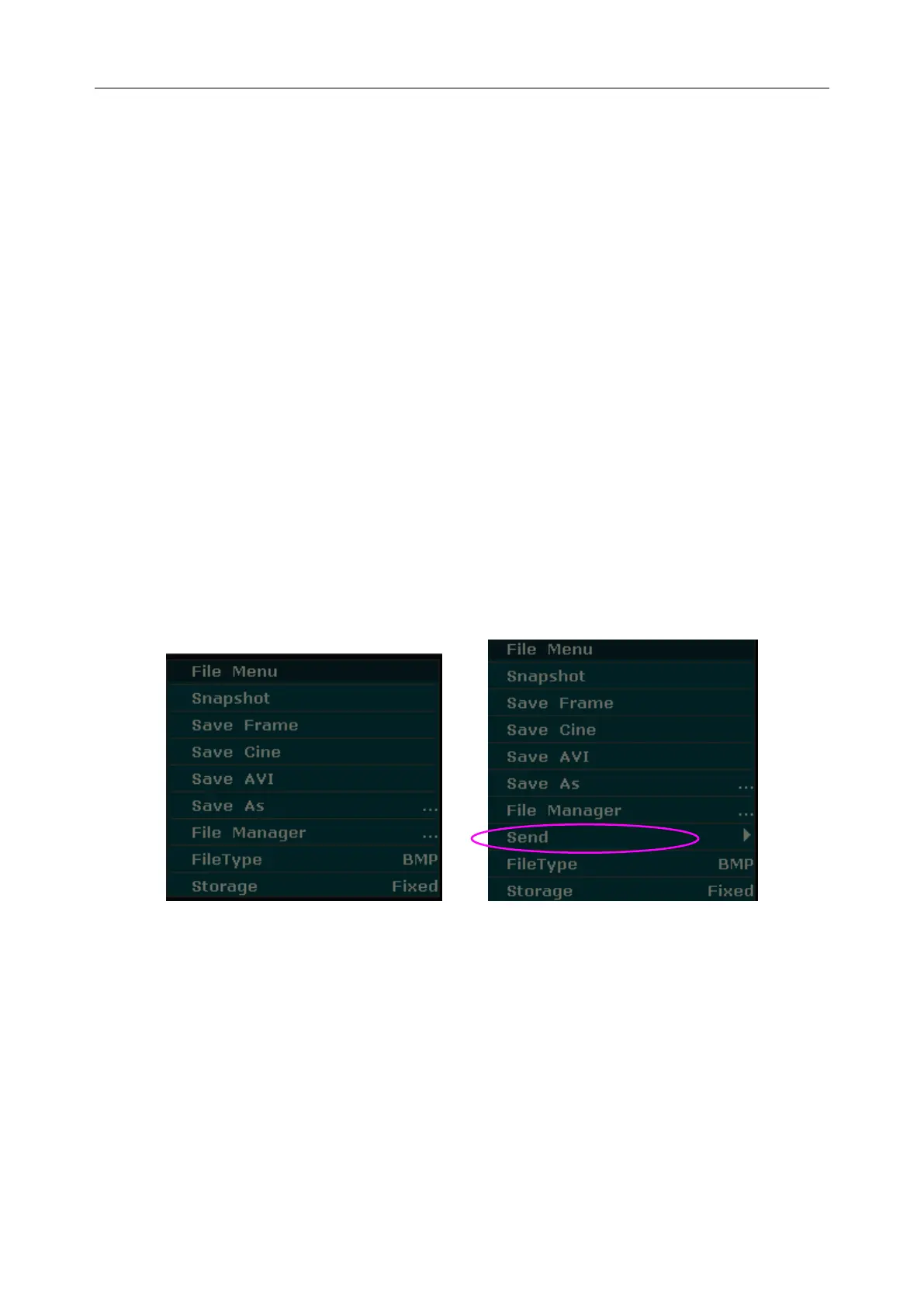
Press File to display the file menu, shown as below.
Figure 6-23 File Menu (the left—with no DICOM installed, the right—with DICOM installed)
6.8.1. Saving Files
File types:
The file types include BMP, JPG, DCM (if DICOM is installed), CIN, FRM, and AVI.
To choose a storage disk:
Highlight Storage in the file menu and press Set repeatedly to cycle between Fixed, USB-Disk
and portable hard disk (A:\, B:\, C:\). If no USB-disk or portable hard disk is connected, only the
Fixed storage disk will be available. You can set the default storage disk by using Preset>System



 To Next Page