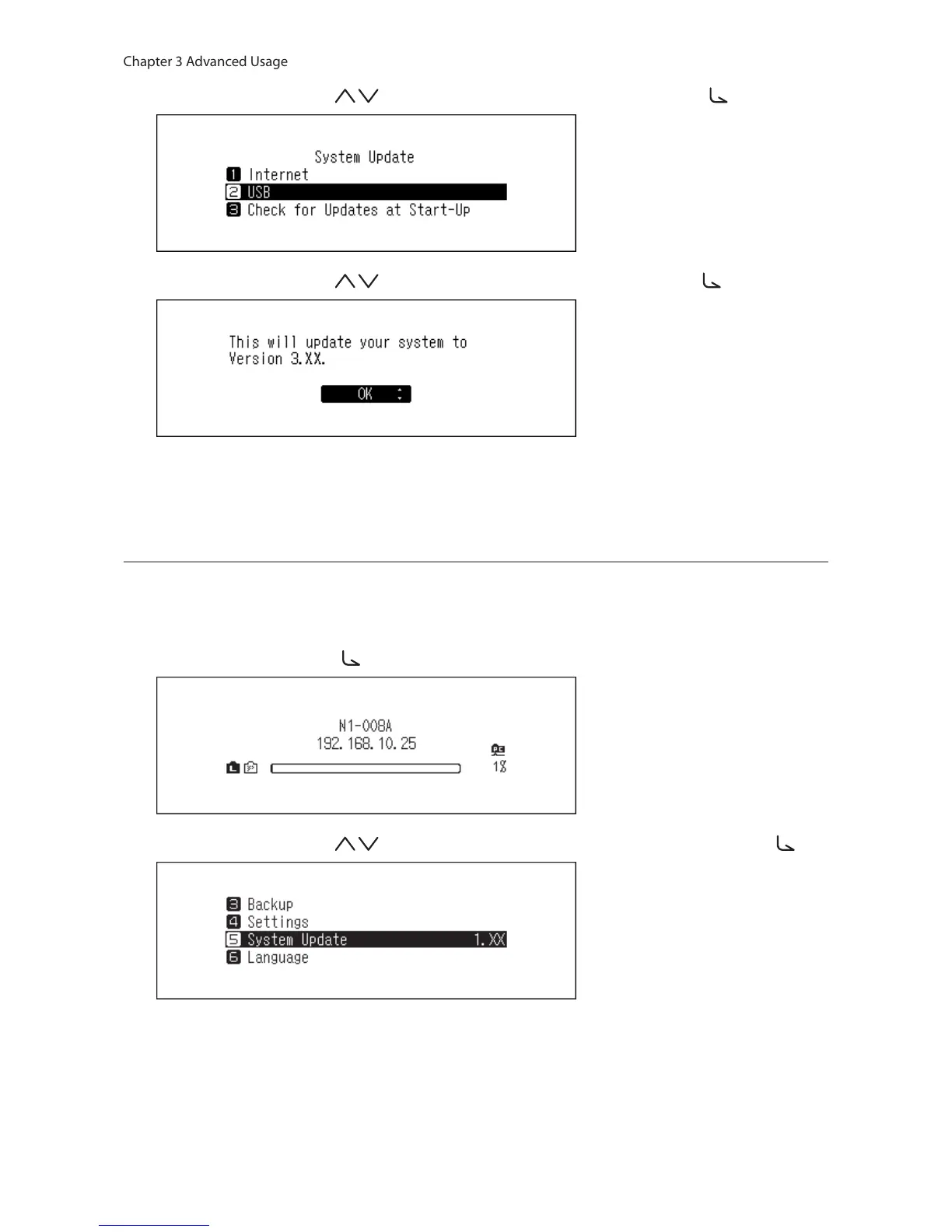
7 Press the Up/Down buttons ( ) and select “USB”, then press the Menu/Enter button ( ).
8 Press the Up/Down buttons ( ) and select “OK”, then press the Menu/Enter button ( ).
9 The N10/N100 will restart. Wait until the home screen is displayed.
10 When the home screen is displayed, disconnect the USB drive.
Checking for Updates Automatically
The N10/N100 can check if newer firmware is released when turning on the N10/N100. If new firmware is detected,
you can continue to update the firmware. It is enabled by default. To disable checking for firmware releases
automatically, follow the procedure below.
1 Press the Menu/Enter button ( ) to display the menu list at the home screen.
2 Press the Up/Down buttons ( ) and select “System Update”, then press the Menu/Enter button ( ).


 To Next Page