EasyManua.ls Logo

Mellanox Technologies IS5030Q-2SFC - User Manual

Mellanox Technologies IS5030Q-2SFC
83 pages
Print Icon
To Next Page IconTo Next Page
Loading...
www.mellanox.com
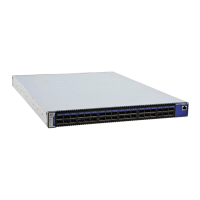
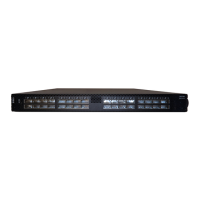
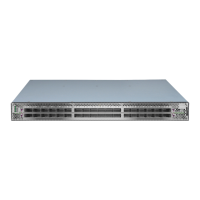
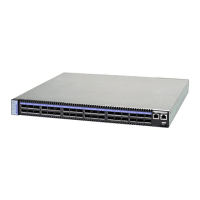
InfiniScale® IV 36-Port QSFP 40 Gb/s
InfiniBand Switch User Manual
P/N:
IS5025D-1BRC, IS5025Q-1BFC, IS5025Q-1SRC, IS5025Q-1SFC, IS5025Q-1BRC, IS5025Q-2SRC,
IS5025Q-2BRC, IS5030Q-1BFC, IS5030Q-1SFC, IS5030Q-1BRC, IS5030Q-2BFC, IS5030Q-2SFC,
IS5030Q-2BRC, IS5035Q-1BFC, IS5035Q-1BRC, IS5035Q-2BFC, IS5035Q-2BRC, IS5035Q-1SFC,
IS5035Q-2SFC
Rev 3.4

Table of Contents

Questions and Answers

  • T
    Theresa MedinaAug 20, 2025
    Why is the power supply unit LED not lit on my Mellanox Technologies IS5030Q-2SFC Switch?
    • V
      victoriamillerAug 20, 2025
      If the power supply unit LED is not lit or is red, try the following: * Ensure the power cable is correctly plugged into a working outlet. * Verify the power cable's voltage is within the range of 100-240 volts AC. * Confirm the airflow direction of the PSUs aligns with the fan module airflow. * Try removing and reinstalling the power cable. * Try removing and reinstalling the PSU.
  • M
    Michael DorseyAug 22, 2025
    What to do if my Mellanox Technologies Switch is not working and unresponsive?
    • D
      Daniel GarzaAug 22, 2025
      If your Mellanox Technologies Switch is unresponsive, try these steps: 1. Reset the switch. 2. If resetting doesn't work, unplug the switch. 3. Wait 5 minutes. 4. Plug the switch back in. 5. If the switch still doesn't power on, check the power supplies. 6. If the switch powers on, use the FabricIT management CLI or Web GUI to find the cause of the shutdown.
  • D
    Derek GrantAug 25, 2025
    What to do if Mellanox Technologies Switch is off?
    • P
      Patricia CarlsonAug 25, 2025
      If your Mellanox Technologies Switch is off, follow these steps: 1. Unplug the switch. 2. Wait 5 minutes. 3. Plug the switch back in. 4. If it doesn't turn on, check the power supplies. 5. If it does turn on, use the FabricIT management CLI or Web GUI to determine why it shut down. 6. Check the temperature. 7. Check the fan status.
  • J
    Joseph JohnsAug 26, 2025
    How to fix Mellanox Technologies IS5030Q-2SFC Switch power LED shutting off?
    • J
      Jasmin NicholsonAug 26, 2025
      If the power LED for your Mellanox Technologies Switch is off, ensure adequate ventilation. Check for obstructions blocking the front or rear of the chassis. Make sure the fan modules and ventilation holes are not blocked, especially by dust. If dust is present, clean the fan unit and remove dust from the front and rear panels using a vacuum cleaner.
  • M
    Mary McbrideAug 28, 2025
    Why is the link LED for the InfiniBand connector not coming on for Mellanox Technologies IS5030Q-2SFC Switch?
    • A
      Anthony FullerAug 28, 2025
      If the link LED for the InfiniBand connector on your Mellanox Technologies Switch doesn't light up: * Verify that both ends of the cable are securely connected. * Ensure the locks on the cable ends are secured. * Confirm that the latest firmware version is installed on both the HCA and the switch. * If using media adapters, check that all connections are good, tight, and secure.
  • J
    jameschavezAug 30, 2025
    What to do if the green power LED for the fans does not come on in Mellanox Technologies IS5030Q-2SFC?
    • S
      sallytoddAug 30, 2025
      If the green power LED for the fans on your Mellanox Technologies Switch is not lit: * Check that the Power LEDs are on. * Remove and reinstall the fan unit, ensuring the mating connector of the new unit is free of any dirt or obstructions.
  • S
    Stacey HowellSep 1, 2025
    What to do if the activity LED does not come on for Mellanox Technologies IS5030Q-2SFC?
    • A
      Andrew Higgins IVSep 1, 2025
      If the activity LED on your Mellanox Technologies Switch does not illuminate, verify that the Subnet Manager has been started.
  • A
    Alison JordanSep 3, 2025
    What to do if Status LED and or Status Health LED is red on Mellanox Technologies IS5030Q-2SFC?
    • K
      Kelly BishopSep 3, 2025
      Unplug the Mellanox Technologies Switch and call your Mellanox representative.
  • C
    Chad CardenasSep 4, 2025
    What to do if the LED on the Mellanox Technologies IS5030Q-2SFC power supply unit is not lit?
    • N
      nathan07Sep 4, 2025
      If the LED on the PSU is not lit or is red, ensure the power cable is properly connected to a working outlet and that it supports a voltage within the range of 100 - 240 volts AC. Also, verify that the airflow direction of the PSUs is consistent with the Fan module airflow. If issues persist, try removing and reinstalling the power cable, and then the PSU itself.
  • P
    paynejaniceSep 6, 2025
    How to fix the InfiniBand connector link LED if it's not on for Mellanox Technologies IS5030Q-2SFC Switch?
    • A
      Ann JohnsonSep 6, 2025
      First, check that both ends of the cable are securely connected and that the locks on the ends are fastened. Ensure that the latest firmware version is installed on both the HCA and the switch. If you are using media adapters, verify that all connections are properly secured.

Summary

Chapter 1 Overview

1.1 Serial Number and Product Version Information

Identifies serial number and GUID for switch models.

1.1.1 Externally Managed Switches

Location of serial number and GUID on externally managed switches.

1.1.2 Internally Managed Switches

Location of serial number, GUID, and MAC for internally managed switches.

1.1.3 License Key

Details the location of the license key for FabricIT on the pull-out tab.

Chapter 3 Basic Operation and Installation

3.1 Switch Platform Hardware Overview

Describes the front and rear views of the switch, ports, and modules.

3.1.1 Status LEDs

Details system status indicators on the connector and power side panels.

3.1.1.1 System Status Indicators

Explains the meaning of system status LED configurations (Green, Yellow, Red, Off).

3.1.1.2 Power Side Panel System LED

Describes the system health LED on the power side panel.

3.1.1.3 Port Connector LED assignment

Explains port status based on LED indications for physical and logical links.

3.1.1.4 Power Supply Status Indicators

Details status indicators for Power Supply Units (PSUs).

3.1.1.5 Fan Status Indicators

Explains the status indications for the fan module.

3.1.2 Reset Button

Describes the function and operation of the reset button.

3.2 Air Flow

Discusses the two possible air flow patterns for the switch.

3.3 QSFP Cable Power Budget Classification

Specifies the power budget classification for QSFP cables.

3.4 Interfaces

Overview of the different interfaces available for connecting to the switch.

3.4.1 Port Connector Interfaces

Describes the 36 QSFP ports on the connector side panel.

3.4.1.1 36 Port Switches

Details the layout and orientation of the 36 QSFP ports.

3.4.1.2 Top and Bottom Orientation

Illustrates the orientation of ports on the top and bottom rows.

3.4.2 Management and FW updating Interfaces

Lists the interfaces for management and firmware updates (MGT, USB, CONSOLE).

3.4.2.1 RJ-45 Connector (CONSOLE) Internally Managed Switches only

Describes the CONSOLE port for initial host PC connection.

3.4.2.2 RJ-45 Connector (I2 C) Externally Managed Switches only

Details the I2C connector for debug and troubleshooting on unmanaged switches.

3.4.2.3 RJ-45 Ethernet Connector (MGT) Internally Managed Switches

Explains the MGT port for remote management connections.

3.4.2.4 USB interface

Describes the USB connector for software and firmware updates.

3.4.2.5 I2 C Interface

Details the I2C interface for debug and troubleshooting.

3.5 Package Contents

Lists the items included in the switch package.

3.6 Switch Platform Installation and Operation

Introduces the installation and initialization process for the switch platform.

3.6.1 Installation Safety Warnings

Provides critical safety warnings for equipment installation.

3.6.2 Mechanical Installation

Details the procedure for physically installing the switch into a rack.

3.6.2.1 Minimum and Maximum Rack Depth for this Switch

Specifies rack depth requirements for different rail kits and switch sizes.

3.6.2.2 Installing the Switch in the Rack

Outlines the steps for installing the switch using rack rail kits.

3.6.3 Grounding the Switch

Explains the importance and procedure for grounding the switch.

3.6.4 Power Connections and Initial Power On

Guides on connecting power and performing the initial power-on sequence.

3.6.5 Extracting and Inserting the Power Supply Unit

Provides instructions for removing and installing power supply units (PSUs).

3.6.6 InfiniBand Cable Installation

Details how to install and remove InfiniBand cables.

3.6.7 Extracting and Inserting the Fan Unit

Guides on removing and installing the fan module.

3.7 Disassembly of the Switch from the Rack

Steps for removing the switch from its rack mounting.

3.8 Disposal

Information on proper disposal of the equipment.

Chapter 4 Management and Tools Overview

4.1 Network Management and Clustering Software

Information on Mellanox OpenFabric software for network management.

4.2 Internally Managed Switch System

Describes the features of the internally managed switch system.

4.2.1 Subnet Management

Details the features of subnet management within the switch.

4.2.2 Fabric Management with UFM

Explains Mellanox Unified Fabric Manager (UFM) capabilities.

4.2.3 Configuring the Switch for the First Time

Steps for initial configuration of the switch via the CONSOLE port.

4.2.4 Starting a Remote Connection to the Switch

Methods for establishing remote connections (SSH, Telnet, WEB).

4.2.4.1 Accessing the CPU via the Ethernet Connector

How to access the switch CPU using the Ethernet connector.

4.2.5 Downloading Firmware

Instructions on obtaining and downloading new firmware versions.

4.3 Unmanaged (Externally Managed) Switch

Specifics for unmanaged switches, including interface differences.

4.3.1 I2 C Connector

Details the I2C connector's use for debug and troubleshooting.

4.3.2 Current Firmware Revision

Commands to check the currently installed firmware version.

4.3.2.1 Instructions for Reprogramming Over the InfiniBand Network

Steps for updating firmware via the InfiniBand network.

4.3.2.2 Reprogramming the Switch Through The I2 C Port

Procedure for reprogramming firmware using the I2C port.

4.3.2.3 Instructions for Reprogramming Through the I2 C Port

Detailed steps for reprogramming via the I2C port using MTUSB-1.

4.3.3 How to Get Mellanox Firmware Tools (MFT)

Information on downloading Mellanox Firmware Tools and their documentation.

4.3.4 Open SM

Instructions for downloading and using the OpenSM subnet manager.

Chapter 5 Troubleshooting

Power supply unit:

Troubleshooting steps for power supply unit related issues.

The power LED for the switch shuts off:

Troubleshooting for the switch power LED being off.

The green power LED for the fans does not come on:

Troubleshooting for the fan status LED not illuminating.

The link LED for the InfiniBand connector does not come on:

Troubleshooting for InfiniBand link LEDs not functioning.

The activity LED does not come on:

Troubleshooting for the activity LED not lighting up.

The switch is off:

Steps to diagnose and resolve when the switch is completely off.

The switch is not working and unresponsive:

Steps for when the switch is unresponsive.

The last software update did not succeed:

Troubleshooting steps if a firmware update fails.

Appendix A: Specification

Table 10 - IS5025 Specification Data

Detailed specifications for the IS5025 switch model.

Table 11 - IS5030 Specification Data

Detailed specifications for the IS5030 switch model.

Table 12 - IS5035 Specification Data

Detailed specifications for the IS5035 switch model.

A.1 EMC Certifications

Information on EMC certifications for the switch.

A.2 EMC Statements

General EMC statements applicable to the switch.

A.2.1 FCC Statements (USA)

FCC compliance statements for US operations.

A.2.2 EN Statements (Europe)

European compliance statements (EN55022).

A.2.3 ICES Statements (Canada)

Canadian compliance statements (ICES-003).

A.3 China CCC Warning Statement

Warning statements related to China CCC certification.

A.4 VCCI Statements (Japan)

VCCI compliance statements for Japan.

A.5 MIC Certification (Korea)

MIC certification details for Korean operations.

Appendix B: Passing the Power Cord From the Connector Side to the Power Side

Tools and Customer Supplied Parts

Lists tools and parts required for passing the power cord.

Parts included in the installation kit:

Details the components included in the rack installation kit.

Procedure

Step-by-step instructions for routing power cords in a rack.

Appendix C: QSFP Interface

Table 13 - InfiniBand QSFP Connector Pinout

Pinout details for the InfiniBand QSFP connector.

Appendix D: RJ45 CONSOLE Interface

Table 14 - RJ45 CONSOLE Pinout

Pinout and wiring color coding for the RJ45 CONSOLE interface.

Appendix E: Replacement Parts Ordering Numbers

Table 15 - Replacement Parts Ordering Numbers

Table listing part descriptions and their corresponding ordering numbers (OPN).

Appendix I: Special Regulations Regarding Finland, Sweden, Denmark, and Norway

Mellanox Technologies IS5030Q-2SFC Specifications

General IconGeneral
BrandMellanox Technologies
ModelIS5030Q-2SFC
CategorySwitch
LanguageEnglish

Related product manuals