— 52 —
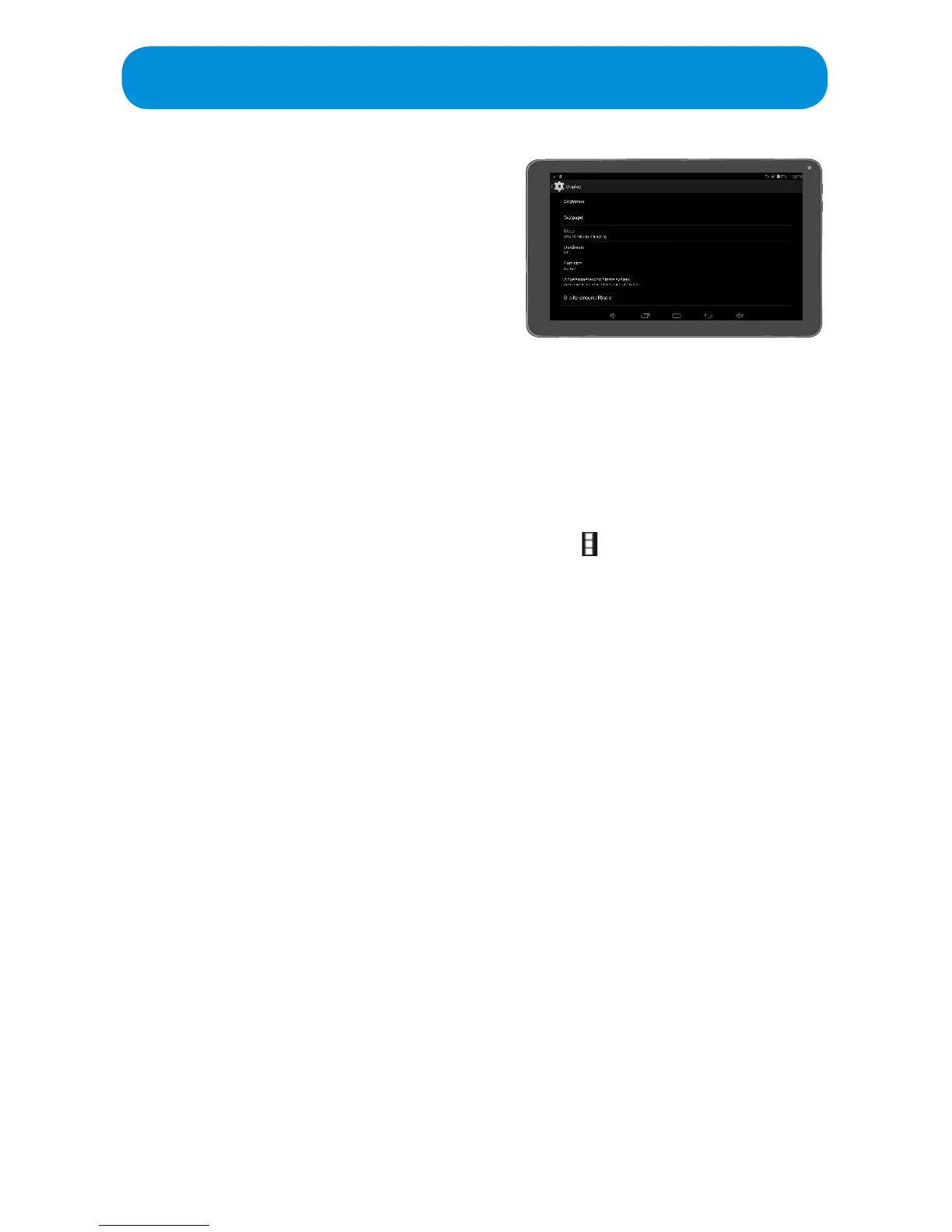
Display: Tap to set the following:
Brightness: Tap to set the Brightness.
Wallpaper: Tap to set the desired
wallpaper. You can choose from Live
Wallpapers (animated wallpapers), UHD
Player (Photos taken by the camera) or
Wallpapers (pre-installed wallpapers)
Sleep: Tap to set the desired time this
Tablet will stay on without activity. For example, set 1 minute and the Tablet
willturnoafteroneminuteofinactivity.
Daydream: A special feature that will turn the Tablet into a clock, photo
album, etc. when connected to AC and/or docked. Tap Daydream ; the
Daydream setup screen will appear. Ta p the switch at the top right to turn
this function On, then tap WHEN TO DAYDREAM to specify when the
daydream will be activate. Then tap the desired feature to appear (Clock,
Colors, Photo Frame or Photo Table) and tap the icon to set the respective
feature’s options. Now when the Tablet is docked and/or charged (depending
on what you selected, the unit will show that feature!
Font Size: Tap to set the desired font size (Small, Normal, Large or Huge).
Accelerometer Coordinate System: If is recommended to keep this set to
Default Coordinate System unless a game system requests it to change.
Gravity Sensor Calibration: Tap to set the Gravity Sensor Calibration (the tilt
sensitivity).Alwaysperformonaattable.
Cast Screen: Tap to cast (mirror) this tablet’s screen to another device such
as a TV, PC, another tablet, etc.). The receiver must have an Android Dongle
or similar to accept the “cast”.
Full Screen Mode: Ta p toturnthisoptionOnorO.TurningthisoptionOn
will set Wi-Fi to full screen mode.
Miracast Output Display Control: Tap for Miracast Display (peer to peer
wireless screencasting via Wi-Fi). Full Screen Mode must be On to utilize this
function.
Smart Color: TaptoturnthisoptionOnorO.TurningthisoptionOnwill
give better color when playing games or viewing videos and photos.
Demo Mode: TaptoturnthisoptionOnorO.“Demomode”willshowthe
dierencebetween“Smart”and“Normal”color(w/o“SmartColor”function).
Intelligent Backlight: Ta p toturnthisoptionOnorO.Turningthisoption
On will darken the backlight slightly to save power.
Demo Mode: TaptoturnthisoptionOnorO.“Demomode”willshowthe
dierencebetween“Intelligent”and“Normal”backlightfunction.
Settings


 To Next Page