22
7.5.3 Screen Rotation
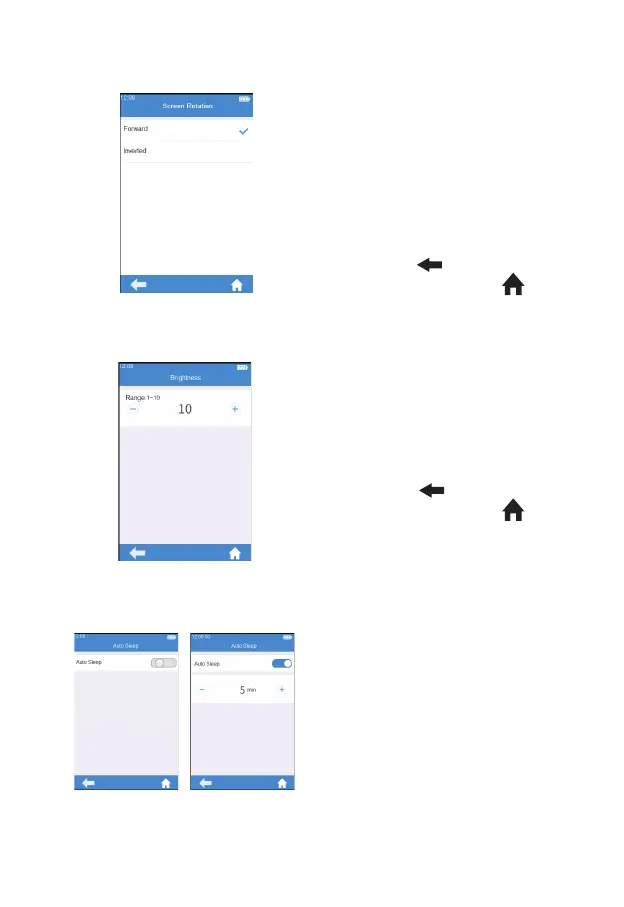
Press the "Screen Rotation" from
the System Parameter screen
(Figure 3-17) to enter the screen
for selecting screen rotation (Figure
3-20). Change the settings and
rotate the screen for 180°, then
the text direction is adjusted
automatically. The test strip is
inserted from the lower part by
default. Click "
" to return to the
previous screen and click "
" to
return to the main menu.
7.5.4 Brightness Adjustment
Click "Brightness" from the
System Parameter screen (Figure
3-17) to enter the brightness
adjustment screen (Figure 3-21).
The adjustment range is between 1
and 10. Click "
" to return to the
previous screen and click " " to
return to the main menu.
7.5.5 Sleep Setting
Click "Auto Sleep" from the System
Parameter screen (Figure 3-17) to
enter the sleep setting screen (Figure
3-22). The auto sleep function is
turned off when the button is grayed
out. The auto sleep function is
turned on when the button is blue,
and the user can set the idle time
value before the instrument enters
auto sleep mode. Insert the test
strip or re-power the instrument to
wake it up from the sleep mode.
(3-20)
(3-21)
(3-22)


 To Next Page